<?xml version="1.0" encoding="UTF-8"?><feed
	xmlns="http://www.w3.org/2005/Atom"
	xmlns:thr="http://purl.org/syndication/thread/1.0"
	xml:lang="ja"
	>
	<title type="text">アスタWorks</title>
	<subtitle type="text">面倒を「ラク」にするためのノウハウ発信。ITやメルマガを活用してあなたの業務の効率化をお手伝いします。</subtitle>

	<updated>2026-05-15T06:55:39Z</updated>

	<link rel="alternate" type="text/html" href="https://blog.astha.jp" />
	<id>https://blog.astha.jp/feed/atom/</id>
	<link rel="self" type="application/atom+xml" href="https://blog.astha.jp/feed/atom/" />

	<generator uri="https://wordpress.org/" version="6.9.4">WordPress</generator>
<icon>https://blog.astha.jp/wp-content/uploads/2023/02/favicon-75x75.ico</icon>
<link rel="hub" href="https://pubsubhubbub.appspot.com" />
<link rel="hub" href="https://pubsubhubbub.superfeedr.com" />
<link rel="hub" href="https://websubhub.com/hub" />
<link rel="self" href="https://blog.astha.jp/feed/atom/" />
	<entry>
		<author>
			<name>auto_post</name>
					</author>

		<title type="html"><![CDATA[【リサーチ・デザイン・実装】すべての工程をAIで進めた自社サイトリニューアルの話]]></title>
		<link rel="alternate" type="text/html" href="https://blog.astha.jp/ai-site-renewal-full-process/" />

		<id>https://blog.astha.jp/?p=4418</id>
		<updated>2026-05-15T06:55:39Z</updated>
		<published>2026-05-15T06:39:31Z</published>
		<category scheme="https://blog.astha.jp" term="IT活用" />
		<summary type="html"><![CDATA[<p>コーポレートサイトのリニューアルをリサーチ・デザイン・実装の全工程でAIを使って進めました。Codexで競合48社を自動キャプチャ、ChatGPT image 2.0でモックアップを17案生成、Claude Codeで実装。プロがAIを使うと何が変わるのか、体験をそのまま書きます。</p>
<p>The post <a href="https://blog.astha.jp/ai-site-renewal-full-process/">【リサーチ・デザイン・実装】すべての工程をAIで進めた自社サイトリニューアルの話</a> first appeared on <a href="https://blog.astha.jp">アスタWorks</a>.</p>]]></summary>

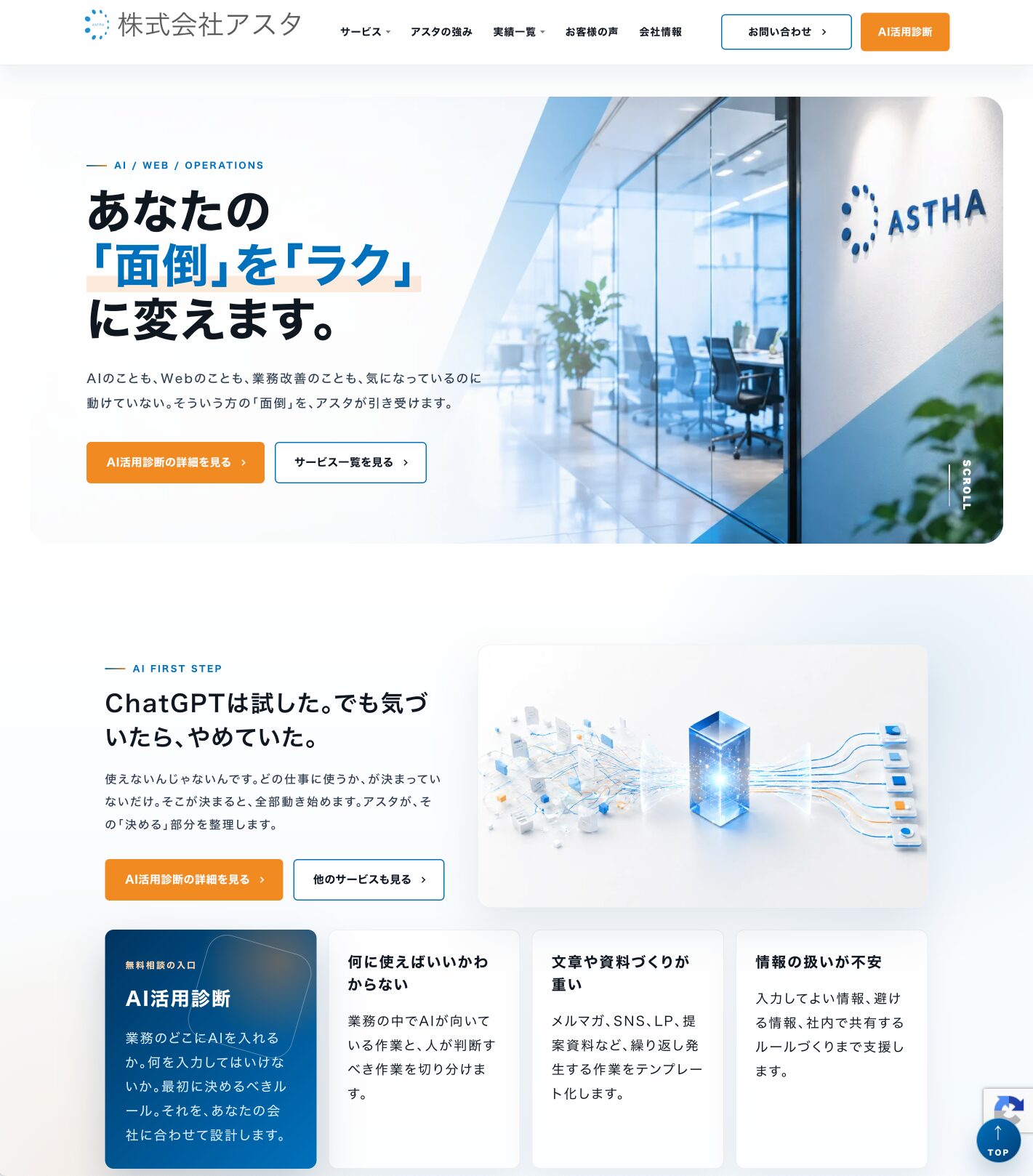
					<content type="html" xml:base="https://blog.astha.jp/ai-site-renewal-full-process/"><![CDATA[<p>このサイト、どうやって作ったと思いますか？</p>


<p><span style="font-size: 20px" class="font-size"><img src="https://s.w.org/images/core/emoji/17.0.2/72x72/25b6.png" alt="▶" class="wp-smiley" style="height: 1em; max-height: 1em;" /> <a href="https://astha.jp" target="_blank" rel="noopener">株式会社アスタ</a></span></p>


<figure class="wp-block-image size-full"><img fetchpriority="high" decoding="async" width="1421" height="1618" src="https://blog.astha.jp/wp-content/uploads/2026/05/7cc74b0ef9fa5443cbceeca569fe9e05.jpg" alt="" class="wp-image-4428" srcset="https://blog.astha.jp/wp-content/uploads/2026/05/7cc74b0ef9fa5443cbceeca569fe9e05.jpg 1421w, https://blog.astha.jp/wp-content/uploads/2026/05/7cc74b0ef9fa5443cbceeca569fe9e05-263x300.jpg 263w, https://blog.astha.jp/wp-content/uploads/2026/05/7cc74b0ef9fa5443cbceeca569fe9e05-899x1024.jpg 899w, https://blog.astha.jp/wp-content/uploads/2026/05/7cc74b0ef9fa5443cbceeca569fe9e05-768x874.jpg 768w, https://blog.astha.jp/wp-content/uploads/2026/05/7cc74b0ef9fa5443cbceeca569fe9e05-1349x1536.jpg 1349w" sizes="(max-width: 1421px) 100vw, 1421px" /></figure>


<p>実は、、、<span class="luxe-hilight-yellow"><strong>リサーチ、デザイン、画像生成、実装——全工程AIだけで作成</strong></span>されています。</p>


<p>アスタはWebシステム制作／Webサイト制作などIT全般のお悩みを解決する会社です。</p>


<p>当然、コーポレートサイトなどゼロから作れます。</p>


<p>しかし、今回は手では一切コードは書いていません。</p>


<p>なぜAIを使おうと思ったのか、そして実際サイト制作も行う会社がAIを使うと何が変わるのか。</p>


<p>今回の体験をそのまま書いていきます。</p>


<h2 class="wp-block-heading">コードが書けるのに、なぜAIを使ったのか</h2>


<p>アスタはWebサイトの制作もシステム開発もゼロから対応できる会社です。</p>


<p>PHPやWordPressのテンプレートをスクラッチで書くことも、CSSをゼロから組むことも、普通にやります。</p>


<p>「コードは自分で書くもの」——ずっとそう思っていました。</p>


<p>しかし、今回はそれをやめて、すべてをAIにまかせてみました。</p>


<p>ここ最近のAIの進歩は目覚ましく、これまでは、、、</p>


<p><strong>・ショボいデザイン<br>・AIがよく使う人物画像<br>・AI独特の言い回し</strong></p>


<p>など、クオリティが低くてサイト制作には使えなかった部分が解消されつつあります。</p>


<p>デザインは人間と遜色がないか、それ以上のものが数秒で出来てきて、効果的な構成もすべてAIが考えてくれます。</p>


<p>おまけに手作業では何時間とかかることも、AIによって数分に短縮できます。</p>


<p>実際に、手作業であれば１ヶ月はかかるであろうリニューアルも１週間ちょっとで完成しました。</p>


<p>でも、AIを使ったのは「速さ」だけが理由じゃないんです。</p>


<p>AIを使うことで<strong>「調べられる量」「試せる案の数」「判断できる精度」</strong>——これが根本から変わりました。</p>


<p>たとえば競合調査。手作業で何十社も調べるのは、現実的ではありません。</p>


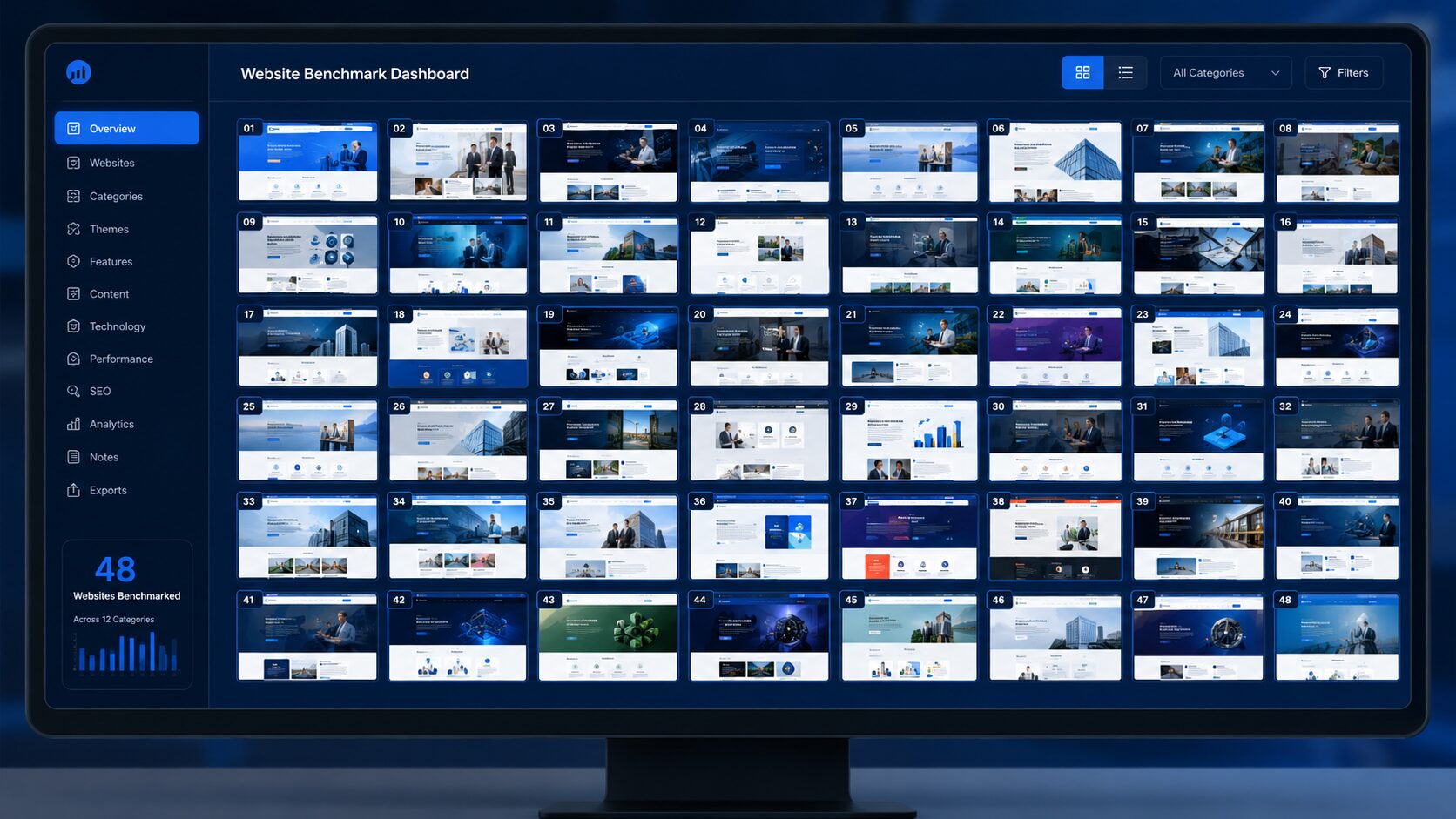
<p>今回は48社のサイトを、1時間とかからずにAIが自動でキャプチャして、見やすい一覧ページを作成してくれて、並べて確認することができました。</p>


<p><a href="https://astha.jp/benchmark-captures" target="_blank" rel="noopener" title=""><span class="luxe-dot-hilight-yellow"><strong><span style="font-size: 20px" class="font-size">ベンチマークサイト比較ページ</span></strong></span></a></p>


<p>デザインも同じように超効率化できました。</p>


<p>サイト制作完成形のイメージを確認するのにモックアップというものを作成するのですが、ラフとはいえこれを数種類作るのは相当大変です。</p>


<p>しかし、「1つだけ作って検討する」より「複数並べて選ぶ」ほうが、比較・検討がしやすく、自分たちが何を求めているかがはっきり見えます。</p>


<p>もし、AIを</p>


<p>・質問に答えてくれるもの<br>・画像を作ってくれるもの<br>・文章を作ってくれるもの</p>


<p>のように、ただ便利な道具として考えていると<strong>絶対に損</strong>です。</p>


<p>いまのAIは、</p>


<p><strong>・高度な分析をしてくれるアナリストであり、<br>・誰が見てもキレイなデザインと導線を作ってくれるデザイナーであり、<br>・超短時間で指示通りコーディングができるプログラマー</strong></p>


<p>として、すべて一人でこなす<strong>超絶優秀な部下</strong>でした。</p>


<h2 class="wp-block-heading">今回の制作フロー：リサーチ → デザイン → 実装</h2>


<p>今回のリニューアルは、3つのフェーズで進めました。</p>


<figure class="wp-block-table"><table class="has-fixed-layout"><thead><tr><th>フェーズ</th><th>やったこと</th><th>使ったAI</th></tr></thead><tbody><tr><td>STEP1 リサーチ</td><td>競合・ベンチマーク48社のサイトをキャプチャ・分析</td><td>Codex</td></tr><tr><td>STEP2 デザイン</td><td>コーポレートサイトのデザインモックアップを17案生成</td><td>ChatGPT image 2.0</td></tr><tr><td>STEP3 実装</td><td>WordPress CSS調整・PHPテンプレート生成・一括修正</td><td>Claude Code × Codex</td></tr></tbody></table></figure>


<p>ちなみにCodexは「コードを書くAI」と思われがちですが、それだけではなく、</p>


<p>・競合サイトの自動キャプチャ<br>・画像の自動作成<br>・現行サイトの現状分析<br>・リニューアル要件の整理<br>・静的ワイヤーフレームの制作</p>


<p>こういう作業もすべてやってくれます。</p>


<p>今回も制作の上流から下流まで、全部の作業に入ってもらっています。</p>


<h2 class="wp-block-heading">STEP1：競合48社のサイトを、AIで1時間かからず全部調べた</h2>


<p>まず最初に取り組んだのは、自社サイトの現状整理です。</p>


<p>「今のサイトで、何が伝わっていないのか」——ここを整理しないと、見た目だけ変えるリニューアルになってしまいます。</p>


<p>Codexに既存サイト（astha.jp）の全ページをクロールしてもらい、テキストをMDファイルとして保存。<br>「要約ではなく、忠実に抜き出したテキストも含めてほしい」と指示することで、精度を上げました。</p>


<p>続いて、競合・ベンチマーク48社のサイトを自動キャプチャ。</p>


<p>・和製ハイエンドIT企業（モンスターラボ、クラスメソッドなど）<br>・士業・コンサル型（リブ・コンサルティングなど）<br>・海外勢（IDEO、Accentureなど）<br>・インタラクティブ体験型（ライゾマティクス、BIRDMANなど）</p>


<p>など11カテゴリ、計48社。キャプチャ成功率は47/48社（約98%）です。</p>


<p><a href="https://astha.jp/benchmark-captures" target="_blank" rel="noopener" title=""><span class="luxe-dot-hilight-yellow"><strong><span style="font-size: 20px" class="font-size">ベンチマークサイト比較ページ</span></strong></span></a></p>


<figure class="wp-block-image size-full"><img decoding="async" width="1672" height="941" src="https://blog.astha.jp/wp-content/uploads/2026/05/image-13.jpg" alt="" class="wp-image-4444" srcset="https://blog.astha.jp/wp-content/uploads/2026/05/image-13.jpg 1672w, https://blog.astha.jp/wp-content/uploads/2026/05/image-13-300x169.jpg 300w, https://blog.astha.jp/wp-content/uploads/2026/05/image-13-1024x576.jpg 1024w, https://blog.astha.jp/wp-content/uploads/2026/05/image-13-768x432.jpg 768w, https://blog.astha.jp/wp-content/uploads/2026/05/image-13-1536x864.jpg 1536w" sizes="(max-width: 1672px) 100vw, 1672px" /><figcaption class="wp-element-caption">画像はイメージ</figcaption></figure>


<p>これだけ並べて比較できると、「自分たちがどこを目指すべきか」が、かなりわかりやすくなりました。</p>


<p>やはり比較する量が多いほど、判断の精度が上がりますよね。</p>


<p>同じような、競合調査、市場調査、事例収集などなど、、、「調べたいけど時間がない」と後回しにしていたことでもAIを使えばあっという間にできると感じました。</p>


<h2 class="wp-block-heading">STEP2：デザイン案を17個、AIに出させて並べて選んだ</h2>


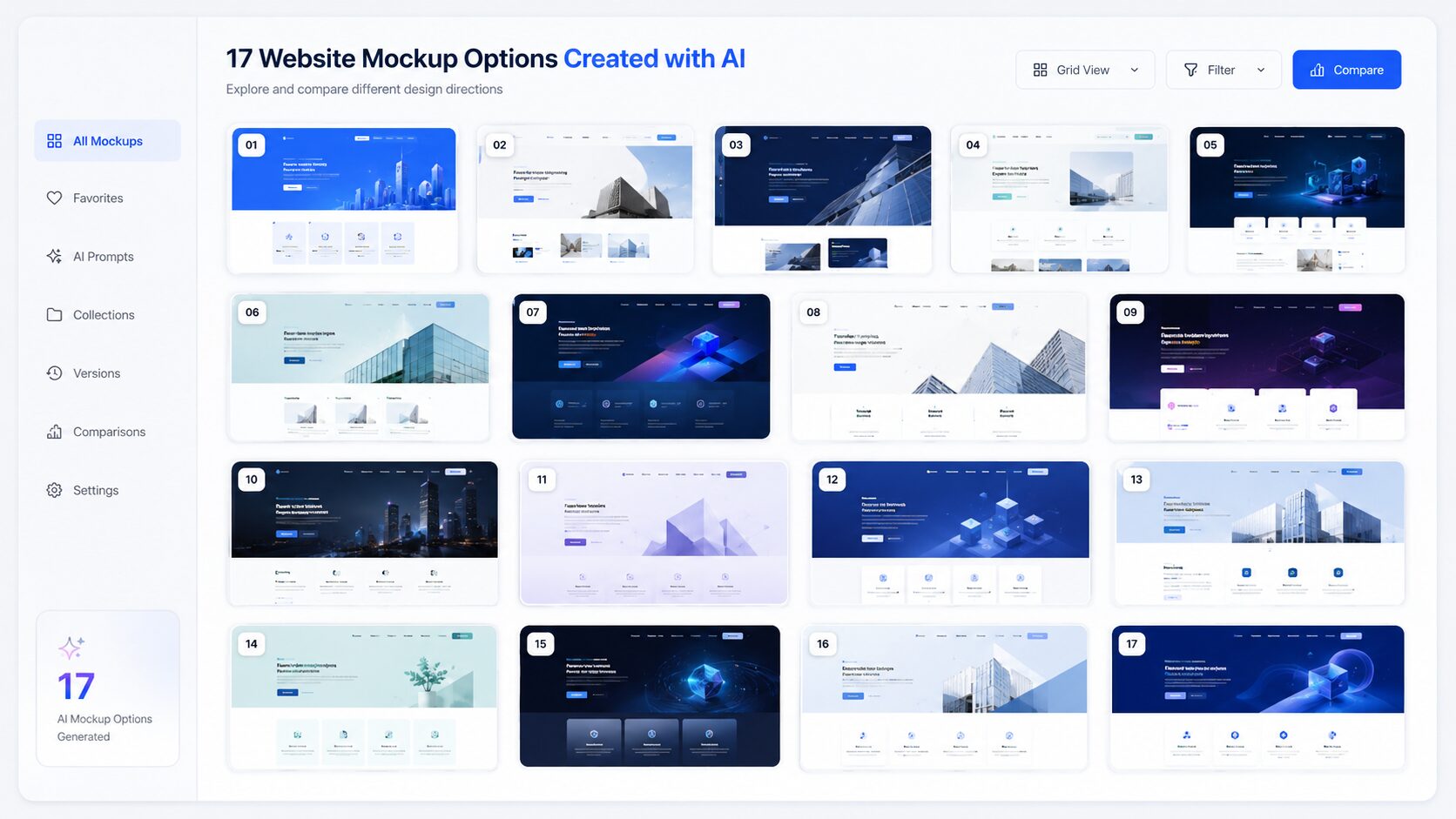
<p>続いて、ChatGPT image 2.0でデザインモックアップを17案生成しました。</p>


<p>正直、17案で終わりではなく、もっと作ることもできましたが、キリがないのでやめたって感じです。</p>


<p>最初は10個くらいにしようと思っていたのですが、あまりに簡単にできてしまうので、面白くなってつい増えてしまいました＾＾；</p>


<p>・青・白系（清潔感・信頼感）<br>・濃紺系（重厚感・専門性）<br>・サイドナビ型（独自レイアウト）<br>・ティール系・ラグジュアリー系・グリーン系・ダーク系</p>


<p>色ごと、レイアウトごとに全部違うデザインが並んできました。<br>しかも、各バリエーションにコピー案まで自動でついてきます。</p>


<p>パッと見てイメージが比較できるので、方向性が決めやすいです。</p>


<p>しかも、右上に絞り機能もついているのがすごくないですか？<br>これもAIが勝手にやってくれました。</p>


<p>「1案作って検討する」より「17案並べて選ぶ」ほうが、判断の速さも精度もまったく違います。</p>


<p>ただし、AI生成はあくまでたたき台です。<br>「これは自分たちらしいか」——この判断は、人間がやる部分ですので、ここからどういう方向性でいくかを決めていったわけです。</p>


<p><a href="https://astha.jp/mockup/" target="_blank" rel="noopener" title=""><span class="luxe-dot-hilight-yellow"><strong><span style="font-size: 20px" class="font-size">モックアップ比較ページ</span></strong></span></a></p>


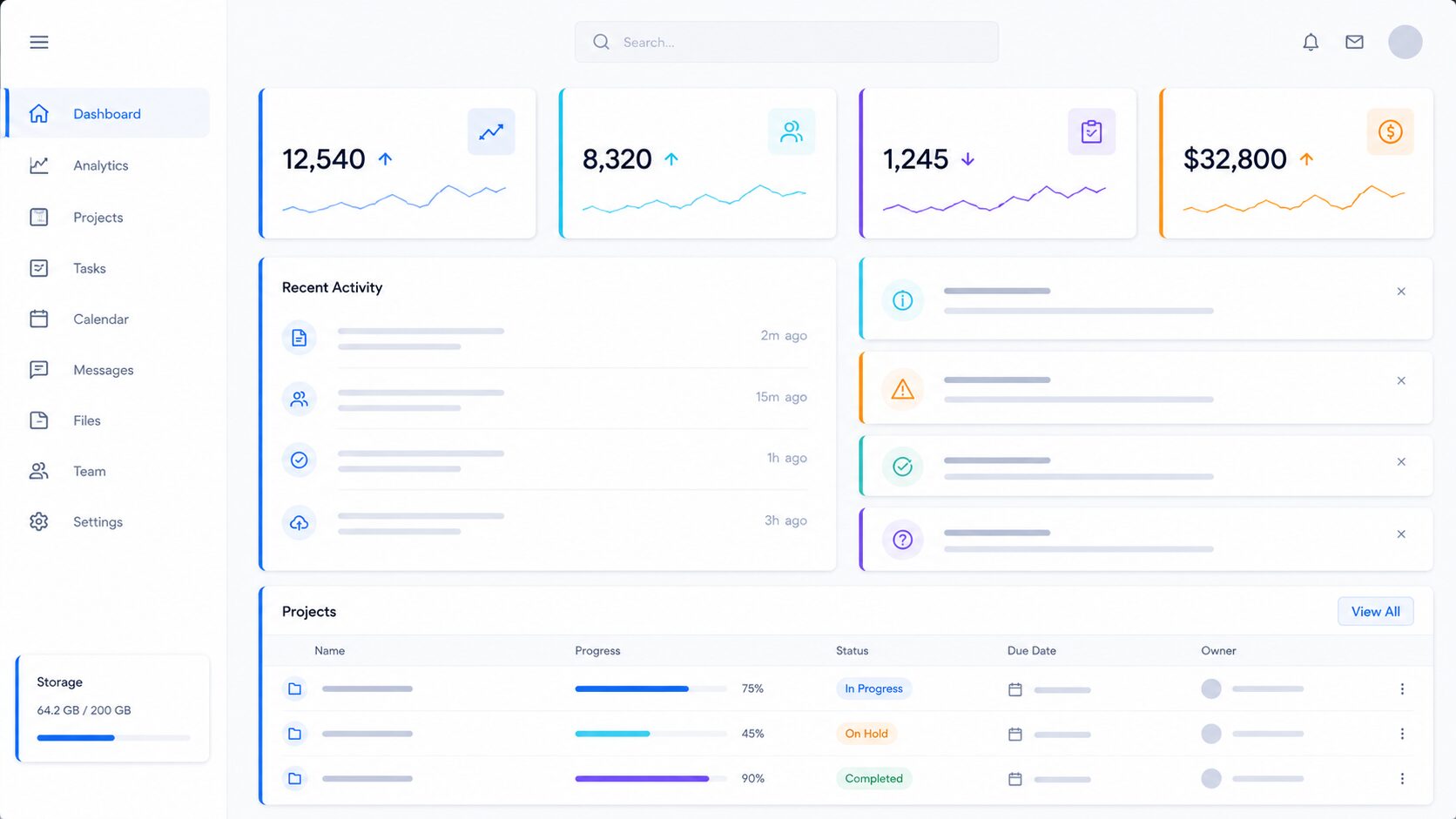
<figure class="wp-block-image size-full"><img decoding="async" width="1672" height="941" src="https://blog.astha.jp/wp-content/uploads/2026/05/image-14.jpg" alt="" class="wp-image-4445" srcset="https://blog.astha.jp/wp-content/uploads/2026/05/image-14.jpg 1672w, https://blog.astha.jp/wp-content/uploads/2026/05/image-14-300x169.jpg 300w, https://blog.astha.jp/wp-content/uploads/2026/05/image-14-1024x576.jpg 1024w, https://blog.astha.jp/wp-content/uploads/2026/05/image-14-768x432.jpg 768w, https://blog.astha.jp/wp-content/uploads/2026/05/image-14-1536x864.jpg 1536w" sizes="(max-width: 1672px) 100vw, 1672px" /><figcaption class="wp-element-caption">画像はイメージ</figcaption></figure>


<h2 class="wp-block-heading">STEP3：実装はClaude CodeとCodexで。AIと人間の役割分担</h2>


<p>実装フェーズでは、Claude CodeとCodexを中心に進めました。</p>


<p>なんで2種類も使ったのかというと、</p>


<p>・どちらが使いやすいかを調べるため<br>・明確に作業領域を分けるため<br>・1つだけだとトークンが足りなかったため･･･</p>


<p>などの理由からです。</p>


<p>実際に使ってみて、Codexの方が優秀な回答や成果物を返してくることが多いなとは感じました。</p>


<p>ただ、この2つは今も現在進行系でものすごいスピードで進化しているので、明日には評価が逆になっている。なんてこともありえる話です。</p>


<p>で、作業については「AIが全部やってくれた」わけではありません。<br>私とAIで明確な役割分担がありました。</p>


<figure class="wp-block-table"><table class="has-fixed-layout"><thead><tr><th>AIが担った部分</th><th>人間が担った部分</th></tr></thead><tbody><tr><td>CSSの調整・修正</td><td>デザインの方向性・トーン</td></tr><tr><td>繰り返しパターンのコード生成</td><td>仕様と品質の最終確認</td></tr><tr><td>複数ファイルをまたいだ一括修正</td><td>「何を作るか」の設計</td></tr><tr><td>バグ原因の診断・修正案の提示</td><td>選択・判断・最終指示</td></tr></tbody></table></figure>


<p>とはいえ、上記の通り私は一切コードに触れていません。</p>


<p>細かい修正もすべて指示をすることによって直させて進めています。</p>


<p>また、デザインの方向性とか何を作るか、選択・判断部分についても、たたき台やアドバイスをAIにまかせています。</p>


<p>なので、実際人間の担った部分にもAIはかなり活用しているって感じです。</p>


<h3 class="wp-block-heading">65箇所のCSS指定を、数分で一括削除</h3>


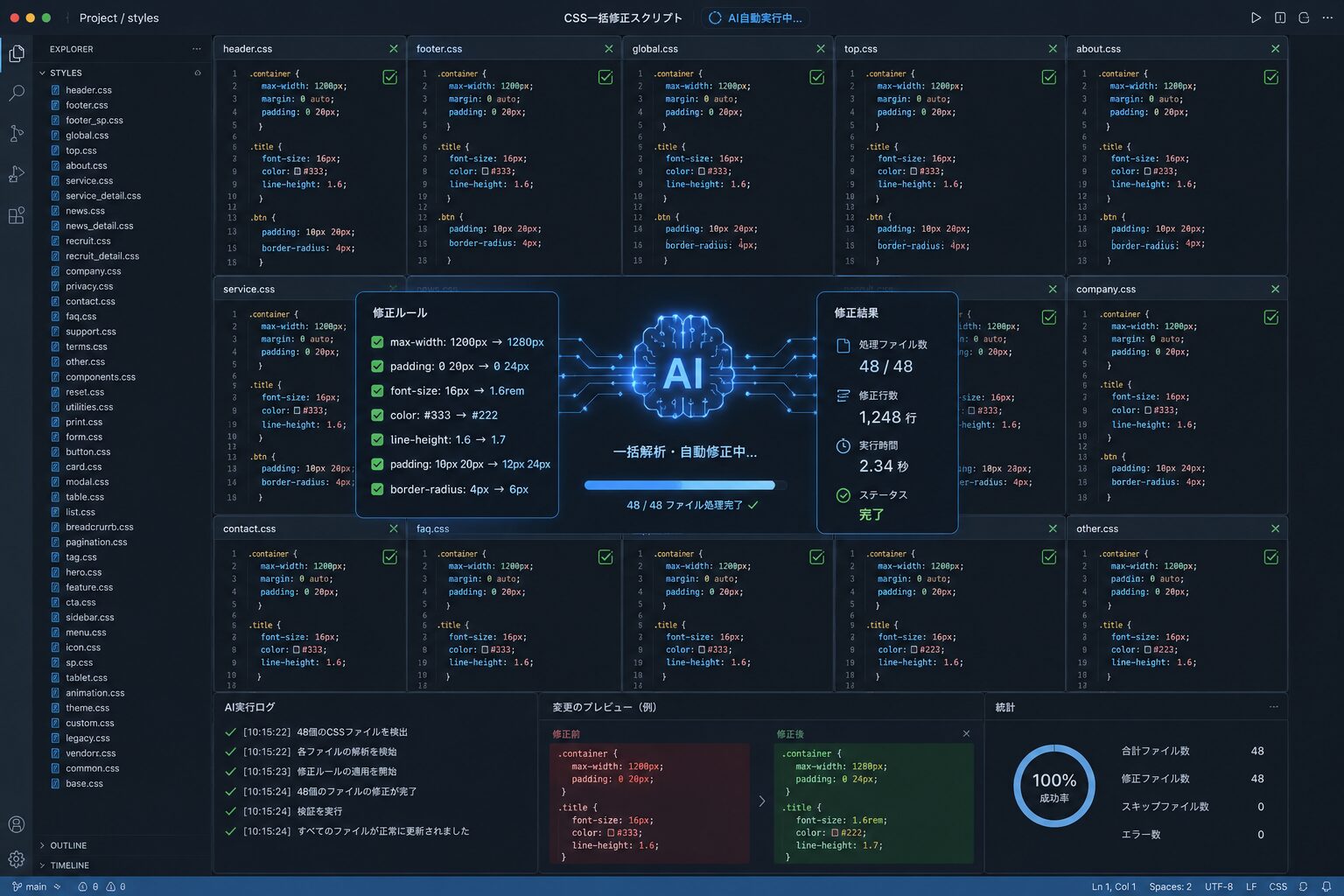
<p>ある程度出来上がったあとに、サイト全体のletter-spacingを0.16emに統一したかったのですが、個別指定が65箇所あって全体指定が効かない状態でした。</p>


<p>手作業だったら？丸1日かかります。←ちょっとオーバー</p>


<p>しかし、AIにPythonスクリプトを作ってもらい、全CSSファイルを解析して一括削除。<br>ものの数分で完了しました。</p>


<p>「繰り返し・大量・定型」——この3つが重なる作業こそ、AIが最も力を発揮します。</p>


<figure class="wp-block-image size-full"><img decoding="async" width="1536" height="1024" src="https://blog.astha.jp/wp-content/uploads/2026/05/image-15.jpg" alt="" class="wp-image-4446" srcset="https://blog.astha.jp/wp-content/uploads/2026/05/image-15.jpg 1536w, https://blog.astha.jp/wp-content/uploads/2026/05/image-15-300x200.jpg 300w, https://blog.astha.jp/wp-content/uploads/2026/05/image-15-1024x683.jpg 1024w, https://blog.astha.jp/wp-content/uploads/2026/05/image-15-768x512.jpg 768w" sizes="(max-width: 1536px) 100vw, 1536px" /></figure>


<h3 class="wp-block-heading">AIの提案を、4回断った</h3>


<p>AIが作ってきたデザインもすべてそのままOKではありません。</p>


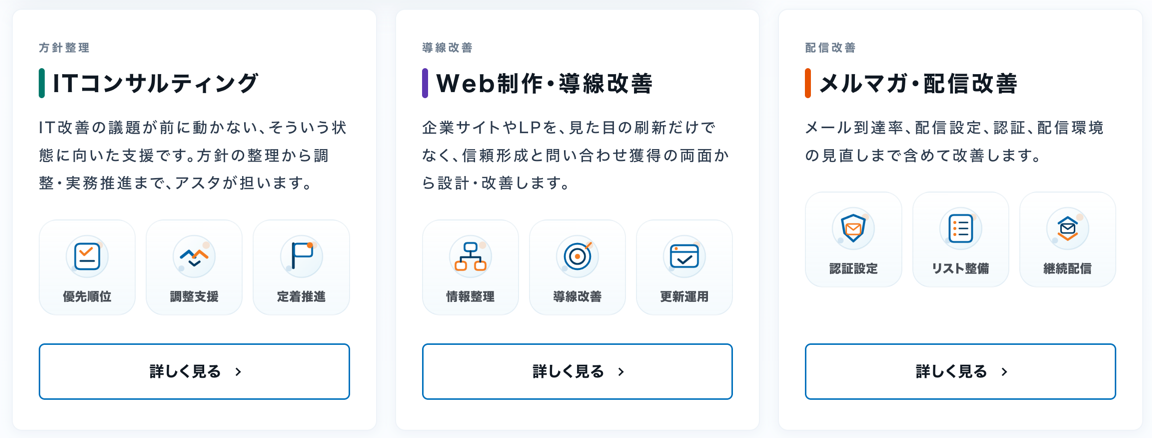
<p>今回、トップページの「サービス一覧」のカードデザインを、4回作り直しさせました。</p>


<p>最初の提案は「カードの端に色をつけるデザイン」。<br>わかる人にはわかると思いますが、これはAIがよくやりがちなデザインです。</p>


<figure class="wp-block-image size-full"><img decoding="async" width="1672" height="941" src="https://blog.astha.jp/wp-content/uploads/2026/05/image-16.jpg" alt="" class="wp-image-4447" srcset="https://blog.astha.jp/wp-content/uploads/2026/05/image-16.jpg 1672w, https://blog.astha.jp/wp-content/uploads/2026/05/image-16-300x169.jpg 300w, https://blog.astha.jp/wp-content/uploads/2026/05/image-16-1024x576.jpg 1024w, https://blog.astha.jp/wp-content/uploads/2026/05/image-16-768x432.jpg 768w, https://blog.astha.jp/wp-content/uploads/2026/05/image-16-1536x864.jpg 1536w" sizes="(max-width: 1672px) 100vw, 1672px" /><figcaption class="wp-element-caption">AI任せにすると、よく提案されるデザインのイメージ</figcaption></figure>


<p>2案目、3案目と試すたびに「違う」「ダサい」「自分たちっぽくない」と却下。</p>


<p>最終的に、6px幅の左ラインに落ち着くまでに4パターン試しました。</p>


<figure class="wp-block-image size-full"><img decoding="async" width="1152" height="438" src="https://blog.astha.jp/wp-content/uploads/2026/05/1bf25118527c3f11ebb0293c418a1e22.png" alt="" class="wp-image-4448" srcset="https://blog.astha.jp/wp-content/uploads/2026/05/1bf25118527c3f11ebb0293c418a1e22.png 1152w, https://blog.astha.jp/wp-content/uploads/2026/05/1bf25118527c3f11ebb0293c418a1e22-300x114.png 300w, https://blog.astha.jp/wp-content/uploads/2026/05/1bf25118527c3f11ebb0293c418a1e22-1024x389.png 1024w, https://blog.astha.jp/wp-content/uploads/2026/05/1bf25118527c3f11ebb0293c418a1e22-768x292.png 768w" sizes="(max-width: 1152px) 100vw, 1152px" /></figure>


<p>こういう試行錯誤をすばやく、カンタンにできるのもありがたいです。</p>


<p>でも「これは自分たちらしいか」の判断は、人間にしかできません。</p>


<p>この往復が、品質を決めるのだと感じました。</p>


<h2 class="wp-block-heading">結論：AIを使うと、何が変わるか</h2>


<p>今回のプロジェクト、数字で見るとこうなります。</p>


<figure class="wp-block-table"><table class="has-fixed-layout"><thead><tr><th>指標</th><th>数値</th></tr></thead><tbody><tr><td>ベンチマーク調査社数</td><td>48社（11カテゴリ）</td></tr><tr><td>デザインモックアップ案数</td><td>17案</td></tr><tr><td>作成したPHPテンプレートファイル数</td><td>約20ファイル</td></tr><tr><td>一括削除したCSS letter-spacing宣言数</td><td>65箇所</td></tr><tr><td>プロジェクト期間</td><td>1週間ちょっと（4月28日〜5月12日）</td></tr></tbody></table></figure>


<p>でも、数字より大きかったのはこっちです。</p>


<p>・<strong>調べる量が増えて、判断の精度が上がった</strong><br>・<strong>試せる案が増えて、「自分たちが何を求めているか」が見えた</strong><br>・<strong>定型作業をAIに任せた分、こだわるべき部分に時間を使えた</strong></p>


<p>「AIで楽になった」のはもちろんですが、</p>


<p>「AIのおかげで、もっと大事なことに集中できた」</p>


<p>これがより正確な表現です。</p>


<p>「調べる」「たたき台を作る」「繰り返しの定型作業」——これをAIに任せると、人間は「判断する」「こだわる」「方向を決める」ことに集中できます。</p>


<p>プロ × AI = 役割分担が決まって、初めて機能する。<br>今回、そのことを改めて実感しました。</p>


<h2 class="wp-block-heading">完成したサイトはこちら</h2>


<p>リニューアルしたコーポレートサイトはこちらです。<br>ぜひ、実際に見てみてください。</p>


<p><span style="font-size: 20px" class="font-size"><img src="https://s.w.org/images/core/emoji/17.0.2/72x72/25b6.png" alt="▶" class="wp-smiley" style="height: 1em; max-height: 1em;" /> <a href="https://astha.jp" target="_blank" rel="noopener">株式会社アスタ</a></span></p>


<h2 class="wp-block-heading">あなたのビジネスでも、同じことができます</h2>


<p>今回のような「AI活用設計」を、自社のWebサイトや業務でも試してみたい方は<a href="https://astha.jp/contact/" target="_blank" rel="noopener" title=""><strong>お気軽にご相談</strong></a>ください。</p>


<div style="height:100px" aria-hidden="true" class="wp-block-spacer"></div>


<p>▼ 画像をクリックするとメルマガ登録ページに移動します。</p>


<figure class="wp-block-image size-full"><a href="https://astha-mail.jp/p/r/zwGzTnDz" target="_blank" rel=" noreferrer noopener"><img decoding="async" width="924" height="1701" src="https://blog.astha.jp/wp-content/uploads/2026/05/newsletter_registration_01.jpg" alt="" class="wp-image-4455" srcset="https://blog.astha.jp/wp-content/uploads/2026/05/newsletter_registration_01.jpg 924w, https://blog.astha.jp/wp-content/uploads/2026/05/newsletter_registration_01-163x300.jpg 163w, https://blog.astha.jp/wp-content/uploads/2026/05/newsletter_registration_01-556x1024.jpg 556w, https://blog.astha.jp/wp-content/uploads/2026/05/newsletter_registration_01-768x1414.jpg 768w, https://blog.astha.jp/wp-content/uploads/2026/05/newsletter_registration_01-834x1536.jpg 834w" sizes="(max-width: 924px) 100vw, 924px" /></a></figure><p>The post <a href="https://blog.astha.jp/ai-site-renewal-full-process/">【リサーチ・デザイン・実装】すべての工程をAIで進めた自社サイトリニューアルの話</a> first appeared on <a href="https://blog.astha.jp">アスタWorks</a>.</p>]]></content>
		
					<link rel="replies" type="text/html" href="https://blog.astha.jp/ai-site-renewal-full-process/#comments" thr:count="0" />
			<link rel="replies" type="application/atom+xml" href="https://blog.astha.jp/ai-site-renewal-full-process/feed/atom/" thr:count="0" />
			<thr:total>0</thr:total>
			</entry>
		<entry>
		<author>
			<name>auto_post</name>
					</author>

		<title type="html"><![CDATA[single.phpを作っても治らない！WordPressのお知らせリンクが日付アーカイブになる原因と解決策]]></title>
		<link rel="alternate" type="text/html" href="https://blog.astha.jp/post/" />

		<id>https://blog.astha.jp/?p=4412</id>
		<updated>2026-05-08T02:21:32Z</updated>
		<published>2026-05-08T02:17:34Z</published>
		<category scheme="https://blog.astha.jp" term="WordPress" /><category scheme="https://blog.astha.jp" term="トラブル解決" />
		<summary type="html"><![CDATA[<p>WordPressのトップページに設置したお知らせ一覧のリンクをクリックすると、個別記事ではなく日付アーカイブが表示される問題が発生しました。single.phpを新規作成しても改善されず、パーマリンク構造に原因があることがわかった実体験と解決方法をご紹介します。</p>
<p>The post <a href="https://blog.astha.jp/post/">single.phpを作っても治らない！WordPressのお知らせリンクが日付アーカイブになる原因と解決策</a> first appeared on <a href="https://blog.astha.jp">アスタWorks</a>.</p>]]></summary>

					<content type="html" xml:base="https://blog.astha.jp/post/"><![CDATA[<h2 class="wp-block-heading">どんな状況だったか</h2>


<p>トップページのテンプレート（<code>front-page.php</code>）に<code>WP_Query</code>を使って最新の投稿を取得し、お知らせセクションとして表示する実装を追加しました。</p>


<pre class="wp-block-code"><code>$astha_news_query = new WP_Query(&#091;
  'post_type'      =&gt; 'post',
  'posts_per_page' =&gt; 5,
  'post_status'    =&gt; 'publish',
  'category_name'  =&gt; 'oshirase',
]);

if ( $astha_news_query-&gt;have_posts() ) :
  while ( $astha_news_query-&gt;have_posts() ) : $astha_news_query-&gt;the_post(); ?&gt;
    &lt;a class="home-news-item" href="&lt;?php the_permalink(); ?&gt;"&gt;
      &lt;time&gt;&lt;?php echo get_the_date('Y年n月j日'); ?&gt;&lt;/time&gt;
      &lt;p&gt;&lt;?php the_title(); ?&gt;&lt;/p&gt;
    &lt;/a&gt;
  &lt;?php endwhile;
  wp_reset_postdata();
endif;</code></pre>


<p>コード自体は特に問題なく動いていて、トップページにはタイトルと日付のリンク一覧が表示されていました。</p>


<p>ところがリンクをクリックすると、個別記事ではなく投稿一覧（アーカイブ）が表示されてしまいました。</p>


<p>一覧に表示されている投稿をクリックしても、同じ画面でループするというありさまです。</p>


<p>WHY？</p>


<h2 class="wp-block-heading">最初に試したこと：single.phpを追加してみた</h2>


<p>「個別記事ページが表示されないなら、<code>single.php</code>がないせいかもしれない」と考えて、子テーマに新規作成してデプロイしました。</p>


<pre class="wp-block-code"><code>child-theme/
└── single.php  ← 新規作成</code></pre>


<p>しかし、デプロイ後も表示は変わらず、アーカイブページが出続けます。</p>


<h2 class="wp-block-heading">なぜsingle.phpでは直らなかったのか</h2>


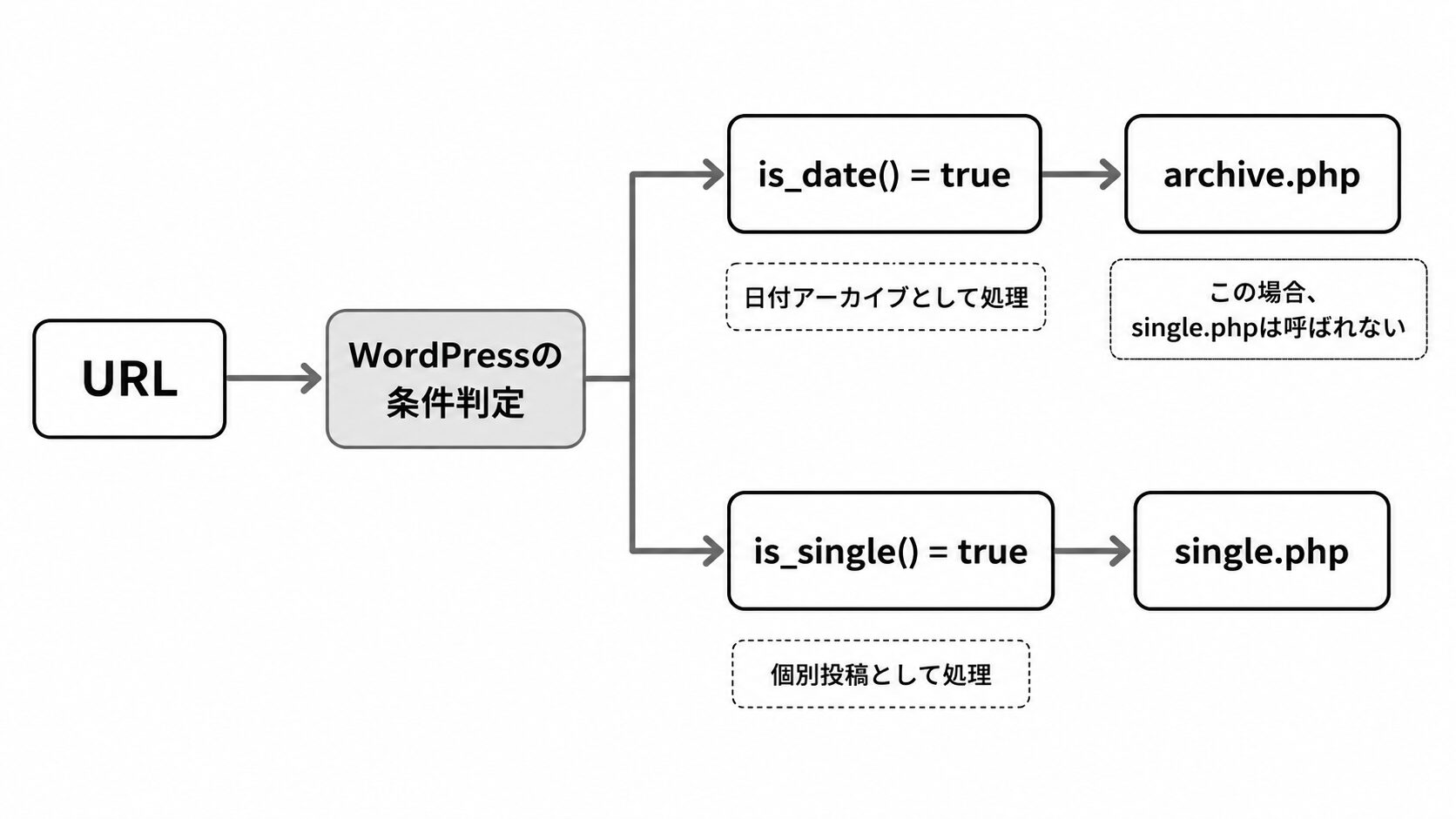
<p><code>single.php</code>が呼ばれるのは、WordPressが「このURLは個別投稿のページだ」と判断した場合、つまり<code>is_single()</code>が<code>true</code>のときだけです。</p>


<p>今回のURLは<strong>WordPress側が日付アーカイブとして解釈</strong>しており、<code>is_date()</code>が<code>true</code>になっていました。</p>


<p>そのためWordPressは<code>single.php</code>ではなく<code>archive.php</code>（または親テーマの<code>index.php</code>）を使い続けていたわけです。</p>


<p><code>single.php</code>の有無とは無関係に、URLのルーティング自体がアーカイブに向いてしまっているのが本当の問題でした。</p>


<figure class="wp-block-image size-full"><img decoding="async" width="1672" height="941" src="https://blog.astha.jp/wp-content/uploads/2026/05/image-9.jpg" alt="" class="wp-image-4414" srcset="https://blog.astha.jp/wp-content/uploads/2026/05/image-9.jpg 1672w, https://blog.astha.jp/wp-content/uploads/2026/05/image-9-300x169.jpg 300w, https://blog.astha.jp/wp-content/uploads/2026/05/image-9-1024x576.jpg 1024w, https://blog.astha.jp/wp-content/uploads/2026/05/image-9-768x432.jpg 768w, https://blog.astha.jp/wp-content/uploads/2026/05/image-9-1536x864.jpg 1536w" sizes="(max-width: 1672px) 100vw, 1672px" /></figure>


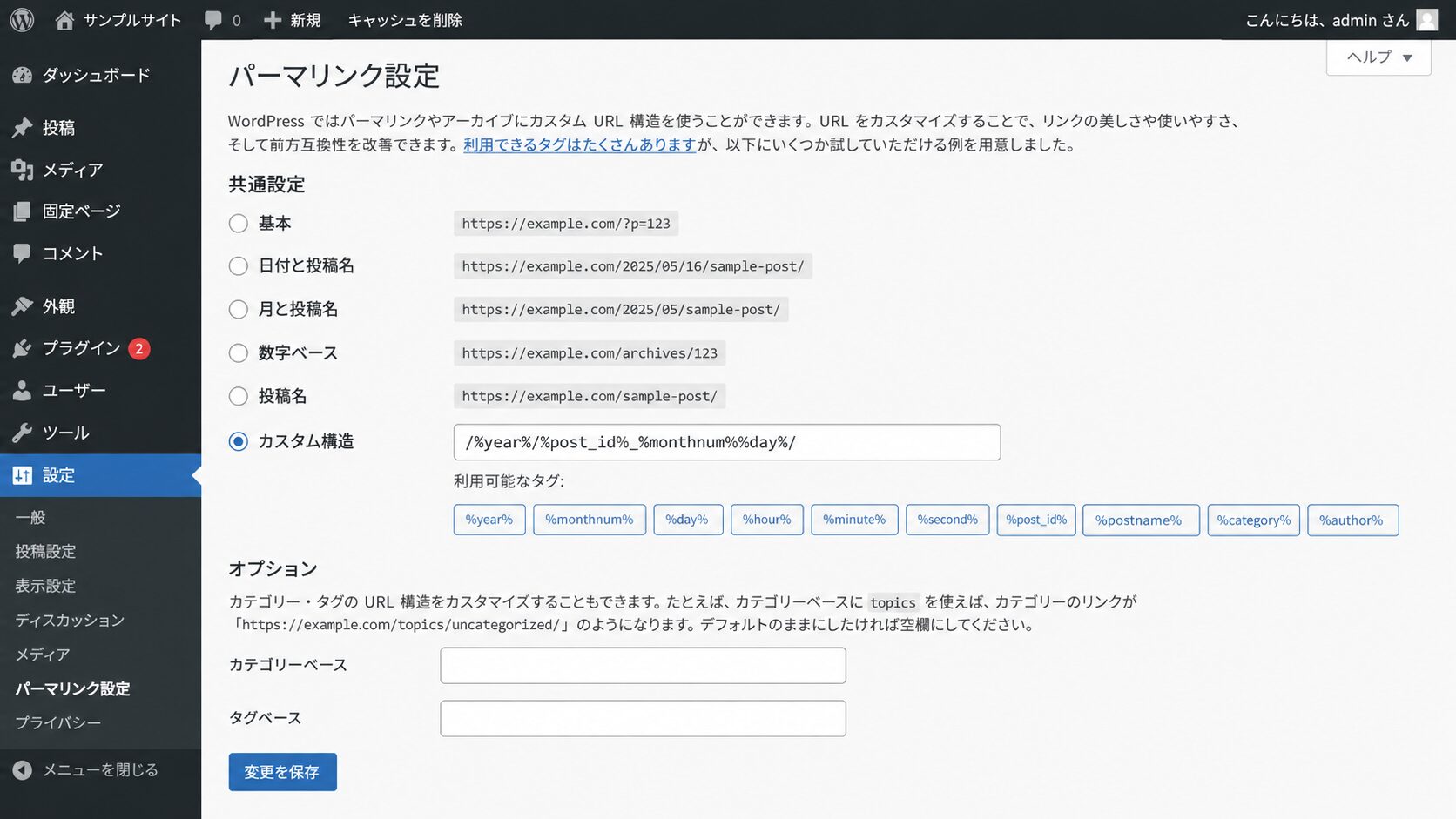
<h2 class="wp-block-heading">原因：パーマリンク設定が日付アーカイブと衝突していた</h2>


<p>投稿のURLを日付にしたかったので、パーマリンク設定を以下のようにしていました。</p>


<pre class="wp-block-code"><code>/%year%/%monthnum%%day%/</code></pre>


<p>この設定では、2026年5月8日に投稿した記事のURLが次のように生成されます。</p>


<pre class="wp-block-code"><code>https:&#47;&#47;example.com/2026/0508/</code></pre>


<p><code>%monthnum%</code>（05）と<code>%day%</code>（08）がセパレーターなしで連結されるため、このURLはWordPressのルーティングから見ると<strong>2026年5月8日の日付アーカイブと見分けがつかない形式</strong>になっています。</p>


<p>個別記事のURLに直接アクセスしても、日付アーカイブとして処理されてしまい、<code>single.php</code>が一切呼ばれないという状況でした。</p>


<h2 class="wp-block-heading">解決策：パーマリンクに記事を一意に識別できる要素を加える</h2>


<p>解決のポイントは、URLの中に<strong>記事名（<code>%postname%</code>）か投稿ID（<code>%post_id%</code>）</strong>を含めることです。</p>


<p>日付だけでなく記事を特定できる要素が入ることで、WordPressが正しく個別記事のURLとして認識できるようになります。</p>


<h3 class="wp-block-heading">設定例</h3>


<figure class="wp-block-table"><table class="has-fixed-layout"><thead><tr><th>設定</th><th>URL例</th><th>備考</th></tr></thead><tbody><tr><td><code>/%postname%/</code></td><td>/corporate-renewal/</td><td>シンプルで推奨</td></tr><tr><td><code>/%year%/%postname%/</code></td><td>/2026/corporate-renewal/</td><td>年別に整理したい場合</td></tr><tr><td><code>/%year%/%post_id%_%monthnum%%day%/</code></td><td>/2026/123_0508/</td><td>今回採用した構造</td></tr></tbody></table></figure>


<h3 class="wp-block-heading">変更手順</h3>


<ol class="wp-block-list">
<li>WordPress管理画面 → <strong>設定</strong> → <strong>パーマリンク</strong> を開く</li>


<li>「カスタム構造」を選択し、<code>%postname%</code>または<code>%post_id%</code>を含む構造に変更する</li>


<li>「変更を保存」をクリック</li>
</ol>


<p>今回は既存のURL構造をなるべく崩さない形で対応するために、次の構造を採用しました。</p>


<pre class="wp-block-code"><code>/%year%/%post_id%_%monthnum%%day%/</code></pre>


<p>この設定にしたことで、<code>the_permalink()</code>が返すURLが日付アーカイブのパターンと衝突しなくなり、WordPressが正しく<code>is_single() = true</code>と判断するようになりました。</p>


<figure class="wp-block-image size-full"><img decoding="async" width="1672" height="941" src="https://blog.astha.jp/wp-content/uploads/2026/05/image-10.jpg" alt="" class="wp-image-4415" srcset="https://blog.astha.jp/wp-content/uploads/2026/05/image-10.jpg 1672w, https://blog.astha.jp/wp-content/uploads/2026/05/image-10-300x169.jpg 300w, https://blog.astha.jp/wp-content/uploads/2026/05/image-10-1024x576.jpg 1024w, https://blog.astha.jp/wp-content/uploads/2026/05/image-10-768x432.jpg 768w, https://blog.astha.jp/wp-content/uploads/2026/05/image-10-1536x864.jpg 1536w" sizes="(max-width: 1672px) 100vw, 1672px" /></figure>


<h2 class="wp-block-heading">修正後の動作確認</h2>


<p>設定変更後、次のすべての動作を確認しました。</p>


<ul class="wp-block-list">
<li>記事URLに直接アクセス → <code>single.php</code>が呼ばれ、詳細ページが表示される</li>


<li>日付アーカイブURL（<code>/2026/05/08/</code>）→ 引き続きアーカイブページとして正常に表示</li>


<li>トップページのお知らせ一覧からのリンク → 詳細ページへ正しく遷移</li>
</ul>


<p>個別記事ページとアーカイブページ、それぞれが意図どおりに機能するようになりました。</p>


<h2 class="wp-block-heading">まとめ</h2>


<p>今回の問題を整理すると、次のようになります。</p>


<figure class="wp-block-table"><table class="has-fixed-layout"><thead><tr><th>項目</th><th>内容</th></tr></thead><tbody><tr><td>症状</td><td>お知らせリンクをクリックすると詳細ではなく日付アーカイブが表示される</td></tr><tr><td>最初の仮説</td><td>single.phpがないことが原因</td></tr><tr><td>本当の原因</td><td>パーマリンク構造が日付アーカイブURLと衝突していた</td></tr><tr><td>解決策</td><td>%postnameまたは%post_idをパーマリンクに含める</td></tr></tbody></table></figure>


<p><code>single.php</code>の不在とパーマリンク構造の問題は、別々の問題でした。</p>


<p>同じ症状が出た場合は、<code>single.php</code>の確認と同時に<strong>パーマリンク設定も確認する</strong>ことをおすすめします。</p>


<p>パーマリンクに記事を一意に識別できる要素（<code>%postname%</code>や<code>%post_id%</code>）が含まれているかどうかを確認してみてください。</p>


<div style="height:100px" aria-hidden="true" class="wp-block-spacer"></div>


<div class="wp-block-luxe-blocks-balloon" style="display:flex;margin-top:10px;margin-bottom:30px"><figure style="max-width:10%"><img decoding="async" src="https://blog.astha.jp/wp-content/uploads/2024/10/businesswoman-thinking.png" alt="考える-ビジネスパーソンの女性" width="417" height="688"/></figure><div class="luxe-bl-wrap"><div class="luxe-bl-lbf" style="border-right:15px solid #808080"></div><div class="luxe-bl-lmain" style="border:3px solid #808080;border-radius:20px;padding:0px 15px 0px 15px "><div class="luxe-bl-laf" style="border-right:15px solid #fff;left:-14px"></div><p><strong><span style="font-size: 20px" class="font-size">設定が難しそうだし間違えるのが心配･･･。</span></strong></p></div></div></div>


<div class="wp-block-luxe-blocks-balloon" style="display:flex;flex-direction:row-reverse;margin-top:10px;margin-bottom:30px"><figure style="max-width:10%"><img decoding="async" src="https://blog.astha.jp/wp-content/uploads/2024/10/businessman-thinking.png" alt="考える-ビジネスパーソン" width="453" height="758"/></figure><div class="luxe-bl-wrap"><div class="luxe-bl-rbf" style="border-left:15px solid #808080"></div><div class="luxe-bl-rmain" style="border:3px solid #808080;border-radius:20px;padding:0px 15px 0px 15px "><div class="luxe-bl-raf" style="border-left:15px solid #fff;right:-14px"></div><p><strong><span style="font-size: 20px" class="font-size">やりたいことは決まっているけど、どうやったら実現できるのかがわからない。</span></strong></p></div></div></div>


<p>そんなときは、</p>


<p><span style="font-size: 24px" class="font-size"><strong><span class="luxe-dot-hilight-yellow">知っている人や詳しい人に聞きながら進めるのが間違いないと思います！</span></strong></span></p>


<p>IT関係の問題は専門用語も多く出てきて、説明を読んでもチンプンカンプンといったことはよくあります。</p>


<p>言葉の意味もわからずに設定してもうまく動かなかったり、間違った設定をしてしまう可能性もゼロではありません。</p>


<p>もし、安全に短時間で問題を解決したいと感じられたら、弊社のITサポートのご利用をご検討ください。</p>


<div style="height:24px" aria-hidden="true" class="wp-block-spacer"></div>


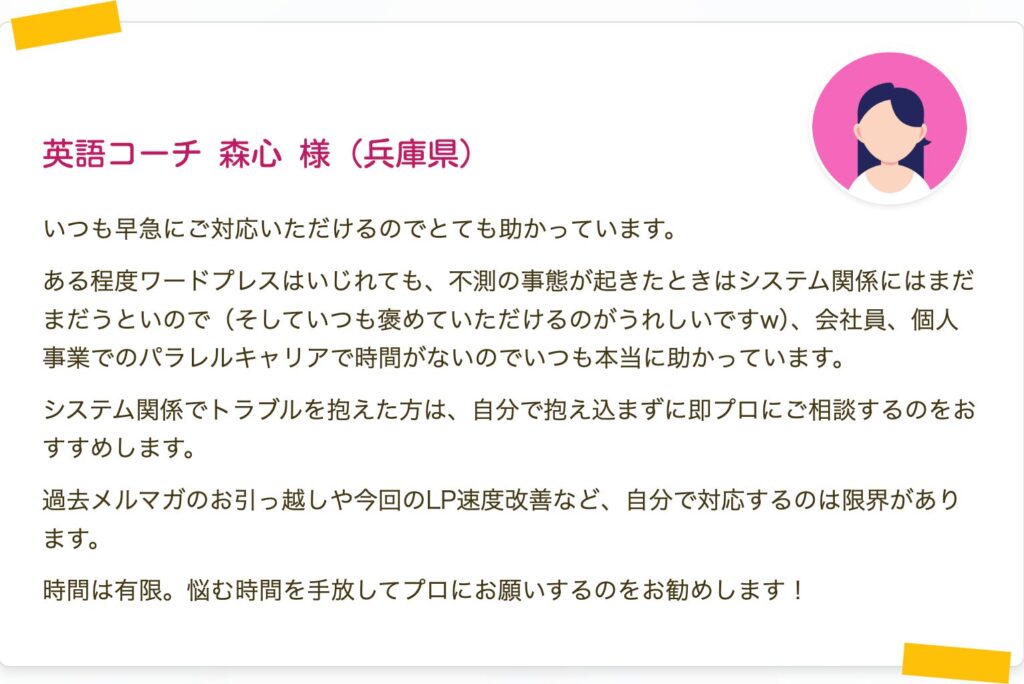
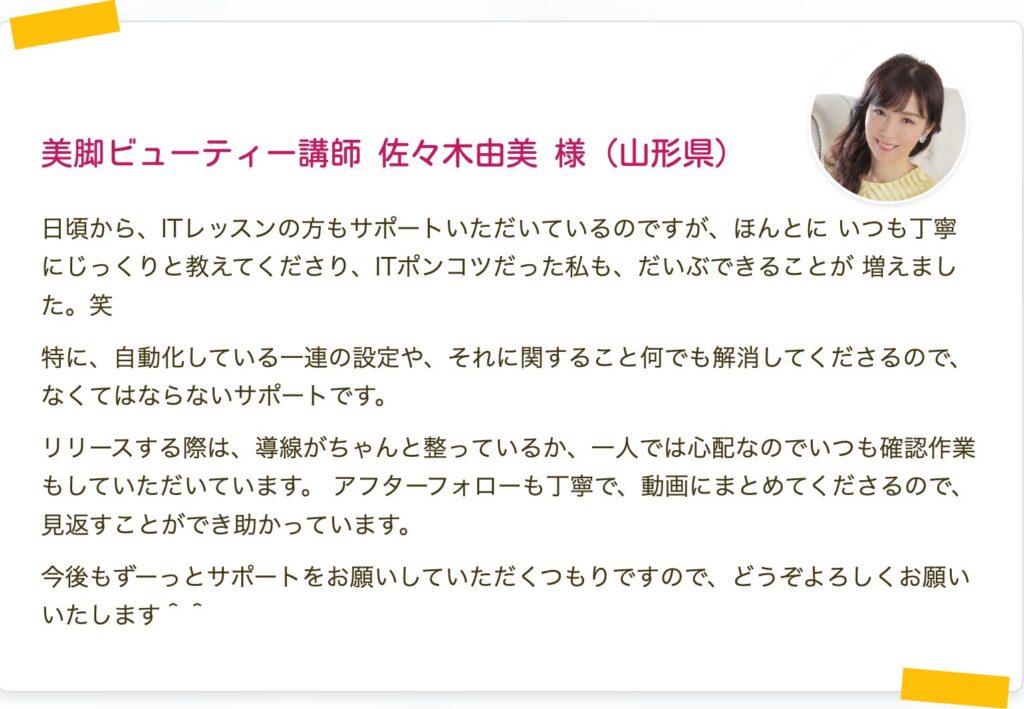
<h2 class="wp-block-heading">お客様の声</h2>


<figure class="wp-block-image size-large"><img decoding="async" width="1024" height="684" src="https://blog.astha.jp/wp-content/uploads/2024/10/image-2-1024x684.jpg" alt="" class="wp-image-3687" srcset="https://blog.astha.jp/wp-content/uploads/2024/10/image-2-1024x684.jpg 1024w, https://blog.astha.jp/wp-content/uploads/2024/10/image-2-300x201.jpg 300w, https://blog.astha.jp/wp-content/uploads/2024/10/image-2-768x513.jpg 768w, https://blog.astha.jp/wp-content/uploads/2024/10/image-2.jpg 1532w" sizes="(max-width: 1024px) 100vw, 1024px" /></figure>


<figure class="wp-block-image size-large"><img decoding="async" width="1024" height="709" src="https://blog.astha.jp/wp-content/uploads/2024/10/image-2-1-1024x709.jpg" alt="" class="wp-image-3688" srcset="https://blog.astha.jp/wp-content/uploads/2024/10/image-2-1-1024x709.jpg 1024w, https://blog.astha.jp/wp-content/uploads/2024/10/image-2-1-300x208.jpg 300w, https://blog.astha.jp/wp-content/uploads/2024/10/image-2-1-768x531.jpg 768w, https://blog.astha.jp/wp-content/uploads/2024/10/image-2-1.jpg 1532w" sizes="(max-width: 1024px) 100vw, 1024px" /></figure>


<div style="height:24px" aria-hidden="true" class="wp-block-spacer"></div>


<p class="has-text-align-left">今なら通常5500円（税込）のところ<strong><span style="color: #dc143c" class="text-color">1100円（税込）</span></strong>でサポートがご利用いただけます。<br>※割引料金でご利用いただく場合は、バナーをクリックして表示されるサポート申し込みページからお申し込みください。</p>


<div class="a-single a-23"><style>
    .banner-container img {
        box-sizing: border-box;
    }
</style>

<figure class="light-up banner-container">
    <a data-track="MjMsMCwxLDYw" href="https://tebanasu.net/astha/it_support30_first1100?ref=works_article_bottom" target="_blank" rel="noreferrer noopener external" class="external gofollow">
        <img decoding="async" src="https://blog.astha.jp/wp-content/uploads/2024/10/itSupport_bannar_1100.png" alt="初回割引ITサポート"/>
    </a>
</figure></div><p>The post <a href="https://blog.astha.jp/post/">single.phpを作っても治らない！WordPressのお知らせリンクが日付アーカイブになる原因と解決策</a> first appeared on <a href="https://blog.astha.jp">アスタWorks</a>.</p>]]></content>
		
					<link rel="replies" type="text/html" href="https://blog.astha.jp/post/#comments" thr:count="0" />
			<link rel="replies" type="application/atom+xml" href="https://blog.astha.jp/post/feed/atom/" thr:count="0" />
			<thr:total>0</thr:total>
			</entry>
		<entry>
		<author>
			<name>auto_post</name>
					</author>

		<title type="html"><![CDATA[AIに任せてラクになった仕事、実例4つ公開します]]></title>
		<link rel="alternate" type="text/html" href="https://blog.astha.jp/ai-gyomu-kaizen-jireijutsu/" />

		<id>https://blog.astha.jp/?p=4396</id>
		<updated>2026-05-07T09:25:54Z</updated>
		<published>2026-05-07T09:21:26Z</published>
		<category scheme="https://blog.astha.jp" term="IT活用" />
		<summary type="html"><![CDATA[<p>ChatGPTを試したけど定着しない方へ。ブログ記事の下書き生成・問い合わせ対応・レポート自動化・SNS投稿文作成まで、弊社が実際に運用している業務改善事例4つを数字つきで公開。AI活用の「始め方」を一緒に考えます。</p>
<p>The post <a href="https://blog.astha.jp/ai-gyomu-kaizen-jireijutsu/">AIに任せてラクになった仕事、実例4つ公開します</a> first appeared on <a href="https://blog.astha.jp">アスタWorks</a>.</p>]]></summary>

					<content type="html" xml:base="https://blog.astha.jp/ai-gyomu-kaizen-jireijutsu/"><![CDATA[<h2 class="wp-block-heading">はじめに</h2>


<p>「生成AI、なんか使いこなせていない気がする……」</p>


<p>そんなもやもやを抱えている方はいませんか。</p>


<p>使ってみた。試してみた。でもなんとなく続かない。ツールを入れたのに、気づいたら結局手作業に戻っていた、、、そういう経験のある方は、実は多いんじゃないかと思います。</p>


<p>私自身も、最初はそうでした。</p>


<p>アスタはWeb制作・システム開発を手がける会社です。<br>この数年で、自社の業務のあちこちにAIを組み込んできました。<br>「画期的なシステムを導入した」という大げさな話ではありません。<br>「今まで手でやっていたこれが、AIのおかげでこうラクになった」という、地味だけど確実に効率化できている話です。</p>


<p>今日は、その実例を数字ごと正直に公開します。</p>


<h2 class="wp-block-heading">この記事でわかること</h2>


<ul class="wp-block-list">
<li>ブログ記事の下書きに2時間かけていたものが10分になった話</li>


<li>問い合わせ対応が1件30分〜1時間かかっていたものが15分短縮できた話</li>


<li>単調な数字の転記作業が完全自動化で0分に短縮できた話</li>


<li>毎週・毎月の集計レポートが1時間から15分になった話</li>


<li>SNSが苦手な人間でも投稿が続けられるようになった話（＋やりがちな規約違反の注意点）</li>
</ul>


<figure class="wp-block-image size-full"><img decoding="async" width="1672" height="941" src="https://blog.astha.jp/wp-content/uploads/2026/05/image-1.jpg" alt="" class="wp-image-4399" srcset="https://blog.astha.jp/wp-content/uploads/2026/05/image-1.jpg 1672w, https://blog.astha.jp/wp-content/uploads/2026/05/image-1-300x169.jpg 300w, https://blog.astha.jp/wp-content/uploads/2026/05/image-1-1024x576.jpg 1024w, https://blog.astha.jp/wp-content/uploads/2026/05/image-1-768x432.jpg 768w, https://blog.astha.jp/wp-content/uploads/2026/05/image-1-1536x864.jpg 1536w" sizes="(max-width: 1672px) 100vw, 1672px" /></figure>


<h2 class="wp-block-heading">事例① ブログ記事の下書き、2時間から10分へ</h2>


<h3 class="wp-block-heading">毎回ゼロから書く、あのしんどさ</h3>


<p>ブログを書いた経験がある方ならわかると思うのですが、「さあ書こう」と思ってから実際にキーボードを打ち始めるまでが、いちばんしんどいんです。</p>


<p>何を書こうか。どう始めようか。どう構成しようか。気づいたら30分が経っていて、まだ1行も書けていない、、、そういうことが、普通に起きていました。</p>


<p>書き始めてからも、「この言い方で伝わるか」「もっといい表現はないか」と考えすぎて、結局1記事に2時間かかることもざらでした。</p>


<p>「今日はブログ書かないといけない……」というプレッシャーが、毎回どこかに重くのしかかっていたんです。</p>


<h3 class="wp-block-heading">今は何をしているか</h3>


<p>変えたのはシンプルなことです。</p>


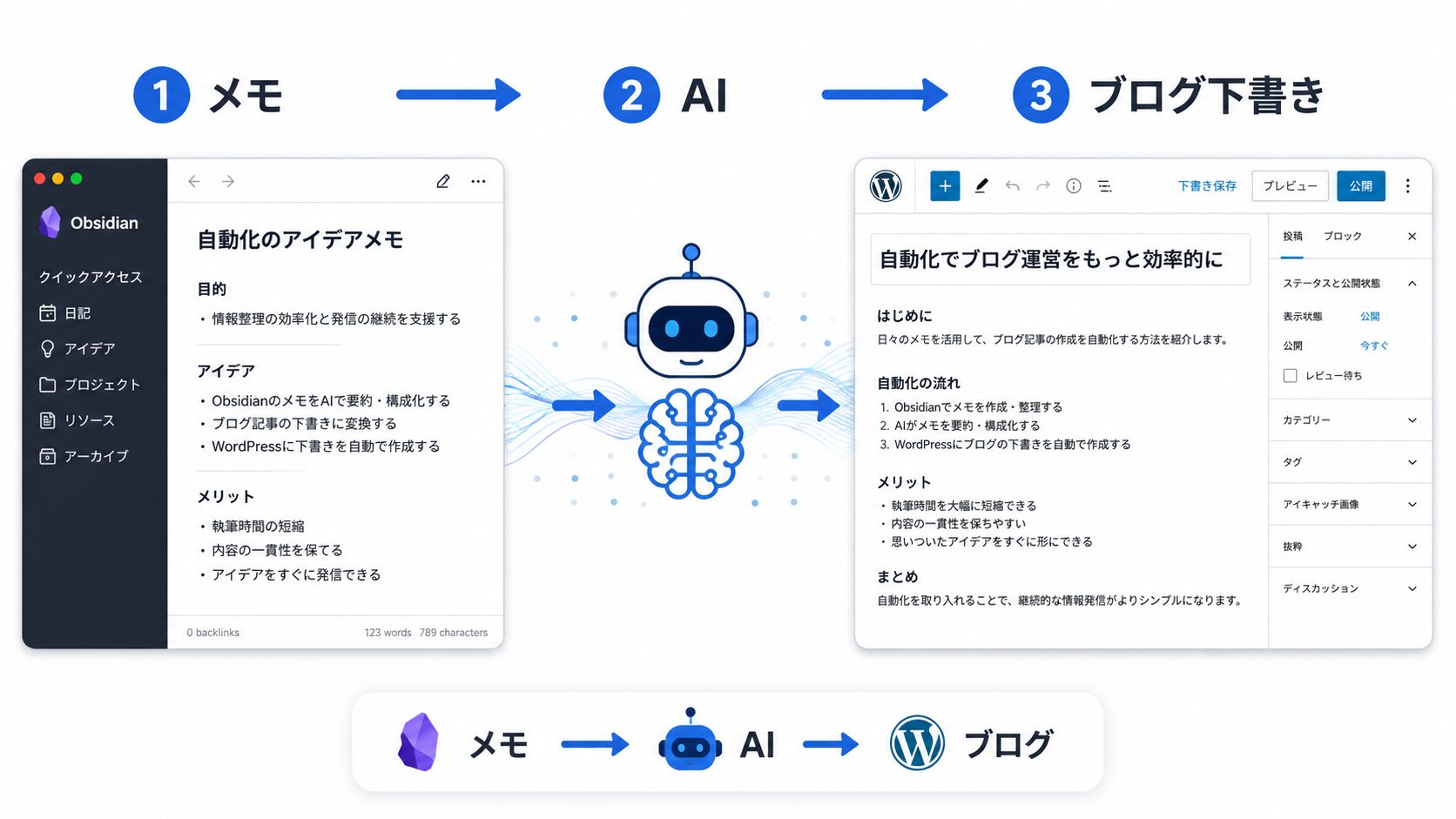
<p>業務メモや調査ノートをAIに渡して、「これを元にブログ記事の下書きを作って」と指示するだけです。</p>


<p>メモはObsidianというアプリで日々蓄積しています。<br>それをAIに読み込ませると、構成から文章の流れまで一気に草案ができてくる。<br>あとは読んで、おかしいところを直して、WordPressに投稿するだけです。</p>


<p>その仕組みを少しずつ整えた結果、<strong>2時間かかっていたブログ記事の更新が、10分で終わるようになりました。</strong></p>


<p>所要時間は12分の1。<br>でもそれ以上に、「書かなければ」というプレッシャーがなくなったのが、正直いちばん大きかったです。</p>


<figure class="wp-block-image size-full"><img decoding="async" width="1672" height="941" src="https://blog.astha.jp/wp-content/uploads/2026/05/image-2.jpg" alt="" class="wp-image-4400" srcset="https://blog.astha.jp/wp-content/uploads/2026/05/image-2.jpg 1672w, https://blog.astha.jp/wp-content/uploads/2026/05/image-2-300x169.jpg 300w, https://blog.astha.jp/wp-content/uploads/2026/05/image-2-1024x576.jpg 1024w, https://blog.astha.jp/wp-content/uploads/2026/05/image-2-768x432.jpg 768w, https://blog.astha.jp/wp-content/uploads/2026/05/image-2-1536x864.jpg 1536w" sizes="(max-width: 1672px) 100vw, 1672px" /></figure>


<h3 class="wp-block-heading">同じ仕組みを、別のブログにも横展開しています</h3>


<p>この仕組みは汎用性が高くて、別のサイト向けブログにも同じように展開できています。<br>文体や読者層に合わせて調整するだけで、基本的な構造はそのまま使い回せます。</p>


<p>一度つくってしまえば、仕組みが働いてくれる。<br>それが「仕組み化」の強さだと実感しています。</p>


<h3 class="wp-block-heading">あなたの業務に当てはめると</h3>


<p>定期的に情報発信しなければならないのに、なかなか更新できていない。。。</p>


<p>という状況の方には、まず試してほしい使い方です。<br>コラム、メルマガ、社内報、採用ブログ、士業の情報発信。<br>「書くことが業務になっている」方すべてに、使える話だと思います。</p>


<h2 class="wp-block-heading">事例② 問い合わせの回答案、AIが自動で作って15分短縮</h2>


<h3 class="wp-block-heading">1,000人以上が使うサービスの「裏側」</h3>


<p>弊社では、1,000人以上に利用していただいているクラウドサービスを運営しています。</p>


<p>ユーザーが増えるのはうれしい。でも増えるのと正比例するように、問い合わせも増えます。</p>


<p>「この機能、どこで設定できますか？」<br>「エラーが出て使えないのですが……」<br>「〇〇の場合はどうなりますか？」</p>


<p>一通一通、内容を読んで、ヘルプを確認して、適切な言葉で返す。<br>丁寧にやると、<strong>1件あたり30分〜1時間かかることもありました。</strong></p>


<p>それが積み重なって、一日のかなりの時間がサポート対応に消えていく日もあって、「これは持続しない」と感じていました。</p>


<h3 class="wp-block-heading">今は何をしているか</h3>


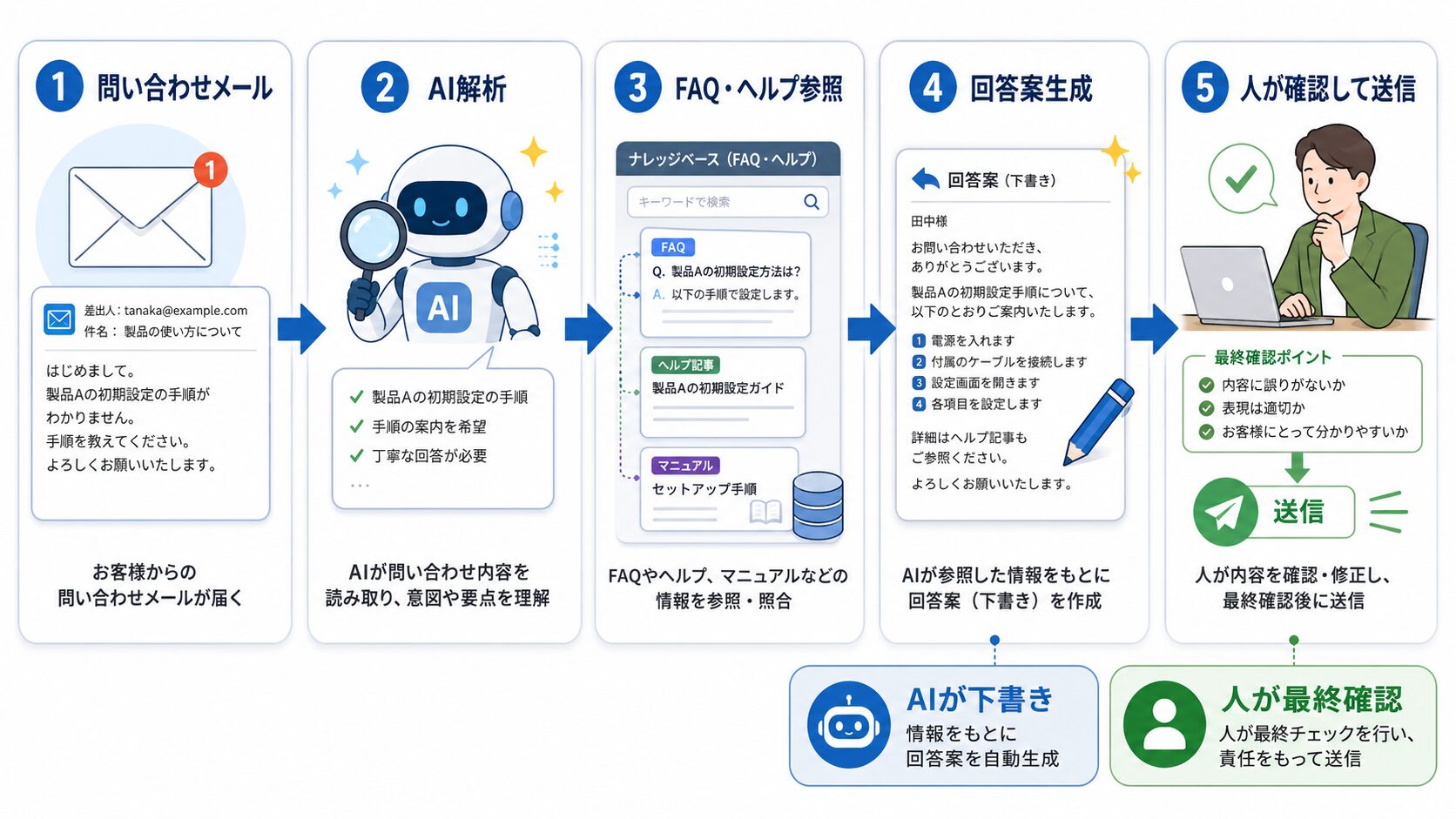
<p>問い合わせメールが届いたら、AIが内容を自動解析します。<br>そしてFAQ・ヘルプ記事・これまでの回答履歴をもとに、回答の下書きを自動生成してくれます。</p>


<p>担当者がやることは、その下書きを読んで、表現を整えて、送信するだけ。<br><strong>30分〜1時間かかっていた回答作成が、15分短縮されました。</strong></p>


<p>ちなみに、AIが「自動送信」する設計にはしていません。<br>必ず人が最終確認してから送る仕組みにしています。これは意図的な設計です。</p>


<p>問い合わせ対応にはミスが許されない場面もある。<br>最後の責任は人が持つ——そういうスタンスを崩したくなかったからです。</p>


<figure class="wp-block-image size-full"><img decoding="async" width="1672" height="941" src="https://blog.astha.jp/wp-content/uploads/2026/05/image-3.jpg" alt="" class="wp-image-4401" srcset="https://blog.astha.jp/wp-content/uploads/2026/05/image-3.jpg 1672w, https://blog.astha.jp/wp-content/uploads/2026/05/image-3-300x169.jpg 300w, https://blog.astha.jp/wp-content/uploads/2026/05/image-3-1024x576.jpg 1024w, https://blog.astha.jp/wp-content/uploads/2026/05/image-3-768x432.jpg 768w, https://blog.astha.jp/wp-content/uploads/2026/05/image-3-1536x864.jpg 1536w" sizes="(max-width: 1672px) 100vw, 1672px" /></figure>


<h3 class="wp-block-heading">あなたの業務に当てはめると</h3>


<p>ECサイト、士業事務所、SaaS企業、サービスを持っている事業者。</p>


<p>「問い合わせ対応に追われている」と感じている方に、まずここから整えることをおすすめしています。</p>


<p>ナレッジが蓄積されるほど回答の質も上がるので、使い続けるほど育っていく仕組みでもあります。</p>


<h2 class="wp-block-heading">事例③ サイトを切り替えるたびに転記していたGA4の数字が、0分になった</h2>


<h3 class="wp-block-heading">「難しくはないけど、地味にしんどい」作業</h3>


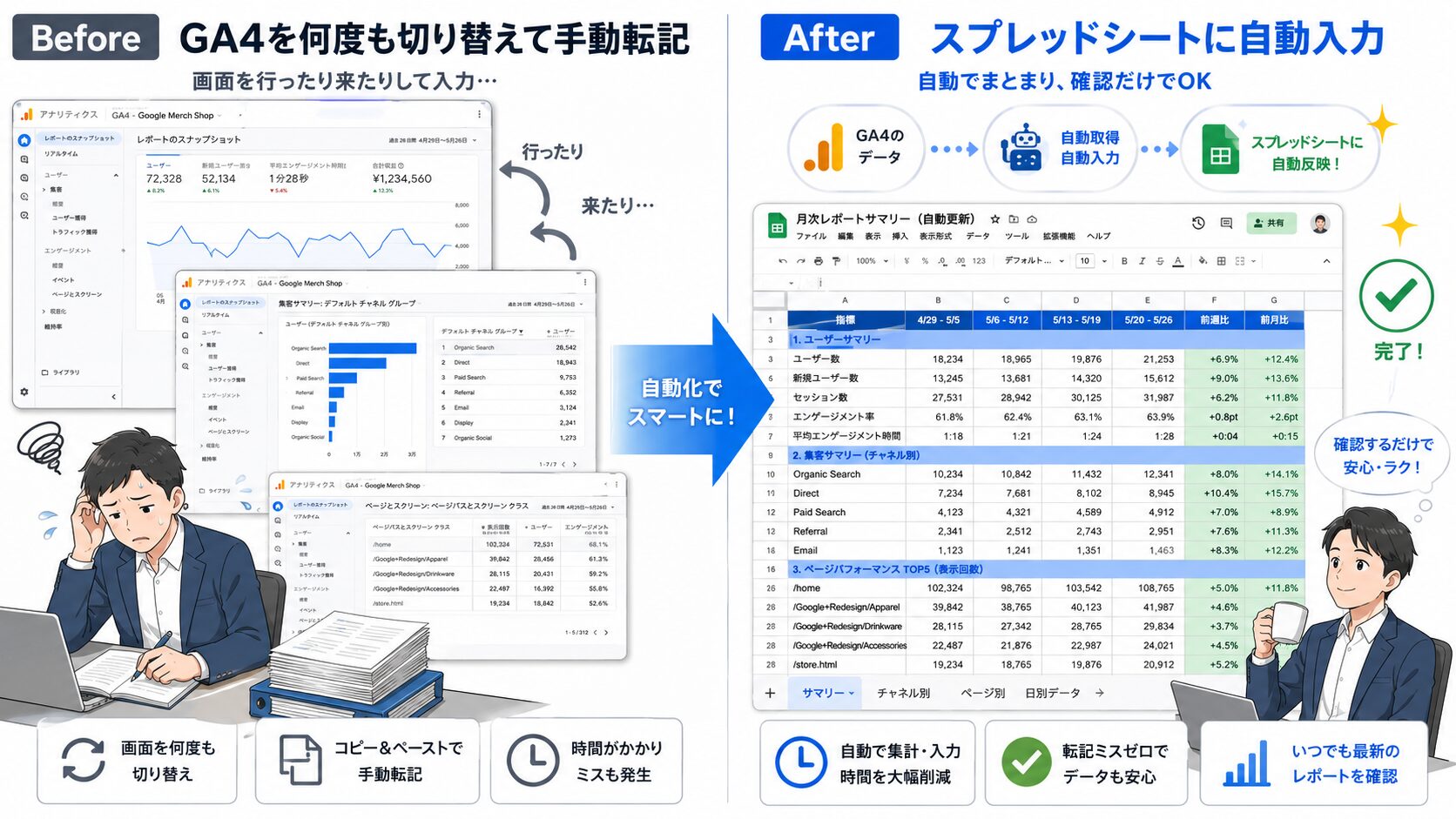
<p>20サイト以上のWebサイトを管理していると、日々のアクセス状況を把握するだけでひと仕事でした。</p>


<p>Google Analytics 4（GA4）を開く。<br>サイトを切り替える。<br>昨日のPV数を確認する。<br>スプレッドシートに手入力する。<br>次のサイトに切り替える。<br>また確認して、また入力する、、、それを20回以上繰り返す。</p>


<p>難しい作業ではないんです。<br>でも、<strong>これだけで10分以上かかっていました。</strong></p>


<p>しかも毎日。<br>「10分くらいいいじゃないか」と思われるかもしれませんが、画面を何度も切り替えながら数字をコピペし続けるあの単調さは、なかなかのストレスです。</p>


<h3 class="wp-block-heading">今は何をしているか</h3>


<p>GA4のAPIで複数サイトのデータを一括取得して、スプレッドシートに自動入力する仕組みにしました。</p>


<p>今の私の仕事は、朝スプレッドシートを開いて、すでに並んでいる数字を眺めるだけです。<br><strong>10分以上かかっていた作業が、完全に0分になりました。</strong></p>


<p>数字を「集める」時間がなくなった分、数字を「読む」ことだけに集中できるようになりました。</p>


<figure class="wp-block-image size-full"><img decoding="async" width="1672" height="941" src="https://blog.astha.jp/wp-content/uploads/2026/05/image-4.jpg" alt="" class="wp-image-4402" srcset="https://blog.astha.jp/wp-content/uploads/2026/05/image-4.jpg 1672w, https://blog.astha.jp/wp-content/uploads/2026/05/image-4-300x169.jpg 300w, https://blog.astha.jp/wp-content/uploads/2026/05/image-4-1024x576.jpg 1024w, https://blog.astha.jp/wp-content/uploads/2026/05/image-4-768x432.jpg 768w, https://blog.astha.jp/wp-content/uploads/2026/05/image-4-1536x864.jpg 1536w" sizes="(max-width: 1672px) 100vw, 1672px" /></figure>


<h3 class="wp-block-heading">あなたの業務に当てはめると</h3>


<p>複数店舗の売上、複数媒体の広告結果、複数ツールに散らばったKPIデータ——「同じ作業を何度も繰り返して数字を集めている」ものがあれば、ほぼ同じ仕組みが使えます。毎日・毎週の定点観測に特に効果が出やすいです。</p>


<h2 class="wp-block-heading">事例④ メルマガのレポート作成、1時間が15分に</h2>


<h3 class="wp-block-heading">「転記」に「分析」に「文章作成」、全部やっていた</h3>


<p>クライアントがメルマガを配信するたびに、こんな作業をしていました。</p>


<p>メール配信ツールを開く。<br>先週の配信一覧を確認する。<br>開封数を確認してスプレッドシートに手入力する。<br>クリック数も同じようにやる。<br>配信が複数あれば繰り返す。<br>配信内容を読み返しながら「今回はこういう結果でした」という分析コメントを書く。<br>それをチャットに投稿する。</p>


<p>単純な転記だけではなく、内容を読んで考えてまとめるところまで全部自分でやっていたので、<strong>まとめると1時間かかっていました。</strong></p>


<p>週に1回、月に1回——とはいえ、毎回1時間を消費する作業として積み重なっていくのはじわじわとしんどいものです。</p>


<h3 class="wp-block-heading">今は何をしているか</h3>


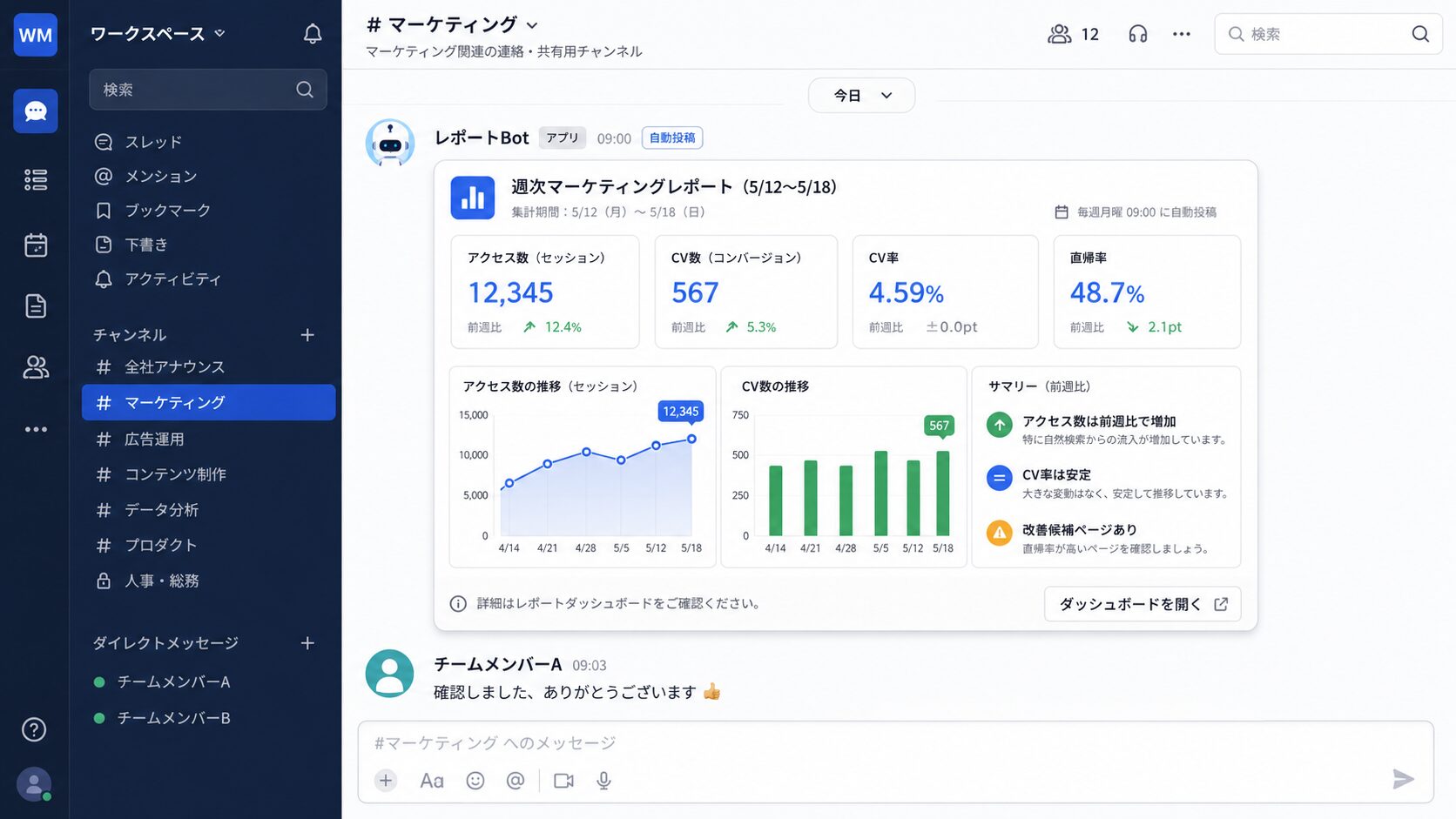
<p>APIで配信データを自動取得して、スプレッドシートに自動入力して、分析コメントをAIが自動生成して、Chatworkに自動投稿する——という一連の流れが、すべて自動で動いています。</p>


<p>毎週金曜の朝8時に、レポートがChatworkに届いている。<br>私はそれを読んで、ちょっとだけ手直しして送るだけです。<br><strong>1時間かかっていた作業が、15分で終わるようになりました。</strong></p>


<p>おまけに、ドメイン別の開封率の変化や急な低下も自動検知してくれるので、手作業では埋もれていた気づきも拾えるようになりました。</p>


<figure class="wp-block-image size-full"><img decoding="async" width="1672" height="941" src="https://blog.astha.jp/wp-content/uploads/2026/05/image-5.jpg" alt="" class="wp-image-4403" srcset="https://blog.astha.jp/wp-content/uploads/2026/05/image-5.jpg 1672w, https://blog.astha.jp/wp-content/uploads/2026/05/image-5-300x169.jpg 300w, https://blog.astha.jp/wp-content/uploads/2026/05/image-5-1024x576.jpg 1024w, https://blog.astha.jp/wp-content/uploads/2026/05/image-5-768x432.jpg 768w, https://blog.astha.jp/wp-content/uploads/2026/05/image-5-1536x864.jpg 1536w" sizes="(max-width: 1672px) 100vw, 1672px" /></figure>


<h3 class="wp-block-heading">あなたの業務に当てはめると</h3>


<p>メルマガ・LINE配信・広告レポートなど、「定期的に数字を集めてまとめて報告する」業務があれば、ほぼそのまま仕組みが使えます。<br>「転記」と「分析文の作成」が両方セットで自動化できるのがポイントです。</p>


<h2 class="wp-block-heading">事例⑤ SNS投稿文、数時間の悩みが1時間以内に</h2>


<h3 class="wp-block-heading">SNSが苦手な人間が、それでも投稿を続けられている理由</h3>


<p>正直に言うと、SNSが得意なほうではありません。</p>


<p>何を書けばいいかわからない。考えていたら時間が経つ。「この内容でいいのか」と迷って、結局下書きのまま公開しない、、、そういうことを繰り返していました。<br>自分でゼロから投稿内容を考えようとすると、<strong>数時間かかることもありました。</strong></p>


<h3 class="wp-block-heading">今は何をしているか</h3>


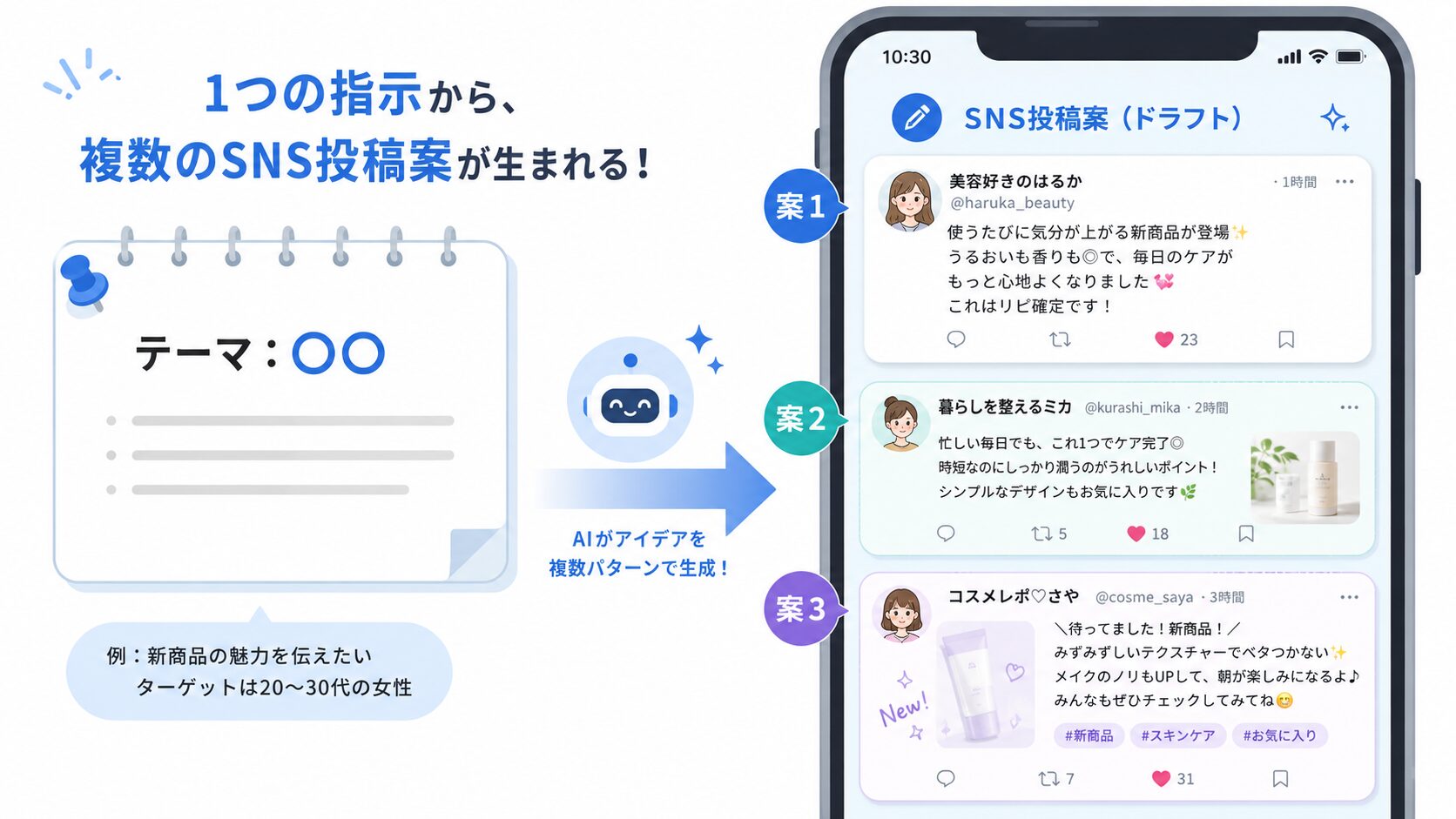
<p>テーマと自分の文体のサンプルをAIに渡して、「このテーマで3パターンの投稿案を作って」と指示するだけです。<br>自分の言葉に近い投稿案が複数出てくるので、選んで少し直して投稿するだけになりました。</p>


<p>さらに便利なのが、「最終的にこのゴールに向けて読者を誘導するシナリオを作って」という使い方です。<br>1投稿だけではなく、数週間にわたるストーリーとして複数の投稿がまとめて出てくる。<br>テーマに悩む時間も、どう言おうか考える時間も、ほとんどなくなりました。</p>


<p><strong>数時間かかっていた作業が、1時間とかからずにできるようになりました。</strong></p>


<figure class="wp-block-image size-full"><img decoding="async" width="1672" height="941" src="https://blog.astha.jp/wp-content/uploads/2026/05/image-6.jpg" alt="" class="wp-image-4406" srcset="https://blog.astha.jp/wp-content/uploads/2026/05/image-6.jpg 1672w, https://blog.astha.jp/wp-content/uploads/2026/05/image-6-300x169.jpg 300w, https://blog.astha.jp/wp-content/uploads/2026/05/image-6-1024x576.jpg 1024w, https://blog.astha.jp/wp-content/uploads/2026/05/image-6-768x432.jpg 768w, https://blog.astha.jp/wp-content/uploads/2026/05/image-6-1536x864.jpg 1536w" sizes="(max-width: 1672px) 100vw, 1672px" /></figure>


<h3 class="wp-block-heading"><img src="https://s.w.org/images/core/emoji/17.0.2/72x72/26a0.png" alt="⚠" class="wp-smiley" style="height: 1em; max-height: 1em;" /> 完全自動投稿には注意が必要です</h3>


<p>「じゃあ投稿まで自動化すればもっとラクでは？」と思う方もいると思います。<br>ただ、X（旧Twitter）の利用規約上、Botのような自動投稿は禁止されています。<br>規約に違反した場合、アカウントが凍結されるリスクがあります。</p>


<p>弊社では、<strong>「投稿文の生成まではAI、実際の投稿は人間」という設計にしています。</strong></p>


<p>もし本格的に自動投稿を運用したいなら、X公式の有料APIを使うか、規約に準拠した正規の有料ツールを使うべきです。<br>「便利そうだからやってみた」が、アカウント凍結につながることもある。<br>便利さの裏にあるリスクを理解したうえで設計する——こういう視点も含めて、弊社はAI活用の提案をしています。</p>


<h2 class="wp-block-heading">「AIに向いている仕事」と「そうじゃない仕事」</h2>


<figure class="wp-block-image size-full"><img decoding="async" width="1672" height="941" src="https://blog.astha.jp/wp-content/uploads/2026/05/image-7.jpg" alt="" class="wp-image-4407" srcset="https://blog.astha.jp/wp-content/uploads/2026/05/image-7.jpg 1672w, https://blog.astha.jp/wp-content/uploads/2026/05/image-7-300x169.jpg 300w, https://blog.astha.jp/wp-content/uploads/2026/05/image-7-1024x576.jpg 1024w, https://blog.astha.jp/wp-content/uploads/2026/05/image-7-768x432.jpg 768w, https://blog.astha.jp/wp-content/uploads/2026/05/image-7-1536x864.jpg 1536w" sizes="(max-width: 1672px) 100vw, 1672px" /></figure>


<p>これらの事例を通じて、一つ気づいたことがあります。</p>


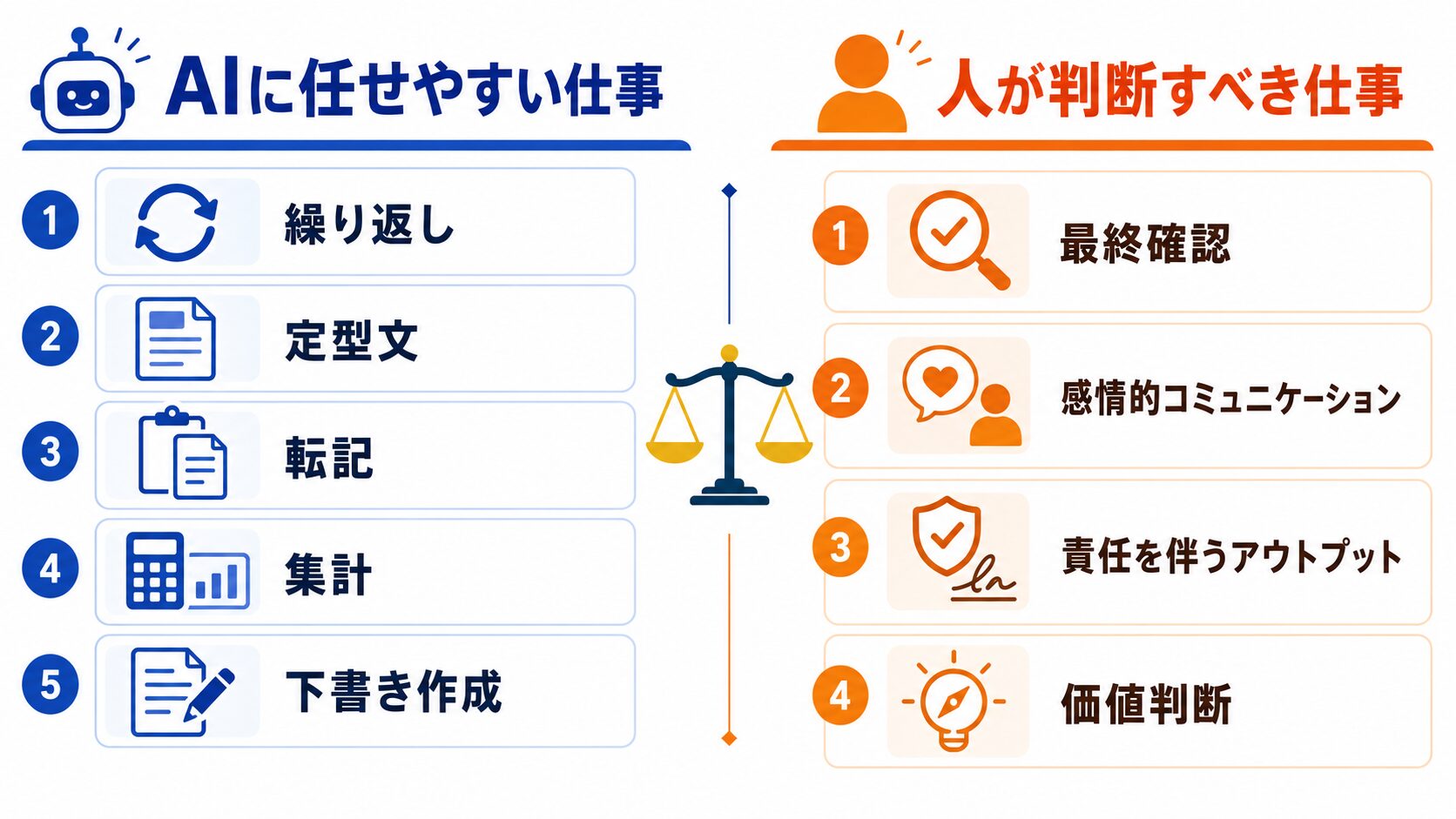
<p><strong>AIが得意なのは「繰り返し・定型・転記・下書き」。人が判断すべきなのは「最終確認・感情・責任を持つアウトプット」。</strong></p>


<p>この仕分けができると、業務が変わります。「全部AIに任せる」でもなく、「AIをまったく使わない」でもなく。どの仕事をAIに任せて、どの仕事を人間がやるか——その境界線を引くことが、業務改善の最初の一歩です。</p>


<h2 class="wp-block-heading">AIでラクになる業務、あなたの会社にもきっとあります</h2>


<p>「うちは特殊な業種だから……」<br>「規模が小さいから、そこまでやらなくていいかな……」<br>そういう声もよく聞きます。</p>


<p>でも、事例を見ていただいてわかるように、対象は特別な業種ではありません。<br>ブログ更新、メール対応、集計・レポート作成、SNS投稿——誰もがやっている業務です。</p>


<p>課題は「どこに使えるか」を見つけることと、「やってはいけないこと」を理解することです。<br>自分では気づかないことも弊社であれば見つけられるかもしれません。<br>あなたにもAIを使って<strong>面倒をラクにしてもらいたい</strong>。<br>そのために弊社では30分の無料診断サービスを提供しています。</p>


<figure class="wp-block-image size-full"><img decoding="async" width="1672" height="941" src="https://blog.astha.jp/wp-content/uploads/2026/05/image-8.jpg" alt="" class="wp-image-4410" srcset="https://blog.astha.jp/wp-content/uploads/2026/05/image-8.jpg 1672w, https://blog.astha.jp/wp-content/uploads/2026/05/image-8-300x169.jpg 300w, https://blog.astha.jp/wp-content/uploads/2026/05/image-8-1024x576.jpg 1024w, https://blog.astha.jp/wp-content/uploads/2026/05/image-8-768x432.jpg 768w, https://blog.astha.jp/wp-content/uploads/2026/05/image-8-1536x864.jpg 1536w" sizes="(max-width: 1672px) 100vw, 1672px" /></figure>


<h2 class="wp-block-heading">AI活用無料診断のご案内</h2>


<p>弊社のAI活用無料診断は、30分のオンラインセッションです。</p>


<ul class="wp-block-list">
<li>業務プロセスの中からAI化できる箇所を特定</li>


<li>入力してはいけない情報の整理（セキュリティ面の確認）</li>


<li>1週間以内に動ける初期施策の提案</li>
</ul>


<p>AIの知識はまったく不要です。<br>業務の内容を話していただくだけで十分です。<br>診断後に有料サービスへの申し込みを強制することもありません。</p>


<figure class="wp-block-image size-full"><a href="https://astha.aspla.jp/ai_diagnosis/" target="_blank" rel=" noreferrer noopener"><img decoding="async" width="1536" height="1024" src="https://blog.astha.jp/wp-content/uploads/2026/04/ai-powered_free_diagnosis_03.jpg" alt="" class="wp-image-4393" srcset="https://blog.astha.jp/wp-content/uploads/2026/04/ai-powered_free_diagnosis_03.jpg 1536w, https://blog.astha.jp/wp-content/uploads/2026/04/ai-powered_free_diagnosis_03-300x200.jpg 300w, https://blog.astha.jp/wp-content/uploads/2026/04/ai-powered_free_diagnosis_03-1024x683.jpg 1024w, https://blog.astha.jp/wp-content/uploads/2026/04/ai-powered_free_diagnosis_03-768x512.jpg 768w, https://blog.astha.jp/wp-content/uploads/2026/04/ai-powered_free_diagnosis_03-530x353.jpg 530w, https://blog.astha.jp/wp-content/uploads/2026/04/ai-powered_free_diagnosis_03-565x377.jpg 565w, https://blog.astha.jp/wp-content/uploads/2026/04/ai-powered_free_diagnosis_03-710x473.jpg 710w, https://blog.astha.jp/wp-content/uploads/2026/04/ai-powered_free_diagnosis_03-725x483.jpg 725w" sizes="(max-width: 1536px) 100vw, 1536px" /></a><figcaption class="wp-element-caption">画像クリックで予約ページに飛びます</figcaption></figure>


<p>ぜひ、いま面倒だと思っていること、気づかずに時間を浪費してしまっていることを一緒に解決していきましょう。</p>


<h2 class="wp-block-heading">よくある質問</h2>


<h3 class="wp-block-heading">生成AIをほぼ使ったことがないですが大丈夫ですか？</h3>


<p>まったく問題ありません。<br>AIの知識ではなく、業務の話を聞かせてください。<br>「こんな作業を毎週やっています」<br>「この対応に時間がかかっています」<br>そういった話から一緒に整理します。</p>


<h3 class="wp-block-heading">診断後、必ず有料サービスに申し込まないといけませんか？</h3>


<p>いいえ。診断だけでも十分な気づきを持って帰っていただけるよう設計しています。<br>「やってみます」「もう少し考えます」どちらでも構いません。</p>


<h3 class="wp-block-heading">社内の情報を話すのが不安です</h3>


<p>業務の「仕組みの話」を聞かせていただければ十分です。<br>具体的な顧客名や個人情報をお伝えいただく必要はありません。<br>診断で得た情報を外部に共有することもありません。<br>また、「どんな情報をAIに入力してはいけないか」という観点も診断の中でお伝えしています。</p>


<p></p><p>The post <a href="https://blog.astha.jp/ai-gyomu-kaizen-jireijutsu/">AIに任せてラクになった仕事、実例4つ公開します</a> first appeared on <a href="https://blog.astha.jp">アスタWorks</a>.</p>]]></content>
		
					<link rel="replies" type="text/html" href="https://blog.astha.jp/ai-gyomu-kaizen-jireijutsu/#comments" thr:count="0" />
			<link rel="replies" type="application/atom+xml" href="https://blog.astha.jp/ai-gyomu-kaizen-jireijutsu/feed/atom/" thr:count="0" />
			<thr:total>0</thr:total>
			</entry>
		<entry>
		<author>
			<name>auto_post</name>
					</author>

		<title type="html"><![CDATA[PyCharmをアップデートする前に確認したいAI Assistantチャット履歴のバックアップ手順]]></title>
		<link rel="alternate" type="text/html" href="https://blog.astha.jp/pycharm-ai-assistant-chat-backup-before-upgrade/" />

		<id>https://blog.astha.jp/?p=4376</id>
		<updated>2026-04-22T05:06:55Z</updated>
		<published>2026-04-22T05:05:36Z</published>
		<category scheme="https://blog.astha.jp" term="IT活用" />
		<summary type="html"><![CDATA[<p>PyCharmをメジャーアップデートするとAI Assistantのチャット履歴が見えなくなることがあります。 アップデート前に確認したい保存先フォルダと、バックアップから復元する手順を初心者向けに整理しました。</p>
<p>The post <a href="https://blog.astha.jp/pycharm-ai-assistant-chat-backup-before-upgrade/">PyCharmをアップデートする前に確認したいAI Assistantチャット履歴のバックアップ手順</a> first appeared on <a href="https://blog.astha.jp">アスタWorks</a>.</p>]]></summary>

					<content type="html" xml:base="https://blog.astha.jp/pycharm-ai-assistant-chat-backup-before-upgrade/"><![CDATA[<h2 class="wp-block-heading">はじめに</h2>


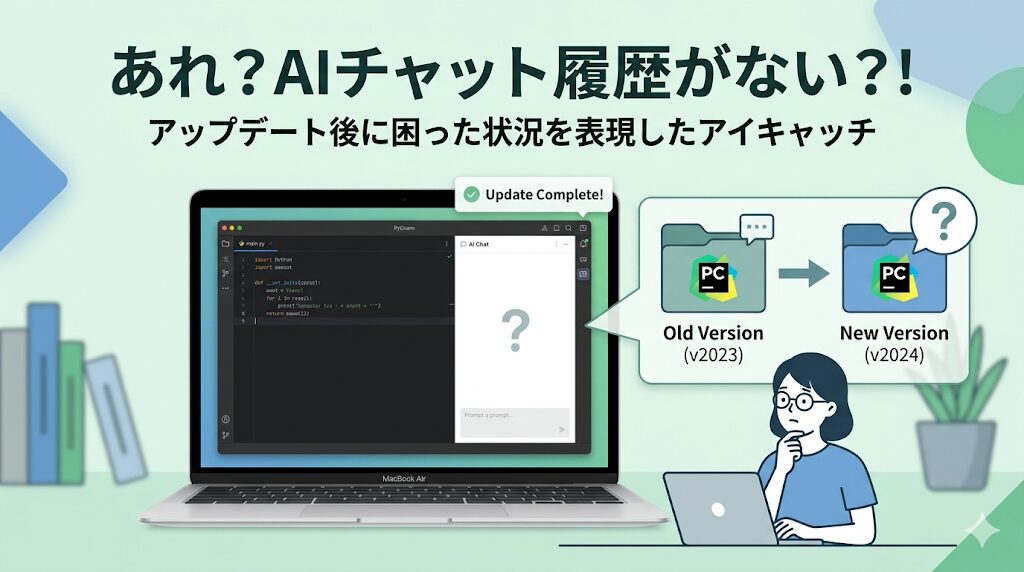
<p>PyCharmをメジャーバージョンアップしたあとに、AI Assistantのチャット履歴が見当たらず困ったことはないでしょうか。<br>設定は引き継がれたように見えても、チャットだけ見えなくなることがあります。<br>あとから気づくと慌てやすいので、アップデート前に確認しておくのが安心です。</p>


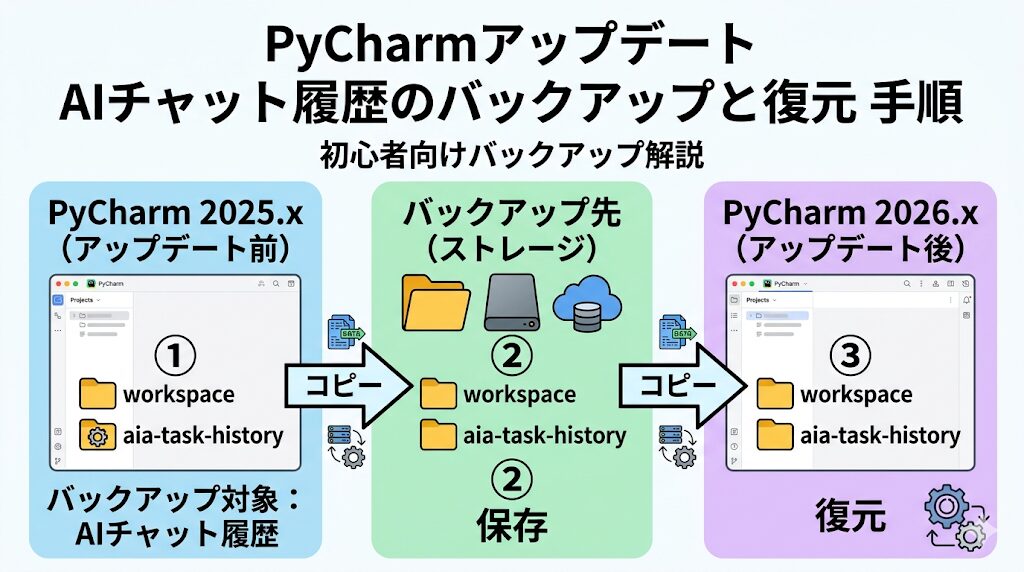
<p>この記事では、PyCharmを2025.xから2026.xのようにメジャーアップデートする前に見ておきたい保存先と、バックアップから復元する流れをまとめます。<br>作業自体は難しくありませんが、事前に知っているかどうかで差が出やすいポイントだと思います。</p>


<p><strong>※PhpStormなど他のJetBrainsツールでAI Asistantを使っている場合も同様です。</strong></p>


<figure class="wp-block-image size-full"><img decoding="async" width="1024" height="572" src="https://blog.astha.jp/wp-content/uploads/2026/04/image-1-13.jpg" alt="" class="wp-image-4379" srcset="https://blog.astha.jp/wp-content/uploads/2026/04/image-1-13.jpg 1024w, https://blog.astha.jp/wp-content/uploads/2026/04/image-1-13-300x168.jpg 300w, https://blog.astha.jp/wp-content/uploads/2026/04/image-1-13-768x429.jpg 768w" sizes="(max-width: 1024px) 100vw, 1024px" /></figure>


<h2 class="wp-block-heading">この記事でわかること</h2>


<ul class="wp-block-list">
<li>なぜメジャーバージョンアップ後にAIチャット履歴が見えなくなるのか</li>


<li>バックアップしておきたい2つのフォルダ</li>


<li>アップデート前後にやることの流れ</li>


<li>あとから気づいたときに確認したい注意点</li>
</ul>


<h2 class="wp-block-heading">なぜチャット履歴が消えたように見えるのか</h2>


<p>PyCharmのメジャーバージョンアップでは、設定や履歴の保存先フォルダが新しいバージョン用に切り替わります。<br>たとえば旧バージョンが<code>~/Library/Application Support/JetBrains/PyCharm2025.3/</code>で、新バージョンが<code>~/Library/Application Support/JetBrains/PyCharm2026.1/</code>という形です。</p>


<p>この切り替え自体は特別なことではありません。<br>ただし、新しいフォルダにはこれまでのAIチャット履歴が入っていないため、アップデート後に「消えた」と感じやすくなります。<br>旧バージョン側にデータが残っている場合があるので、保存先を知っておくことが大切です。</p>


<p>ただ、アップデート後にこのデータが消えたという報告もあるようです。<br>実際に私もアップデート後はAIの回答に関するデータが消えてしまい、結果的に復元ができない状況になりました。</p>


<h2 class="wp-block-heading">先に押さえておきたい保存先</h2>


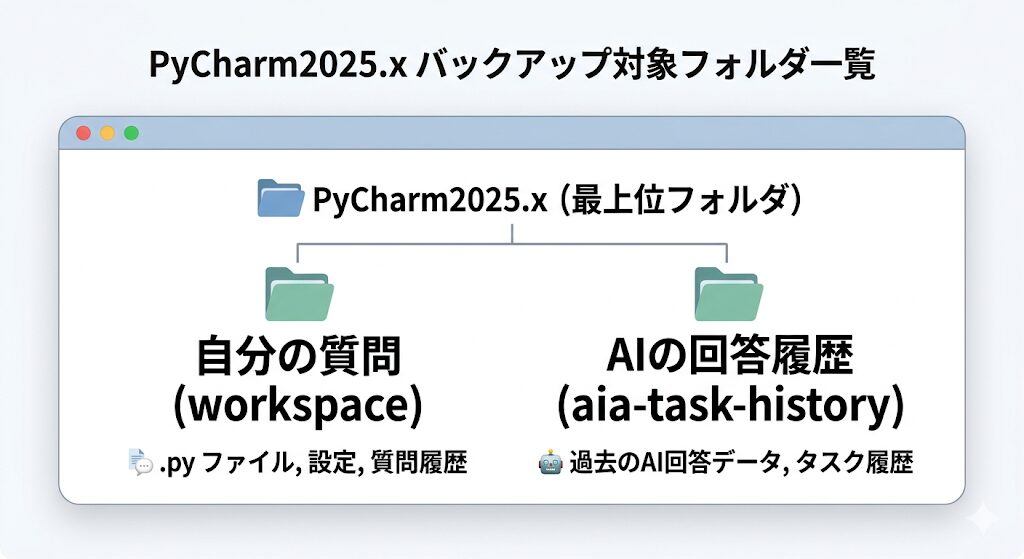
<p>チャット履歴は1か所にまとまっているわけではなく、2つのフォルダに分かれています。<br>この2つをセットで見ておくと、あとで状況を追いやすくなります。</p>


<h3 class="wp-block-heading">workspaceは自分の質問を保存している</h3>


<p><code>~/Library/Application Support/JetBrains/PyCharm2025.x/workspace/</code>には、自分が入力した質問やプロンプトが<code>.xml</code>ファイルとして保存されています。<br>何を聞いたかを振り返りたいときは、まずここが重要になります。</p>


<h3 class="wp-block-heading">aia-task-historyはAIの回答履歴に関わる</h3>


<p><code>~/Library/Application Support/JetBrains/PyCharm2025.x/aia-task-history/</code>には、JunieやCodexなどAIエージェントの回答履歴に関わる情報が保存されています。<br>中身はセッションIDで、実際のメッセージはそのIDをもとにサーバーから取得する仕組みです。<br>そのため、質問側の<code>workspace</code>だけでなく、こちらも一緒にバックアップしておくほうが安心です。</p>


<figure class="wp-block-image size-full"><img decoding="async" width="1024" height="559" src="https://blog.astha.jp/wp-content/uploads/2026/04/image-1-14.jpg" alt="" class="wp-image-4380" srcset="https://blog.astha.jp/wp-content/uploads/2026/04/image-1-14.jpg 1024w, https://blog.astha.jp/wp-content/uploads/2026/04/image-1-14-300x164.jpg 300w, https://blog.astha.jp/wp-content/uploads/2026/04/image-1-14-768x419.jpg 768w" sizes="(max-width: 1024px) 100vw, 1024px" /></figure>


<h2 class="wp-block-heading">アップデート前にやっておきたいこと</h2>


<p>作業はシンプルで、アップデート前に旧バージョンの保存先を開き、必要なフォルダをコピーしておくだけです。<br>Finderで<code>⌘+Shift+G</code>を押して、次のパスを開きます。</p>


<pre class="wp-block-code"><code>~/Library/Application Support/JetBrains/PyCharm2025.x/</code></pre>


<p>開いた場所で、次の2つのフォルダをデスクトップなどにコピーしておきます。</p>


<ul class="wp-block-list">
<li><code>workspace</code></li>


<li><code>aia-task-history</code></li>
</ul>


<p>前述の通り、フォルダが消える可能性もあるため、アップデート前に必ずバックアップすることを推奨します。<br>重要なやり取りは、念のためテキストファイルでも別保存しておくとさらに安心です。</p>


<h2 class="wp-block-heading">アップデート後の復元方法</h2>


<p>アップデートが終わったら、新バージョン側の同じ場所へバックアップしたフォルダを貼り付けます。</p>


<pre class="wp-block-code"><code>~/Library/Application Support/JetBrains/PyCharm2026.x/workspace/
~/Library/Application Support/JetBrains/PyCharm2026.x/aia-task-history/</code></pre>


<p>フォルダごとコピーするだけで復元できる想定です。<br>難しい設定変更は必要ないので、保存先さえ把握していれば対応しやすいと思います。</p>


<figure class="wp-block-image size-full"><img decoding="async" width="1024" height="572" src="https://blog.astha.jp/wp-content/uploads/2026/04/image-1-15.jpg" alt="" class="wp-image-4381" srcset="https://blog.astha.jp/wp-content/uploads/2026/04/image-1-15.jpg 1024w, https://blog.astha.jp/wp-content/uploads/2026/04/image-1-15-300x168.jpg 300w, https://blog.astha.jp/wp-content/uploads/2026/04/image-1-15-768x429.jpg 768w" sizes="(max-width: 1024px) 100vw, 1024px" /></figure>


<h2 class="wp-block-heading">あとから気づいたときの注意点</h2>


<p>もしアップデート後に気づいた場合でも、旧バージョンのフォルダがすぐ消えるわけではありません。<br>PyCharm2025.xのフォルダが残っていれば、そこから復元できる可能性があります。<br>まずは慌てずに旧フォルダが残っているかを確認してみてください。</p>


<h2 class="wp-block-heading">アップデート前チェックリスト</h2>


<ul class="wp-block-list">
<li><strong>workspaceフォルダをバックアップした</strong></li>


<li><strong>aia-task-historyフォルダをバックアップした</strong></li>


<li><strong>重要なチャット内容はテキストファイルにも別途保存した</strong></li>
</ul>


<p>メジャーバージョンアップのたびに同じ確認が必要になる可能性があります。<br>そのため、アップデート前の定型チェックとして覚えておくと再発を防ぎやすくなります。</p>


<h2 class="wp-block-heading">Codexのモデル選択が消えたときは</h2>


<p>バージョンアップ後に、Codexのモデル選択UIが表示されなくなることがあるようです。<br>その場合は、次の記事が原因確認と対処の入口になります。</p>


<figure class="wp-block-embed is-type-wp-embed is-provider-works wp-block-embed-works"><div class="wp-block-embed__wrapper">
<blockquote class="wp-embedded-content" data-secret="ci33vn9l8D"><a href="https://blog.astha.jp/pycharm-2026-1-codex-model-selection-fix/">PyCharmをアップデートしたらCodexのモデル選択が消えたときの対処法</a></blockquote><iframe loading="lazy" class="wp-embedded-content" sandbox="allow-scripts" security="restricted"  title="&#8220;PyCharmをアップデートしたらCodexのモデル選択が消えたときの対処法&#8221; &#8212; アスタWorks" src="https://blog.astha.jp/pycharm-2026-1-codex-model-selection-fix/embed/#?secret=fPpmHircFD#?secret=ci33vn9l8D" data-secret="ci33vn9l8D" width="500" height="282" frameborder="0" marginwidth="0" marginheight="0" scrolling="no"></iframe>
</div></figure>


<h2 class="wp-block-heading">まとめ</h2>


<p>PyCharmのメジャーバージョンアップでは、AI Assistantのチャット履歴が新しい保存先へ自動で見えるようになるとは限りません。<br>アップデート前に<code>workspace</code>と<code>aia-task-history</code>を控えておくと、あとから慌てずに済みます。</p>


<p>作業そのものはフォルダをコピーするだけです。<br>だからこそ、アップデート前の短い確認を習慣にしておくと安心です。<br>これからPyCharmを更新する予定があるなら、先にバックアップだけでも済ませておくのがおすすめです。</p>


<div style="height:100px" aria-hidden="true" class="wp-block-spacer"></div>


<div class="wp-block-luxe-blocks-balloon" style="display:flex;margin-top:10px;margin-bottom:30px"><figure style="max-width:10%"><img decoding="async" src="https://blog.astha.jp/wp-content/uploads/2024/10/businesswoman-thinking.png" alt="考える-ビジネスパーソンの女性" width="417" height="688"/></figure><div class="luxe-bl-wrap"><div class="luxe-bl-lbf" style="border-right:15px solid #808080"></div><div class="luxe-bl-lmain" style="border:3px solid #808080;border-radius:20px;padding:0px 15px 0px 15px "><div class="luxe-bl-laf" style="border-right:15px solid #fff;left:-14px"></div><p><strong><span style="font-size: 20px" class="font-size">設定が難しそうだし間違えるのが心配･･･。</span></strong></p></div></div></div>


<div class="wp-block-luxe-blocks-balloon" style="display:flex;flex-direction:row-reverse;margin-top:10px;margin-bottom:30px"><figure style="max-width:10%"><img decoding="async" src="https://blog.astha.jp/wp-content/uploads/2024/10/businessman-thinking.png" alt="考える-ビジネスパーソン" width="453" height="758"/></figure><div class="luxe-bl-wrap"><div class="luxe-bl-rbf" style="border-left:15px solid #808080"></div><div class="luxe-bl-rmain" style="border:3px solid #808080;border-radius:20px;padding:0px 15px 0px 15px "><div class="luxe-bl-raf" style="border-left:15px solid #fff;right:-14px"></div><p><strong><span style="font-size: 20px" class="font-size">やりたいことは決まっているけど、どうやったら実現できるのかがわからない。</span></strong></p></div></div></div>


<p>そんなときは、</p>


<p><span style="font-size: 24px" class="font-size"><strong><span class="luxe-dot-hilight-yellow">知っている人や詳しい人に聞きながら進めるのが間違いないと思います！</span></strong></span></p>


<p>IT関係の問題は専門用語も多く出てきて、説明を読んでもチンプンカンプンといったことはよくあります。</p>


<p>言葉の意味もわからずに設定してもうまく動かなかったり、間違った設定をしてしまう可能性もゼロではありません。</p>


<p>もし、安全に短時間で問題を解決したいと感じられたら、弊社のITサポートのご利用をご検討ください。</p>


<div style="height:24px" aria-hidden="true" class="wp-block-spacer"></div>


<h2 class="wp-block-heading">お客様の声</h2>


<figure class="wp-block-image size-large"><img decoding="async" width="1024" height="684" src="https://blog.astha.jp/wp-content/uploads/2024/10/image-2-1024x684.jpg" alt="" class="wp-image-3687" srcset="https://blog.astha.jp/wp-content/uploads/2024/10/image-2-1024x684.jpg 1024w, https://blog.astha.jp/wp-content/uploads/2024/10/image-2-300x201.jpg 300w, https://blog.astha.jp/wp-content/uploads/2024/10/image-2-768x513.jpg 768w, https://blog.astha.jp/wp-content/uploads/2024/10/image-2.jpg 1532w" sizes="(max-width: 1024px) 100vw, 1024px" /></figure>


<figure class="wp-block-image size-large"><img decoding="async" width="1024" height="709" src="https://blog.astha.jp/wp-content/uploads/2024/10/image-2-1-1024x709.jpg" alt="" class="wp-image-3688" srcset="https://blog.astha.jp/wp-content/uploads/2024/10/image-2-1-1024x709.jpg 1024w, https://blog.astha.jp/wp-content/uploads/2024/10/image-2-1-300x208.jpg 300w, https://blog.astha.jp/wp-content/uploads/2024/10/image-2-1-768x531.jpg 768w, https://blog.astha.jp/wp-content/uploads/2024/10/image-2-1.jpg 1532w" sizes="(max-width: 1024px) 100vw, 1024px" /></figure>


<div style="height:24px" aria-hidden="true" class="wp-block-spacer"></div>


<p class="has-text-align-left">今なら通常5500円（税込）のところ<strong><span style="color: #dc143c" class="text-color">1100円（税込）</span></strong>でサポートがご利用いただけます。<br>※割引料金でご利用いただく場合は、バナーをクリックして表示されるサポート申し込みページからお申し込みください。</p>


<div class="a-single a-23"><style>
    .banner-container img {
        box-sizing: border-box;
    }
</style>

<figure class="light-up banner-container">
    <a data-track="MjMsMCwxLDYw" href="https://tebanasu.net/astha/it_support30_first1100?ref=works_article_bottom" target="_blank" rel="noreferrer noopener external" class="external gofollow">
        <img decoding="async" src="https://blog.astha.jp/wp-content/uploads/2024/10/itSupport_bannar_1100.png" alt="初回割引ITサポート"/>
    </a>
</figure></div><p>The post <a href="https://blog.astha.jp/pycharm-ai-assistant-chat-backup-before-upgrade/">PyCharmをアップデートする前に確認したいAI Assistantチャット履歴のバックアップ手順</a> first appeared on <a href="https://blog.astha.jp">アスタWorks</a>.</p>]]></content>
		
					<link rel="replies" type="text/html" href="https://blog.astha.jp/pycharm-ai-assistant-chat-backup-before-upgrade/#comments" thr:count="0" />
			<link rel="replies" type="application/atom+xml" href="https://blog.astha.jp/pycharm-ai-assistant-chat-backup-before-upgrade/feed/atom/" thr:count="0" />
			<thr:total>0</thr:total>
			</entry>
		<entry>
		<author>
			<name>auto_post</name>
					</author>

		<title type="html"><![CDATA[PyCharmをアップデートしたらCodexのモデル選択が消えたときの対処法]]></title>
		<link rel="alternate" type="text/html" href="https://blog.astha.jp/pycharm-2026-1-codex-model-selection-fix/" />

		<id>https://blog.astha.jp/?p=4362</id>
		<updated>2026-04-23T01:53:49Z</updated>
		<published>2026-04-22T02:37:03Z</published>
		<category scheme="https://blog.astha.jp" term="IT活用" />
		<summary type="html"><![CDATA[<p>PyCharm2026.1アップデート後にCodexのモデル選択UIが表示されなくなったときの原因と対処手順をまとめました。保存先フォルダの変更点と再初期化、再認証の流れを整理しています。</p>
<p>The post <a href="https://blog.astha.jp/pycharm-2026-1-codex-model-selection-fix/">PyCharmをアップデートしたらCodexのモデル選択が消えたときの対処法</a> first appeared on <a href="https://blog.astha.jp">アスタWorks</a>.</p>]]></summary>

					<content type="html" xml:base="https://blog.astha.jp/pycharm-2026-1-codex-model-selection-fix/"><![CDATA[<h2 class="wp-block-heading">はじめに</h2>


<p>PyCharmを2026.1にアップデートしたあと、AI AssistantでCodexを使おうとしたら、これまで見えていたモデル選択が出てこなくなりました。</p>


<p>「Codexは選べるのに、gpt-5.4(medium)のような表示がない」という状態だと、設定が変わったのか、不具合なのか判断できなかったので調べてみました。</p>


<p>その結果、ちゃんとこれまでのように表示させることできるとわかり、この記事では、今回実際に起きた症状と、その原因、元に戻すまでの手順を順番に整理します。</p>


<figure class="wp-block-image size-full"><img decoding="async" width="1024" height="559" src="https://blog.astha.jp/wp-content/uploads/2026/04/image-1-9.jpg" alt="" class="wp-image-4365" srcset="https://blog.astha.jp/wp-content/uploads/2026/04/image-1-9.jpg 1024w, https://blog.astha.jp/wp-content/uploads/2026/04/image-1-9-300x164.jpg 300w, https://blog.astha.jp/wp-content/uploads/2026/04/image-1-9-768x419.jpg 768w" sizes="(max-width: 1024px) 100vw, 1024px" /></figure>


<h2 class="wp-block-heading">この記事でわかること</h2>


<ul class="wp-block-list">
<li>PyCharm2026.1アップデート後にCodexのモデル選択UIが消えた原因</li>


<li>保存先フォルダの変更で何が起きていたのか</li>


<li>再初期化と再認証で元に戻す手順</li>


<li>次回のメジャーアップデート時に意識したい点</li>
</ul>


<h2 class="wp-block-heading">起きた症状</h2>


<p>今回の症状は、AI AssistantのチャットでCodexを選択しても、モデル選択UIが表示されないというものでした。</p>


<p>具体的には、チャット下部にあるはずのgpt-5.4(medium)のようなドロップダウンが出てきません。</p>


<ul class="wp-block-list">
<li>AI AssistantチャットでCodexを選択しても、モデル選択UIが表示されない</li>


<li>チャット下部にgpt-5.4(medium)などのドロップダウンが出てこない</li>
</ul>


<figure class="wp-block-image size-full"><img decoding="async" width="839" height="120" src="https://blog.astha.jp/wp-content/uploads/2026/04/20260422124003-cctest.png" alt="" class="wp-image-4374" srcset="https://blog.astha.jp/wp-content/uploads/2026/04/20260422124003-cctest.png 839w, https://blog.astha.jp/wp-content/uploads/2026/04/20260422124003-cctest-300x43.png 300w, https://blog.astha.jp/wp-content/uploads/2026/04/20260422124003-cctest-768x110.png 768w" sizes="(max-width: 839px) 100vw, 839px" /></figure>


<p>Codex自体が使えなくなったようにも見えますが、不具合なのか仕様変更なのかわかりませんが、使用するモデルを変えられないのは困ります。</p>


<h2 class="wp-block-heading">原因は保存先フォルダの切り替わりでした</h2>


<p>原因は、JetBrains IDEのメジャーバージョンアップにより、Codexの設定や認証情報の保存先フォルダが変わったことでした。</p>


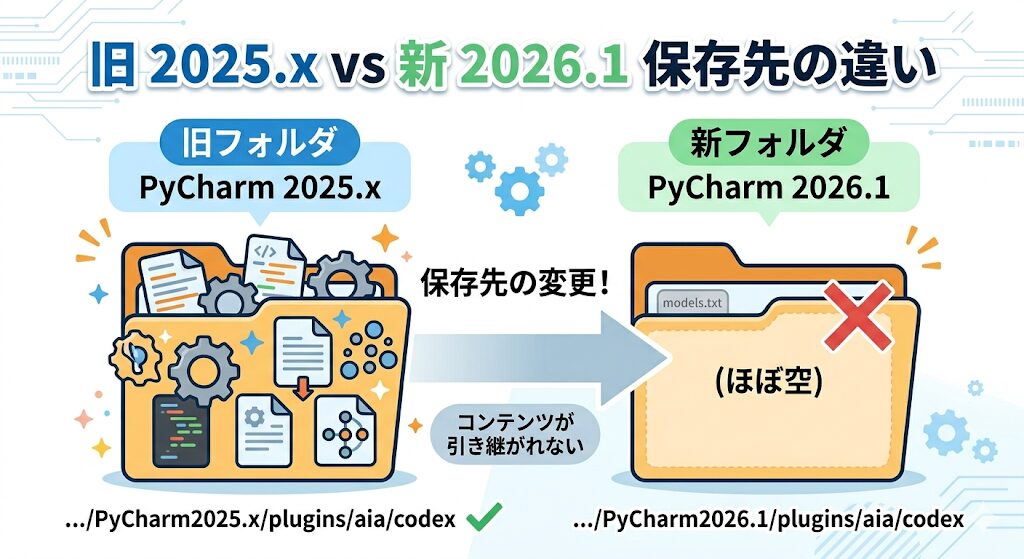
<p>これまで使っていたPyCharm2025.x系の保存先と、PyCharm2026.1系の保存先が別になっていたため、新しい側ではCodex関連の情報がまだ存在しない状態になっていました。</p>


<ul class="wp-block-list">
<li>旧パス: <code>~/Library/Caches/JetBrains/PyCharm2025.x/aia/codex/</code></li>


<li>新パス: <code>~/Library/Caches/JetBrains/PyCharm2026.1/aia/codex/</code></li>
</ul>


<p>新しいフォルダには<code>codex</code>フォルダ、<code>config.toml</code>、認証情報が存在せず、結果としてCodexが未インストール状態と同等になっていたようです。</p>


<figure class="wp-block-image size-full"><img decoding="async" width="1024" height="559" src="https://blog.astha.jp/wp-content/uploads/2026/04/image-1-10.jpg" alt="" class="wp-image-4366" srcset="https://blog.astha.jp/wp-content/uploads/2026/04/image-1-10.jpg 1024w, https://blog.astha.jp/wp-content/uploads/2026/04/image-1-10-300x164.jpg 300w, https://blog.astha.jp/wp-content/uploads/2026/04/image-1-10-768x419.jpg 768w" sizes="(max-width: 1024px) 100vw, 1024px" /></figure>


<h3 class="wp-block-heading">アップデート後の問題点</h3>


<p>PyCharm 2026.1 へのアップデートにより、AI Assistant のチャット履歴（AIの返答部分）は 復元できなくなることを確認しています。</p>


<p>具体的には、アップデート後にこれまでのチャットを開くと、<br>自分の質問は残っているものの、AIの回答がすべて消えた状態になります。</p>


<p>試しに旧バージョンのファイルをコピーしても回答は復元できませんでした。<br>おそらくですが、<strong>AIの回答自体はもともとローカルに保存されていない</strong>のだと思います。</p>


<p><strong>チャット履歴を残したい場合は、アップデートの前に重要なやり取りをコピーしてテキストファイルなどに保存しておく、またはAI自体にチャットを要約させて別のチャットに引き継げるようにしておくことをオススメします。</strong></p>


<p>同様の報告は、<a href="https://youtrack.jetbrains.com/issue/LLM-26656/After-update-to-2026.1-AI-chat-history-contains-users-prompts-only-the-AI-Assistant-replies-have-disappeared" target="_blank" rel="noopener nofollow" title="">JetBrainsのバグトラッカー（YouTrack）</a>に上がっていますが、特に動きはないようです。（2026年4月22日時点）</p>


<h2 class="wp-block-heading">対処手順</h2>


<p>対処は難しくありませんでした。</p>


<p>新しい保存先に対して、Codexの初期化と認証をやり直す流れです。</p>


<h3 class="wp-block-heading">1.Codexを再初期化する</h3>


<p>まず、AI Assistantのチャット画面で<strong>Codex</strong>を選択し、そのまま何かメッセージを送信します。</p>


<p>するとCodexのインストール処理が走り、<code>aia/codex/</code>フォルダが自動生成されます。</p>


<p>ここで大事なのは、設定画面を探し回るより先に、Codexを実際に動かして初期化を走らせることです。</p>


<h3 class="wp-block-heading">2.ChatGPTアカウントで再認証する</h3>


<p>Codexの初期化後は、ブラウザが起動してChatGPTへのログインを求められます。</p>


<p>そのままログインを完了すれば、認証情報が新しい保存先に入り、使える状態に戻ります。</p>


<h3 class="wp-block-heading">3.モデル選択が復活したか確認する</h3>


<p>最後に、チャット下部に以下のようなモデル選択のUIが表示されれば完了です。</p>


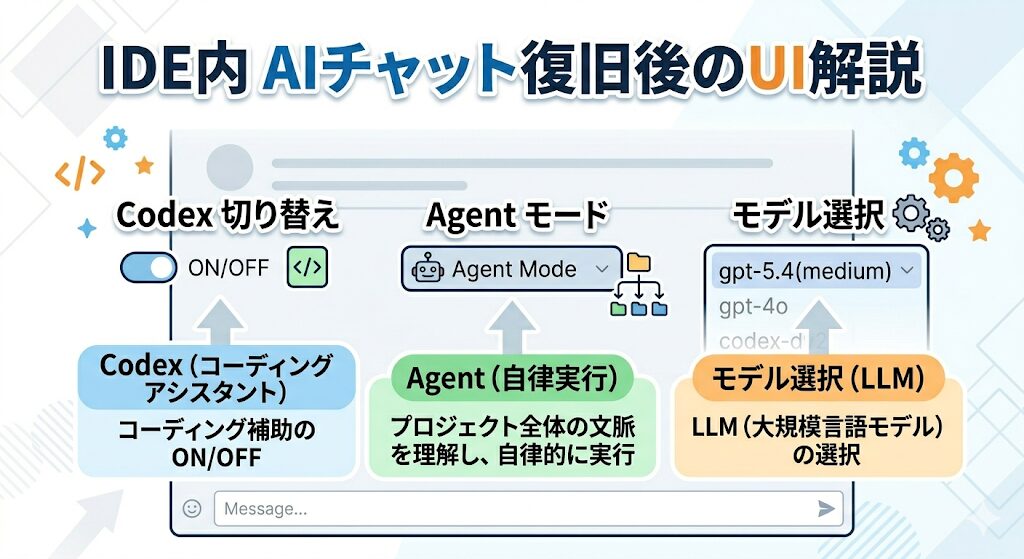
<pre class="wp-block-code"><code>+ ⊙ Codex ∨  Agent ∨              gpt-5.4 (medium) ∨  ▷</code></pre>


<p><code>gpt-5.4(medium)</code>の部分をクリックすると、モデルとReasoningレベルを変更できます。</p>


<h2 class="wp-block-heading">UIの見方を整理しておく</h2>


<p>復旧後に表示されるUIは、似たような見た目の項目が並ぶので、意味を整理しておくと迷いにくくなります。</p>


<ul class="wp-block-list">
<li><code>Codex ∨</code>: エージェント切り替え</li>


<li><code>Agent ∨</code>: 動作モードの切り替え</li>


<li><code>gpt-5.4 (medium) ∨</code>: 使用モデルとReasoningレベルの切り替え</li>
</ul>


<p>特に、モデル選択が見えないときは、Codex自体の切り替えと混同しやすいかもしれません。</p>


<p>どのドロップダウンが何の役割なのかを切り分けて見ると、異常箇所を判断しやすくなります。</p>


<figure class="wp-block-image size-full"><img decoding="async" width="1024" height="559" src="https://blog.astha.jp/wp-content/uploads/2026/04/image-1-11.jpg" alt="" class="wp-image-4367" srcset="https://blog.astha.jp/wp-content/uploads/2026/04/image-1-11.jpg 1024w, https://blog.astha.jp/wp-content/uploads/2026/04/image-1-11-300x164.jpg 300w, https://blog.astha.jp/wp-content/uploads/2026/04/image-1-11-768x419.jpg 768w" sizes="(max-width: 1024px) 100vw, 1024px" /></figure>


<h2 class="wp-block-heading">今回のポイント</h2>


<p>今回の問題は、PyCharm2026.1にしたことでCodexの保存先が切り替わり、新しい側では未初期化状態になっていたことがポイントでした。</p>


<p>そのため、いきなり細かい設定変更を疑うより、まずはCodexの再初期化と再認証を試すのが近道になりそうです。</p>


<p>メジャーバージョンアップのたびに同じことが起こる可能性があるとのことなので、次回の2026.2などでも、同じ流れを思い出せるようにしておくと安心です。</p>


<h2 class="wp-block-heading">まとめ</h2>


<p>PyCharm2026.1アップデート後にCodexのモデル選択が消えたときは、保存先フォルダの変更によって、新しい環境側でCodexが未初期化状態になっている可能性があります。</p>


<p>その場合は、Codexを選んで一度メッセージを送り、初期化を走らせたうえで、ChatGPTアカウントで再認証してみてください。</p>


<p>モデル選択UIが復活すれば、元のようにモデルやReasoningレベルを変更できるようになります。</p>


<div style="height:100px" aria-hidden="true" class="wp-block-spacer"></div>


<div class="wp-block-luxe-blocks-balloon" style="display:flex;margin-top:10px;margin-bottom:30px"><figure style="max-width:10%"><img decoding="async" src="https://blog.astha.jp/wp-content/uploads/2024/10/businesswoman-thinking.png" alt="考える-ビジネスパーソンの女性" width="417" height="688"/></figure><div class="luxe-bl-wrap"><div class="luxe-bl-lbf" style="border-right:15px solid #808080"></div><div class="luxe-bl-lmain" style="border:3px solid #808080;border-radius:20px;padding:0px 15px 0px 15px "><div class="luxe-bl-laf" style="border-right:15px solid #fff;left:-14px"></div><p><strong><span style="font-size: 20px" class="font-size">設定が難しそうだし間違えるのが心配･･･。</span></strong></p></div></div></div>


<div class="wp-block-luxe-blocks-balloon" style="display:flex;flex-direction:row-reverse;margin-top:10px;margin-bottom:30px"><figure style="max-width:10%"><img decoding="async" src="https://blog.astha.jp/wp-content/uploads/2024/10/businessman-thinking.png" alt="考える-ビジネスパーソン" width="453" height="758"/></figure><div class="luxe-bl-wrap"><div class="luxe-bl-rbf" style="border-left:15px solid #808080"></div><div class="luxe-bl-rmain" style="border:3px solid #808080;border-radius:20px;padding:0px 15px 0px 15px "><div class="luxe-bl-raf" style="border-left:15px solid #fff;right:-14px"></div><p><strong><span style="font-size: 20px" class="font-size">やりたいことは決まっているけど、どうやったら実現できるのかがわからない。</span></strong></p></div></div></div>


<p>そんなときは、</p>


<p><span style="font-size: 24px" class="font-size"><strong><span class="luxe-dot-hilight-yellow">知っている人や詳しい人に聞きながら進めるのが間違いないと思います！</span></strong></span></p>


<p>IT関係の問題は専門用語も多く出てきて、説明を読んでもチンプンカンプンといったことはよくあります。</p>


<p>言葉の意味もわからずに設定してもうまく動かなかったり、間違った設定をしてしまう可能性もゼロではありません。</p>


<p>もし、安全に短時間で問題を解決したいと感じられたら、弊社のITサポートのご利用をご検討ください。</p>


<div style="height:24px" aria-hidden="true" class="wp-block-spacer"></div>


<h2 class="wp-block-heading">お客様の声</h2>


<figure class="wp-block-image size-large"><img decoding="async" width="1024" height="684" src="https://blog.astha.jp/wp-content/uploads/2024/10/image-2-1024x684.jpg" alt="" class="wp-image-3687" srcset="https://blog.astha.jp/wp-content/uploads/2024/10/image-2-1024x684.jpg 1024w, https://blog.astha.jp/wp-content/uploads/2024/10/image-2-300x201.jpg 300w, https://blog.astha.jp/wp-content/uploads/2024/10/image-2-768x513.jpg 768w, https://blog.astha.jp/wp-content/uploads/2024/10/image-2.jpg 1532w" sizes="(max-width: 1024px) 100vw, 1024px" /></figure>


<figure class="wp-block-image size-large"><img decoding="async" width="1024" height="709" src="https://blog.astha.jp/wp-content/uploads/2024/10/image-2-1-1024x709.jpg" alt="" class="wp-image-3688" srcset="https://blog.astha.jp/wp-content/uploads/2024/10/image-2-1-1024x709.jpg 1024w, https://blog.astha.jp/wp-content/uploads/2024/10/image-2-1-300x208.jpg 300w, https://blog.astha.jp/wp-content/uploads/2024/10/image-2-1-768x531.jpg 768w, https://blog.astha.jp/wp-content/uploads/2024/10/image-2-1.jpg 1532w" sizes="(max-width: 1024px) 100vw, 1024px" /></figure>


<div style="height:24px" aria-hidden="true" class="wp-block-spacer"></div>


<p class="has-text-align-left">今なら通常5500円（税込）のところ<strong><span style="color: #dc143c" class="text-color">1100円（税込）</span></strong>でサポートがご利用いただけます。<br>※割引料金でご利用いただく場合は、バナーをクリックして表示されるサポート申し込みページからお申し込みください。</p>


<div class="a-single a-23"><style>
    .banner-container img {
        box-sizing: border-box;
    }
</style>

<figure class="light-up banner-container">
    <a data-track="MjMsMCwxLDYw" href="https://tebanasu.net/astha/it_support30_first1100?ref=works_article_bottom" target="_blank" rel="noreferrer noopener external" class="external gofollow">
        <img decoding="async" src="https://blog.astha.jp/wp-content/uploads/2024/10/itSupport_bannar_1100.png" alt="初回割引ITサポート"/>
    </a>
</figure></div>


<div class="wp-block-luxe-blocks-balloon" style="display:flex;margin-top:10px;margin-bottom:30px"><figure style="max-width:10%"><img decoding="async" src="https://blog.astha.jp/wp-content/uploads/2024/10/businesswoman-thinking.png" alt="考える-ビジネスパーソンの女性" width="417" height="688"/></figure><div class="luxe-bl-wrap"><div class="luxe-bl-lbf" style="border-right:15px solid #808080"></div><div class="luxe-bl-lmain" style="border:3px solid #808080;border-radius:20px;padding:0px 15px 0px 15px "><div class="luxe-bl-laf" style="border-right:15px solid #fff;left:-14px"></div><p><strong><span style="font-size: 20px" class="font-size">設定が難しそうだし間違えるのが心配･･･。</span></strong></p></div></div></div>


<div class="wp-block-luxe-blocks-balloon" style="display:flex;flex-direction:row-reverse;margin-top:10px;margin-bottom:30px"><figure style="max-width:10%"><img decoding="async" src="https://blog.astha.jp/wp-content/uploads/2024/10/businessman-thinking.png" alt="考える-ビジネスパーソン" width="453" height="758"/></figure><div class="luxe-bl-wrap"><div class="luxe-bl-rbf" style="border-left:15px solid #808080"></div><div class="luxe-bl-rmain" style="border:3px solid #808080;border-radius:20px;padding:0px 15px 0px 15px "><div class="luxe-bl-raf" style="border-left:15px solid #fff;right:-14px"></div><p><strong><span style="font-size: 20px" class="font-size">やりたいことは決まっているけど、どうやったら実現できるのかがわからない。</span></strong></p></div></div></div>


<p>そんなときは、</p>


<p><span style="font-size: 24px" class="font-size"><strong><span class="luxe-dot-hilight-yellow">知っている人や詳しい人に聞きながら進めるのが間違いないと思います！</span></strong></span></p>


<p>IT関係の問題は専門用語も多く出てきて、説明を読んでもチンプンカンプンといったことはよくあります。</p>


<p>言葉の意味もわからずに設定してもうまく動かなかったり、間違った設定をしてしまう可能性もゼロではありません。</p>


<p>もし、安全に短時間で問題を解決したいと感じられたら、弊社のITサポートのご利用をご検討ください。</p>


<div style="height:24px" aria-hidden="true" class="wp-block-spacer"></div>


<h2 class="wp-block-heading">お客様の声</h2>


<figure class="wp-block-image size-large"><img decoding="async" width="1024" height="684" src="https://blog.astha.jp/wp-content/uploads/2024/10/image-2-1024x684.jpg" alt="" class="wp-image-3687" srcset="https://blog.astha.jp/wp-content/uploads/2024/10/image-2-1024x684.jpg 1024w, https://blog.astha.jp/wp-content/uploads/2024/10/image-2-300x201.jpg 300w, https://blog.astha.jp/wp-content/uploads/2024/10/image-2-768x513.jpg 768w, https://blog.astha.jp/wp-content/uploads/2024/10/image-2.jpg 1532w" sizes="(max-width: 1024px) 100vw, 1024px" /></figure>


<figure class="wp-block-image size-large"><img decoding="async" width="1024" height="709" src="https://blog.astha.jp/wp-content/uploads/2024/10/image-2-1-1024x709.jpg" alt="" class="wp-image-3688" srcset="https://blog.astha.jp/wp-content/uploads/2024/10/image-2-1-1024x709.jpg 1024w, https://blog.astha.jp/wp-content/uploads/2024/10/image-2-1-300x208.jpg 300w, https://blog.astha.jp/wp-content/uploads/2024/10/image-2-1-768x531.jpg 768w, https://blog.astha.jp/wp-content/uploads/2024/10/image-2-1.jpg 1532w" sizes="(max-width: 1024px) 100vw, 1024px" /></figure>


<div style="height:24px" aria-hidden="true" class="wp-block-spacer"></div>


<p class="has-text-align-left">今なら通常5500円（税込）のところ<strong><span style="color: #dc143c" class="text-color">1100円（税込）</span></strong>でサポートがご利用いただけます。<br>※割引料金でご利用いただく場合は、バナーをクリックして表示されるサポート申し込みページからお申し込みください。</p>


<div class="a-single a-23"><style>
    .banner-container img {
        box-sizing: border-box;
    }
</style>

<figure class="light-up banner-container">
    <a data-track="MjMsMCwxLDYw" href="https://tebanasu.net/astha/it_support30_first1100?ref=works_article_bottom" target="_blank" rel="noreferrer noopener external" class="external gofollow">
        <img decoding="async" src="https://blog.astha.jp/wp-content/uploads/2024/10/itSupport_bannar_1100.png" alt="初回割引ITサポート"/>
    </a>
</figure></div><p>The post <a href="https://blog.astha.jp/pycharm-2026-1-codex-model-selection-fix/">PyCharmをアップデートしたらCodexのモデル選択が消えたときの対処法</a> first appeared on <a href="https://blog.astha.jp">アスタWorks</a>.</p>]]></content>
		
					<link rel="replies" type="text/html" href="https://blog.astha.jp/pycharm-2026-1-codex-model-selection-fix/#comments" thr:count="0" />
			<link rel="replies" type="application/atom+xml" href="https://blog.astha.jp/pycharm-2026-1-codex-model-selection-fix/feed/atom/" thr:count="0" />
			<thr:total>0</thr:total>
			</entry>
		<entry>
		<author>
			<name>auto_post</name>
					</author>

		<title type="html"><![CDATA[AIで過去の問い合わせメールを分析し、問い合わせ対応を整備してみた話]]></title>
		<link rel="alternate" type="text/html" href="https://blog.astha.jp/ai-support-mail-template-style-guide/" />

		<id>https://blog.astha.jp/?p=4346</id>
		<updated>2026-04-17T07:56:49Z</updated>
		<published>2026-04-17T07:20:35Z</published>
		<category scheme="https://blog.astha.jp" term="ChatGPT" /><category scheme="https://blog.astha.jp" term="IT活用" />
		<summary type="html"><![CDATA[<p>過去の問い合わせメールとサービス資料をもとに、AIで問い合わせ分類、返信テンプレート14本、文体ガイド整備まで進めた実務ベースの取り組みを整理しました。</p>
<p>The post <a href="https://blog.astha.jp/ai-support-mail-template-style-guide/">AIで過去の問い合わせメールを分析し、問い合わせ対応を整備してみた話</a> first appeared on <a href="https://blog.astha.jp">アスタWorks</a>.</p>]]></summary>

					<content type="html" xml:base="https://blog.astha.jp/ai-support-mail-template-style-guide/"><![CDATA[<h2 class="wp-block-heading">問い合わせ対応の負担は少数でも地味に重い</h2>


<p>問い合わせ対応は、件数が多くなくても地味に負担が大きい業務ではないでしょうか。</p>


<p>毎回ゼロから返信を書いたり、過去のやり取りを検索し直したり、担当者ごとに言い回しがぶれたりすると、少しずつ時間が削られていきます。</p>


<p>今回は、弊社のクラウドサービスの問い合わせ対応を題材に、<strong>過去メールとサービス資料をAIで整理し、返信テンプレートと文体ガイドを整備した流れ</strong>をまとめます。</p>


<p>やってみて感じたのは、AI は派手な自動化よりも、既存の業務ログを再利用しやすい資産に変える用途でかなり使いやすいということでした。</p>


<figure class="wp-block-image size-full"><img decoding="async" width="1024" height="572" src="https://blog.astha.jp/wp-content/uploads/2026/04/image-1-5.jpg" alt="" class="wp-image-4350" srcset="https://blog.astha.jp/wp-content/uploads/2026/04/image-1-5.jpg 1024w, https://blog.astha.jp/wp-content/uploads/2026/04/image-1-5-300x168.jpg 300w, https://blog.astha.jp/wp-content/uploads/2026/04/image-1-5-768x429.jpg 768w" sizes="(max-width: 1024px) 100vw, 1024px" /></figure>


<h2 class="wp-block-heading">この記事でわかること</h2>


<ul class="wp-block-list">
<li>AI にどこまで任せたのか</li>


<li>実際に何が成果物として残ったのか</li>


<li>人間がどこを直したのか</li>


<li>問い合わせ対応や FAQ 整理が AI と相性がよい理由</li>
</ul>


<h2 class="wp-block-heading">今回の前提：資料もメールもあるのに、再利用しにくかった</h2>


<p>今回の対象は、弊社のクラウドサービスに関する問い合わせ対応です。</p>


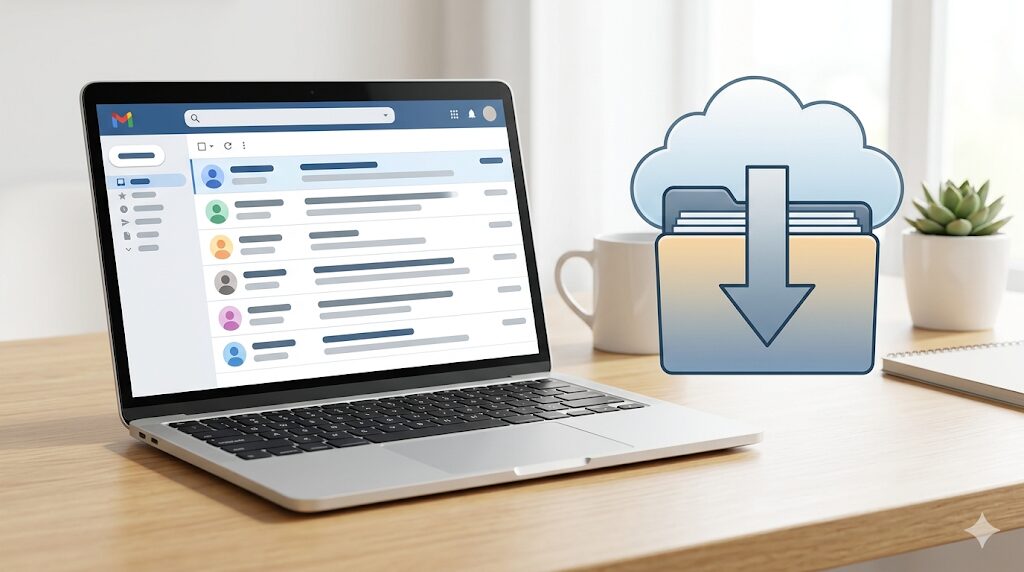
<p>利便性を考えて、独自ドメインのメールを Gmail で使えるようにしています。</p>


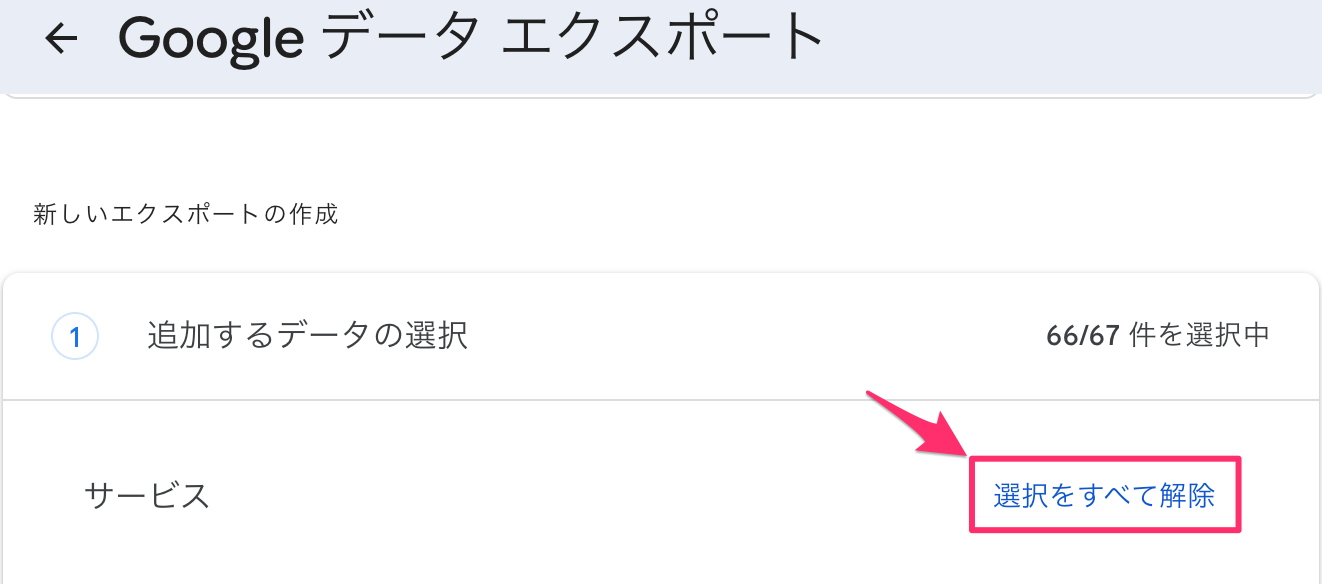
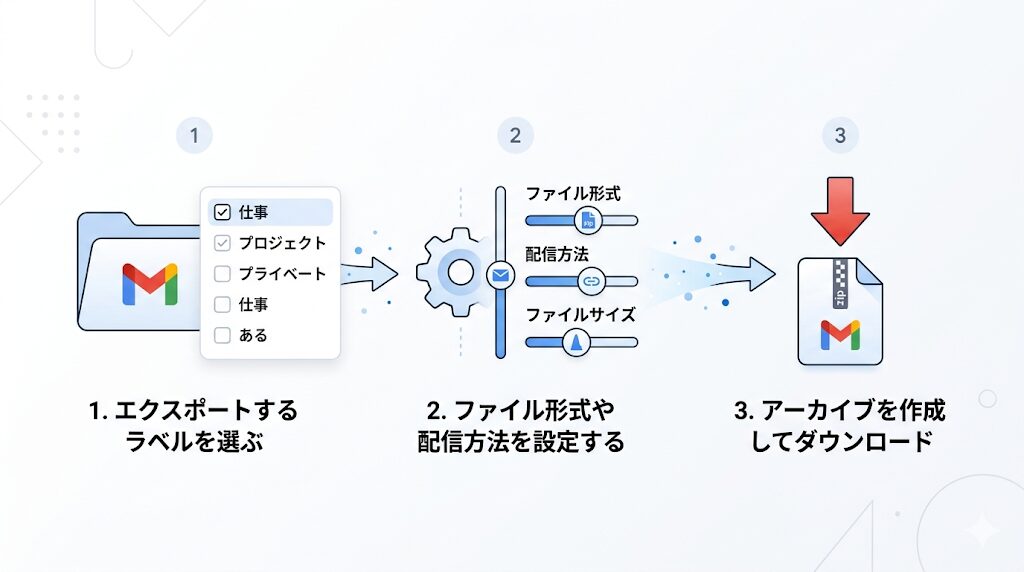
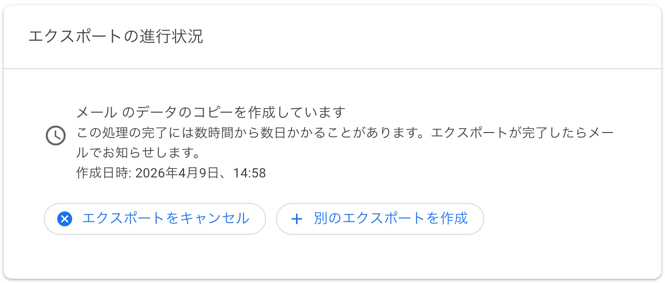
<p>そのため、過去のやり取りは検索できるし、Google のエクスポートでメールデータとして扱える状態にあり、サービス説明の資料も別に用意してありました。</p>


<p>ただ、それだけでは十分ではありませんでした。</p>


<p>サービス資料はあっても、問い合わせ対応でよく使う返答の型や、自社らしい言い回しのルールまでは整理されていなかったからです。</p>


<p>結果として、過去メールを検索して探したり、毎回少しずつ書き直したりする運用になっていました。</p>


<h2 class="wp-block-heading">今回やってもらったこと</h2>


<h3 class="wp-block-heading">過去ログを整理し、使い回せる形に変えた</h3>


<p>今回の作業では、製品情報とメールのエクスポートデータは自分で用意しましたが、それ以外はほぼAIに丸投げで整理してもらいました。</p>


<p>メールのサイズは 56MB で、全体では557通ありました。</p>


<p>しかも、その中にはサポートのメールアドレス宛の関係のない外部メールも70通含まれていました。</p>


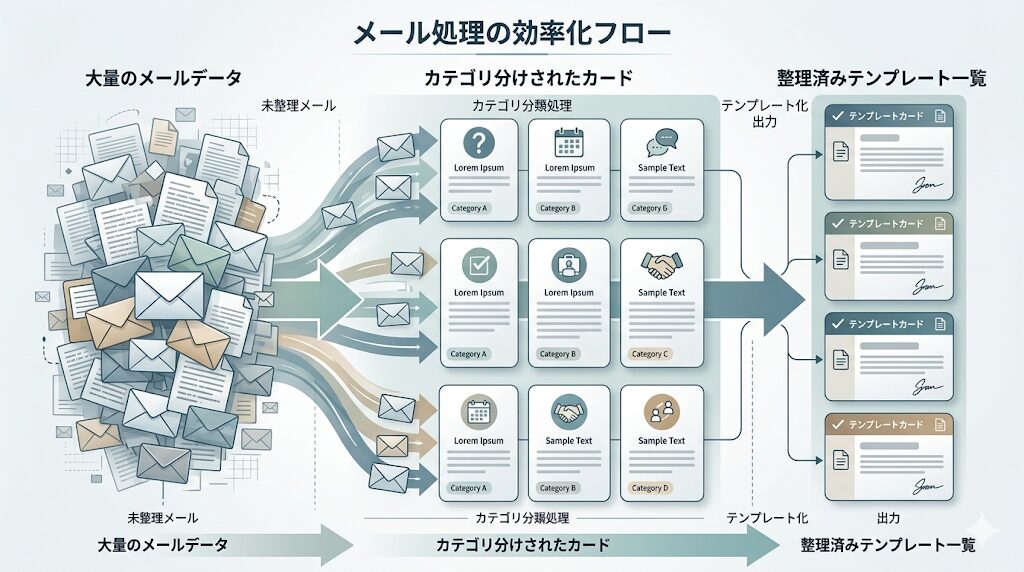
<p>そこで、実務上価値が高い問い合わせを自動で分類し直してもらい、導入相談、料金、支払い、解約、再開、データ移行、機能要望、不具合調査などのカテゴリで整理を進めてもらいました。</p>


<p>自分でやったら気が遠くなる面倒で絶対にやりたくない作業ですが、AIなら正確にものの数分でやってくれます。</p>


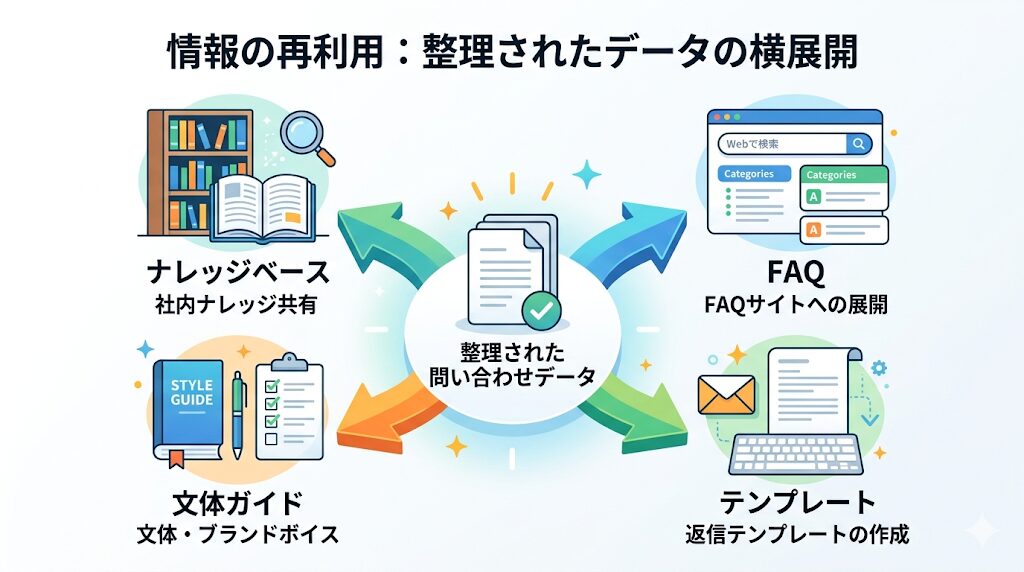
<p>最終的に、<strong>14本の返信テンプレート</strong> が作成され、それぞれに検索しやすいように <code>template_id</code>、<code>intent</code>、<code>tags</code>、<code>keywords</code>、<code>placeholders</code> を付けてくれました。</p>


<p>テンプレートを作るだけでなく、後から検索しやすく、運用しやすい形にしたのが今回のポイントです。</p>


<figure class="wp-block-image size-full"><img decoding="async" width="1024" height="572" src="https://blog.astha.jp/wp-content/uploads/2026/04/image-1-4.jpg" alt="" class="wp-image-4353" srcset="https://blog.astha.jp/wp-content/uploads/2026/04/image-1-4.jpg 1024w, https://blog.astha.jp/wp-content/uploads/2026/04/image-1-4-300x168.jpg 300w, https://blog.astha.jp/wp-content/uploads/2026/04/image-1-4-768x429.jpg 768w" sizes="(max-width: 1024px) 100vw, 1024px" /></figure>


<h2 class="wp-block-heading">AI にやらせて良かったこと</h2>


<p>今回、AI に任せて特に良かったのは、まず全体像をつかむところでした。</p>


<p>56MB のメールを前にすると、人間がざっと見て傾向をつかむだけでもそれなりに大変です。</p>


<p>その点、AI は過去データの棚卸しが得意で、よくある問い合わせのカテゴリや、回答文の定型、繰り返し出てくる問い合わせを短時間で洗い出しやすいと感じました。</p>


<p>さらに、単に分類するだけでなく、検索しやすい形でテンプレートの叩き台に落とし込めたのも大きかったです。</p>


<p>さらに今回の収穫は、テンプレート本文そのものより、今後AIに自動で回答を作らせるために<strong>過去返信の文体や気遣いのクセを抽出できたこと</strong>だったと思います。</p>


<h2 class="wp-block-heading">テンプレ化だけでなく、文体ガイドが残ったのが大きかった</h2>


<p>テンプレートがあるだけでも人間が返信を行う際はだいぶ効率化ができます。</p>


<p>ただ、もっと効率化を目指すならAIに下書きまで作らせるのがベストです。</p>


<p>その際に気になるのは、AIが書く文章と自分が書く文章の違いです。</p>


<p>「どういう温度感で返すか」「どういう言い回しを使うか」といったところが違うと、結局は自分で書き直しってことにもなりかねません。</p>


<p>そこで、今回は過去返信から回答文の傾向とクセを分析し、文体ガイドも作りました。</p>


<p>これによって、言い回しのばらつきを抑えながら、自社らしい返信を再現しやすくなります。</p>


<p>問い合わせ対応では、正しい情報を返すことに加えて、相手が受け取ったときにきつく見えないことも大切です。</p>


<p>その意味でも、テンプレートと文体ガイドをセットで整えた価値は大きかったと感じています。</p>


<h2 class="wp-block-heading">人間が直したポイント</h2>


<h3 class="wp-block-heading">気遣いの微調整は最後に必要だった</h3>


<p>一方で、AI が出した文面をそのまま使えばよかったわけではありません。</p>


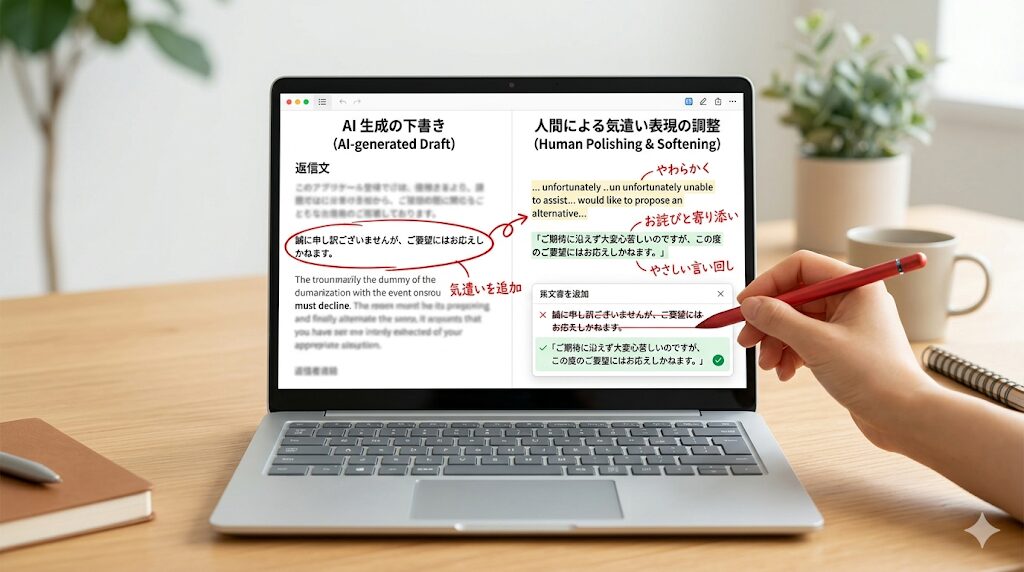
<p>実際の問い合わせを使って回答文を作らせると、内容自体は合っていても、気遣いが少し足りない場面がありました。</p>


<p>たとえば、相手の心情や感情を汲み取って文章に反映が必要な場面でも、AIは淡々と回答することがあります。</p>


<p>そこについては、別途修正が必要でしたが、それも今後の方針に加えることで次回の回答の精度は上がるはずです。</p>


<p>やはり、このあたりは人間が見る前提で進めるほうが安全です。</p>


<p>AI が全部やるというより、違和感のある場所を人間が指摘しながら仕上げるほうが、実務では安定しやすいと思います。</p>


<figure class="wp-block-image size-full"><img decoding="async" width="1024" height="572" src="https://blog.astha.jp/wp-content/uploads/2026/04/image-1-6.jpg" alt="" class="wp-image-4356" srcset="https://blog.astha.jp/wp-content/uploads/2026/04/image-1-6.jpg 1024w, https://blog.astha.jp/wp-content/uploads/2026/04/image-1-6-300x168.jpg 300w, https://blog.astha.jp/wp-content/uploads/2026/04/image-1-6-768x429.jpg 768w" sizes="(max-width: 1024px) 100vw, 1024px" /></figure>


<h2 class="wp-block-heading">実際に残った成果物</h2>


<ul class="wp-block-list">
<li>問い合わせ分析メモ</li>


<li>返信テンプレート集</li>


<li>検索用インデックス</li>


<li>回答文の傾向分析</li>


<li>文体ガイド</li>
</ul>


<p>作って終わりではなく、次の対応にも使い回せる形で残ったのが今回の成果でした。</p>


<p>「良い返信が書けた」で終わるのではなく、今後の運用で再利用できる状態にしておくことが重要だったと感じます。</p>


<h2 class="wp-block-heading">こういう業務は AI と相性が良い</h2>


<p>今回の経験から見ると、次のような業務は AI と相性が良さそうです。</p>


<ul class="wp-block-list">
<li>問い合わせメール整理</li>


<li>FAQ 作成</li>


<li>社内テンプレ整備</li>


<li>過去対応のナレッジ化</li>


<li>自社文体の抽出</li>
</ul>


<p>どれも派手な開発案件ではありませんが、日々の運用を少しずつ軽くしやすい領域です。</p>


<p>品質を落とさずに早くする、という意味では、こうした整理業務のほうが現実的な効果を出しやすいのかもしれません。</p>


<figure class="wp-block-image size-full"><img decoding="async" width="1024" height="572" src="https://blog.astha.jp/wp-content/uploads/2026/04/image-1-7.jpg" alt="" class="wp-image-4357" srcset="https://blog.astha.jp/wp-content/uploads/2026/04/image-1-7.jpg 1024w, https://blog.astha.jp/wp-content/uploads/2026/04/image-1-7-300x168.jpg 300w, https://blog.astha.jp/wp-content/uploads/2026/04/image-1-7-768x429.jpg 768w" sizes="(max-width: 1024px) 100vw, 1024px" /></figure>


<h2 class="wp-block-heading">まとめ：AI は既存業務の整理から入れると実務で効きやすい</h2>


<p>今回の取り組みでは、過去メールの分類、返信テンプレート14本の整備、文体ガイド作成までを進めました。</p>


<p>やってみて分かったのは、AI は分類と叩き台づくりにかなり強い一方で、相手の感情に関わる最後の調整は人間が見たほうがよいということです。</p>


<p>それでも、ゼロから作るより圧倒的に速く、しかもナレッジとして残せるのは大きな利点でした。</p>


<p>AI を入れるなら、まずは派手な自動化より、既存業務の整理から始めるほうが現実的です。</p>


<p>問い合わせ対応や FAQ、テンプレ整備のような地味だけれど重要な業務こそ、AI 活用の入口としてかなり相性が良いと思います。</p>


<div style="height:100px" aria-hidden="true" class="wp-block-spacer"></div>


<div class="wp-block-luxe-blocks-balloon" style="display:flex;margin-top:10px;margin-bottom:30px"><figure style="max-width:10%"><img decoding="async" src="https://blog.astha.jp/wp-content/uploads/2024/10/businesswoman-thinking.png" alt="考える-ビジネスパーソンの女性" width="417" height="688"/></figure><div class="luxe-bl-wrap"><div class="luxe-bl-lbf" style="border-right:15px solid #808080"></div><div class="luxe-bl-lmain" style="border:3px solid #808080;border-radius:20px;padding:0px 15px 0px 15px "><div class="luxe-bl-laf" style="border-right:15px solid #fff;left:-14px"></div><p><strong><span style="font-size: 20px" class="font-size">設定が難しそうだし間違えるのが心配･･･。</span></strong></p></div></div></div>


<div class="wp-block-luxe-blocks-balloon" style="display:flex;flex-direction:row-reverse;margin-top:10px;margin-bottom:30px"><figure style="max-width:10%"><img decoding="async" src="https://blog.astha.jp/wp-content/uploads/2024/10/businessman-thinking.png" alt="考える-ビジネスパーソン" width="453" height="758"/></figure><div class="luxe-bl-wrap"><div class="luxe-bl-rbf" style="border-left:15px solid #808080"></div><div class="luxe-bl-rmain" style="border:3px solid #808080;border-radius:20px;padding:0px 15px 0px 15px "><div class="luxe-bl-raf" style="border-left:15px solid #fff;right:-14px"></div><p><strong><span style="font-size: 20px" class="font-size">やりたいことは決まっているけど、どうやったら実現できるのかがわからない。</span></strong></p></div></div></div>


<p>そんなときは、</p>


<p><span style="font-size: 24px" class="font-size"><strong><span class="luxe-dot-hilight-yellow">知っている人や詳しい人に聞きながら進めるのが間違いないと思います！</span></strong></span></p>


<p>IT関係の問題は専門用語も多く出てきて、説明を読んでもチンプンカンプンといったことはよくあります。</p>


<p>言葉の意味もわからずに設定してもうまく動かなかったり、間違った設定をしてしまう可能性もゼロではありません。</p>


<p>もし、安全に短時間で問題を解決したいと感じられたら、弊社のITサポートのご利用をご検討ください。</p>


<div style="height:24px" aria-hidden="true" class="wp-block-spacer"></div>


<h2 class="wp-block-heading">お客様の声</h2>


<figure class="wp-block-image size-large"><img decoding="async" width="1024" height="684" src="https://blog.astha.jp/wp-content/uploads/2024/10/image-2-1024x684.jpg" alt="" class="wp-image-3687" srcset="https://blog.astha.jp/wp-content/uploads/2024/10/image-2-1024x684.jpg 1024w, https://blog.astha.jp/wp-content/uploads/2024/10/image-2-300x201.jpg 300w, https://blog.astha.jp/wp-content/uploads/2024/10/image-2-768x513.jpg 768w, https://blog.astha.jp/wp-content/uploads/2024/10/image-2.jpg 1532w" sizes="(max-width: 1024px) 100vw, 1024px" /></figure>


<figure class="wp-block-image size-large"><img decoding="async" width="1024" height="709" src="https://blog.astha.jp/wp-content/uploads/2024/10/image-2-1-1024x709.jpg" alt="" class="wp-image-3688" srcset="https://blog.astha.jp/wp-content/uploads/2024/10/image-2-1-1024x709.jpg 1024w, https://blog.astha.jp/wp-content/uploads/2024/10/image-2-1-300x208.jpg 300w, https://blog.astha.jp/wp-content/uploads/2024/10/image-2-1-768x531.jpg 768w, https://blog.astha.jp/wp-content/uploads/2024/10/image-2-1.jpg 1532w" sizes="(max-width: 1024px) 100vw, 1024px" /></figure>


<div style="height:24px" aria-hidden="true" class="wp-block-spacer"></div>


<p class="has-text-align-left">今なら通常5500円（税込）のところ<strong><span style="color: #dc143c" class="text-color">1100円（税込）</span></strong>でサポートがご利用いただけます。<br>※割引料金でご利用いただく場合は、バナーをクリックして表示されるサポート申し込みページからお申し込みください。</p>


<div class="a-single a-23"><style>
    .banner-container img {
        box-sizing: border-box;
    }
</style>

<figure class="light-up banner-container">
    <a data-track="MjMsMCwxLDYw" href="https://tebanasu.net/astha/it_support30_first1100?ref=works_article_bottom" target="_blank" rel="noreferrer noopener external" class="external gofollow">
        <img decoding="async" src="https://blog.astha.jp/wp-content/uploads/2024/10/itSupport_bannar_1100.png" alt="初回割引ITサポート"/>
    </a>
</figure></div><p>The post <a href="https://blog.astha.jp/ai-support-mail-template-style-guide/">AIで過去の問い合わせメールを分析し、問い合わせ対応を整備してみた話</a> first appeared on <a href="https://blog.astha.jp">アスタWorks</a>.</p>]]></content>
		
					<link rel="replies" type="text/html" href="https://blog.astha.jp/ai-support-mail-template-style-guide/#comments" thr:count="0" />
			<link rel="replies" type="application/atom+xml" href="https://blog.astha.jp/ai-support-mail-template-style-guide/feed/atom/" thr:count="0" />
			<thr:total>0</thr:total>
			</entry>
		<entry>
		<author>
			<name>auto_post</name>
					</author>

		<title type="html"><![CDATA[Gmailのメールをエクスポートする方法｜必要なラベルだけGoogleデータエクスポートで取得する手順]]></title>
		<link rel="alternate" type="text/html" href="https://blog.astha.jp/export-gmail-google-takeout/" />

		<id>https://blog.astha.jp/?p=4325</id>
		<updated>2026-04-09T09:13:30Z</updated>
		<published>2026-04-09T08:47:54Z</published>
		<category scheme="https://blog.astha.jp" term="Gmail" /><category scheme="https://blog.astha.jp" term="IT活用" />
		<summary type="html"><![CDATA[<p>Gmailの内容をエクスポートしたい方向けに、Googleデータエクスポートでメールだけを選び、必要なラベルに絞ってダウンロードするまでの流れを整理しました。</p>
<p>The post <a href="https://blog.astha.jp/export-gmail-google-takeout/">Gmailのメールをエクスポートする方法｜必要なラベルだけGoogleデータエクスポートで取得する手順</a> first appeared on <a href="https://blog.astha.jp">アスタWorks</a>.</p>]]></summary>

					<content type="html" xml:base="https://blog.astha.jp/export-gmail-google-takeout/"><![CDATA[<h2 class="wp-block-heading">GmailのメールをエクスポートしたいときはGoogleデータエクスポートを使う</h2>


<p>「これまでのメールの内容をGPTに読み込ませて回答させたい」など、Gmailの中身をまとめて取り出したい場面はありませんか？</p>


<p>普段はGmailの画面で検索すれば十分でも、あとから別の用途で使いたいときは、メールデータをエクスポートする準備が必要になることがあります。</p>


<p>そこでこの記事では、<strong>Googleデータエクスポートを使ってGmailをエクスポートする流れ</strong>をまとめます。</p>


<p>ポイントは、最初に全部のデータを対象にしないことです。</p>


<p>Googleアカウントのデータは範囲が広いので、今回は「メールだけ」「必要なラベルだけ」に絞って進めます。</p>


<figure class="wp-block-image size-full"><img decoding="async" width="1024" height="572" src="https://blog.astha.jp/wp-content/uploads/2026/04/image-9.jpg" alt="" class="wp-image-4328" srcset="https://blog.astha.jp/wp-content/uploads/2026/04/image-9.jpg 1024w, https://blog.astha.jp/wp-content/uploads/2026/04/image-9-300x168.jpg 300w, https://blog.astha.jp/wp-content/uploads/2026/04/image-9-768x429.jpg 768w" sizes="(max-width: 1024px) 100vw, 1024px" /></figure>


<h2 class="wp-block-heading">この記事でわかること</h2>


<ul class="wp-block-list">
<li>Googleデータエクスポートを開く場所</li>


<li>メールだけをエクスポート対象にする方法</li>


<li>必要なGmailラベルだけに絞るときの注意点</li>


<li>エクスポート作成後、ダウンロードできるようになるまでの流れ</li>
</ul>


<h2 class="wp-block-heading">手順1：Googleデータエクスポートを開く</h2>


<p>まず、Googleデータエクスポートを開きます。</p>


<p>開くページはこちらです。</p>


<p><a href="https://takeout.google.com/?pli=1" target="_blank" rel="noopener nofollow" title="">https://takeout.google.com/?pli=1</a></p>


<p>Googleアカウントのデータを書き出すための画面です。</p>


<p>Gmailだけでなく、いろいろなGoogleサービスのデータが並ぶため、ここから対象を絞っていきます。</p>


<h2 class="wp-block-heading">手順2：最初に「選択をすべて解除」してメールだけ選ぶ</h2>


<p>Googleデータエクスポートでは、初期値だとほぼすべてのデータが対象になっています。</p>


<p>そのまま進めると、今回必要ではないデータまでエクスポート対象になる可能性があります。</p>


<p>まずは、<strong>「選択をすべて解除」をクリック</strong>します。</p>


<figure class="wp-block-image size-full"><img decoding="async" width="1322" height="584" src="https://blog.astha.jp/wp-content/uploads/2026/04/Pasted-image-20260409144811.png" alt="" class="wp-image-4331" srcset="https://blog.astha.jp/wp-content/uploads/2026/04/Pasted-image-20260409144811.png 1322w, https://blog.astha.jp/wp-content/uploads/2026/04/Pasted-image-20260409144811-300x133.png 300w, https://blog.astha.jp/wp-content/uploads/2026/04/Pasted-image-20260409144811-1024x452.png 1024w, https://blog.astha.jp/wp-content/uploads/2026/04/Pasted-image-20260409144811-768x339.png 768w" sizes="(max-width: 1322px) 100vw, 1322px" /></figure>


<p>そのあと、一覧の中から<strong>「メール」だけにチェック</strong>を入れます。</p>


<p>さらに、メールの項目にある<strong>［メールのすべてのデータが含まれます］</strong>をクリックします。</p>


<figure class="wp-block-image size-full"><img decoding="async" width="1304" height="354" src="https://blog.astha.jp/wp-content/uploads/2026/04/Pasted-image-20260409144925.png" alt="" class="wp-image-4333" srcset="https://blog.astha.jp/wp-content/uploads/2026/04/Pasted-image-20260409144925.png 1304w, https://blog.astha.jp/wp-content/uploads/2026/04/Pasted-image-20260409144925-300x81.png 300w, https://blog.astha.jp/wp-content/uploads/2026/04/Pasted-image-20260409144925-1024x278.png 1024w, https://blog.astha.jp/wp-content/uploads/2026/04/Pasted-image-20260409144925-768x208.png 768w" sizes="(max-width: 1304px) 100vw, 1304px" /></figure>


<p>ここが少し見落としやすいところです。</p>


<p>「メールにチェックを入れたら終わり」ではなく、次にどのメールを含めるかを選んでいきます。</p>


<figure class="wp-block-image size-full"><img decoding="async" width="1024" height="559" src="https://blog.astha.jp/wp-content/uploads/2026/04/image.png" alt="" class="wp-image-4335" srcset="https://blog.astha.jp/wp-content/uploads/2026/04/image.png 1024w, https://blog.astha.jp/wp-content/uploads/2026/04/image-300x164.png 300w, https://blog.astha.jp/wp-content/uploads/2026/04/image-768x419.png 768w" sizes="(max-width: 1024px) 100vw, 1024px" /></figure>


<h2 class="wp-block-heading">手順3：対象となるラベルだけを選択する</h2>


<p>次に、エクスポートしたいメールのラベルを選びます。</p>


<p>ここも初期値では、すべてのメールが対象になっています。</p>


<p>必要なメールだけでよい場合は、<strong>「メールのすべてのメッセージを含める」のチェックを外してから、対象となるラベルだけにチェック</strong>を入れます。</p>


<figure class="wp-block-image size-full"><img decoding="async" width="682" height="334" src="https://blog.astha.jp/wp-content/uploads/2026/04/Pasted-image-20260409145110.png" alt="" class="wp-image-4334" srcset="https://blog.astha.jp/wp-content/uploads/2026/04/Pasted-image-20260409145110.png 682w, https://blog.astha.jp/wp-content/uploads/2026/04/Pasted-image-20260409145110-300x147.png 300w" sizes="(max-width: 682px) 100vw, 682px" /></figure>


<p>選び終わったら、右下の<strong>［OK］</strong>をクリックします。</p>


<h3 class="wp-block-heading">不要なラベルが選ばれていないか確認する</h3>


<p>ラベル選択では、最初からいくつかの項目が選択されている場合があります。</p>


<ul class="wp-block-list">
<li>アーカイブ済み</li>


<li>スター付き</li>


<li>チャット</li>


<li>下書き</li>


<li>受信トレイ</li>


<li>送信済みメール</li>
</ul>


<p>不要であれば、これらのチェックも外しておきます。</p>


<p>「あるラベルのメールだけを使いたい」と思っている場合、受信トレイや送信済みメールまで入っていると範囲が広くなりすぎるかもしれません。</p>


<p>エクスポートを作る前に、一度チェック状態を見直しておくと安心です。</p>


<h2 class="wp-block-heading">手順4：次のステップへ進み、エクスポートを作成する</h2>


<p>メールとラベルを選べたら、画面の案内に沿って<strong>［次のステップ］</strong>をクリックします。</p>


<p>次に、エクスポートの設定を行います。</p>


<p>設定する項目は、主に次の3つです。</p>


<ul class="wp-block-list">
<li>エクスポート先</li>


<li>頻度</li>


<li>ファイルの形式とサイズ</li>
</ul>


<p>ここでは、これらをすべて初期値のままにして、<strong>［エクスポートを作成］</strong>をクリックします。</p>


<figure class="wp-block-image size-full"><img decoding="async" width="1344" height="1686" src="https://blog.astha.jp/wp-content/uploads/2026/04/Pasted-image-20260409145657.png" alt="" class="wp-image-4336" srcset="https://blog.astha.jp/wp-content/uploads/2026/04/Pasted-image-20260409145657.png 1344w, https://blog.astha.jp/wp-content/uploads/2026/04/Pasted-image-20260409145657-239x300.png 239w, https://blog.astha.jp/wp-content/uploads/2026/04/Pasted-image-20260409145657-816x1024.png 816w, https://blog.astha.jp/wp-content/uploads/2026/04/Pasted-image-20260409145657-768x963.png 768w, https://blog.astha.jp/wp-content/uploads/2026/04/Pasted-image-20260409145657-1224x1536.png 1224w" sizes="(max-width: 1344px) 100vw, 1344px" /></figure>


<p>もちろん用途によって変更してもよいと思いますが、まずは迷わず進めるなら初期値のまま確認していく流れです。</p>


<figure class="wp-block-image size-full"><img decoding="async" width="1024" height="572" src="https://blog.astha.jp/wp-content/uploads/2026/04/image-1-1.jpg" alt="" class="wp-image-4338" srcset="https://blog.astha.jp/wp-content/uploads/2026/04/image-1-1.jpg 1024w, https://blog.astha.jp/wp-content/uploads/2026/04/image-1-1-300x168.jpg 300w, https://blog.astha.jp/wp-content/uploads/2026/04/image-1-1-768x429.jpg 768w" sizes="(max-width: 1024px) 100vw, 1024px" /></figure>


<h2 class="wp-block-heading">手順5：リクエスト後は、完了メールが来るまで待つ</h2>


<p>エクスポートを作成すると、まずリクエストを受け付けた画面が表示されます。</p>


<figure class="wp-block-image size-full"><img decoding="async" width="665" height="283" src="https://blog.astha.jp/wp-content/uploads/2026/04/8457acf756486ea10669672f6ccf8718.png" alt="" class="wp-image-4339" srcset="https://blog.astha.jp/wp-content/uploads/2026/04/8457acf756486ea10669672f6ccf8718.png 665w, https://blog.astha.jp/wp-content/uploads/2026/04/8457acf756486ea10669672f6ccf8718-300x128.png 300w" sizes="(max-width: 665px) 100vw, 665px" /></figure>


<p>この画面が出たら、あとは閉じてもOKです。</p>


<p>念のため、自分のGoogleアカウント宛に<strong>「Googleデータのアーカイブがリクエストされました」</strong>というタイトルのメールが届いていることも確認しておくとよいです。</p>


<p>ダウンロードできるようになるまでは、数分から数日かかることがあります。</p>


<p>ここはすぐにファイルが手に入るとは限らないので、待つ工程として考えておくとよさそうです。</p>


<h2 class="wp-block-heading">手順6：ダウンロード可能になったらファイルを取得する</h2>


<p>エクスポートの準備が完了すると、<strong>「Googleデータをダウンロードできるようになりました」</strong>というタイトルのメールが届きます。</p>


<p>そのメールから、作成されたファイルを取得できます。</p>


<p>また、直接ブラウザで最初のGoogleデータエクスポート画面を開いても確認できます。</p>


<p>ダウンロードするときには、Googleアカウントの再ログインを求められます。</p>


<p>メールのアーカイブは個人的な情報を多く含むはずなので、取得したファイルの扱いにも注意しておきたいですね。</p>


<figure class="wp-block-image size-full"><img decoding="async" width="1024" height="572" src="https://blog.astha.jp/wp-content/uploads/2026/04/image-1-2.jpg" alt="" class="wp-image-4340" srcset="https://blog.astha.jp/wp-content/uploads/2026/04/image-1-2.jpg 1024w, https://blog.astha.jp/wp-content/uploads/2026/04/image-1-2-300x168.jpg 300w, https://blog.astha.jp/wp-content/uploads/2026/04/image-1-2-768x429.jpg 768w" sizes="(max-width: 1024px) 100vw, 1024px" /></figure>


<h2 class="wp-block-heading">まとめ：Gmailのエクスポートは「メールだけ」「ラベルだけ」に絞って進める</h2>


<p>今回は、Googleデータエクスポートを使ってGmailをエクスポートする手順を整理しました。</p>


<p>流れをまとめると、次のようになります。</p>


<ul class="wp-block-list">
<li>Googleデータエクスポートを開く</li>


<li>選択をすべて解除してから、メールだけにチェックする</li>


<li>メールのすべてのメッセージを含める設定を外し、必要なラベルを選ぶ</li>


<li>次のステップへ進み、エクスポートを作成する</li>


<li>リクエスト受付メールと、ダウンロード可能になったメールを確認する</li>


<li>必要に応じて再ログインし、ファイルをダウンロードする</li>
</ul>


<p>Gmailをあとから活用したいときは、まず取り出す範囲を決めるところが大事です。</p>


<p>全部をまとめて出すのではなく、使いたいラベルを選んで、必要なメールだけをエクスポートしてみてください。</p>


<div style="height:100px" aria-hidden="true" class="wp-block-spacer"></div>


<div class="wp-block-luxe-blocks-balloon" style="display:flex;margin-top:10px;margin-bottom:30px"><figure style="max-width:10%"><img decoding="async" src="https://blog.astha.jp/wp-content/uploads/2024/10/businesswoman-thinking.png" alt="考える-ビジネスパーソンの女性" width="417" height="688"/></figure><div class="luxe-bl-wrap"><div class="luxe-bl-lbf" style="border-right:15px solid #808080"></div><div class="luxe-bl-lmain" style="border:3px solid #808080;border-radius:20px;padding:0px 15px 0px 15px "><div class="luxe-bl-laf" style="border-right:15px solid #fff;left:-14px"></div><p><strong><span style="font-size: 20px" class="font-size">設定が難しそうだし間違えるのが心配･･･。</span></strong></p></div></div></div>


<div class="wp-block-luxe-blocks-balloon" style="display:flex;flex-direction:row-reverse;margin-top:10px;margin-bottom:30px"><figure style="max-width:10%"><img decoding="async" src="https://blog.astha.jp/wp-content/uploads/2024/10/businessman-thinking.png" alt="考える-ビジネスパーソン" width="453" height="758"/></figure><div class="luxe-bl-wrap"><div class="luxe-bl-rbf" style="border-left:15px solid #808080"></div><div class="luxe-bl-rmain" style="border:3px solid #808080;border-radius:20px;padding:0px 15px 0px 15px "><div class="luxe-bl-raf" style="border-left:15px solid #fff;right:-14px"></div><p><strong><span style="font-size: 20px" class="font-size">やりたいことは決まっているけど、どうやったら実現できるのかがわからない。</span></strong></p></div></div></div>


<p>そんなときは、</p>


<p><span style="font-size: 24px" class="font-size"><strong><span class="luxe-dot-hilight-yellow">知っている人や詳しい人に聞きながら進めるのが間違いないと思います！</span></strong></span></p>


<p>IT関係の問題は専門用語も多く出てきて、説明を読んでもチンプンカンプンといったことはよくあります。</p>


<p>言葉の意味もわからずに設定してもうまく動かなかったり、間違った設定をしてしまう可能性もゼロではありません。</p>


<p>もし、安全に短時間で問題を解決したいと感じられたら、弊社のITサポートのご利用をご検討ください。</p>


<div style="height:24px" aria-hidden="true" class="wp-block-spacer"></div>


<h2 class="wp-block-heading">お客様の声</h2>


<figure class="wp-block-image size-large"><img decoding="async" width="1024" height="684" src="https://blog.astha.jp/wp-content/uploads/2024/10/image-2-1024x684.jpg" alt="" class="wp-image-3687" srcset="https://blog.astha.jp/wp-content/uploads/2024/10/image-2-1024x684.jpg 1024w, https://blog.astha.jp/wp-content/uploads/2024/10/image-2-300x201.jpg 300w, https://blog.astha.jp/wp-content/uploads/2024/10/image-2-768x513.jpg 768w, https://blog.astha.jp/wp-content/uploads/2024/10/image-2.jpg 1532w" sizes="(max-width: 1024px) 100vw, 1024px" /></figure>


<figure class="wp-block-image size-large"><img decoding="async" width="1024" height="709" src="https://blog.astha.jp/wp-content/uploads/2024/10/image-2-1-1024x709.jpg" alt="" class="wp-image-3688" srcset="https://blog.astha.jp/wp-content/uploads/2024/10/image-2-1-1024x709.jpg 1024w, https://blog.astha.jp/wp-content/uploads/2024/10/image-2-1-300x208.jpg 300w, https://blog.astha.jp/wp-content/uploads/2024/10/image-2-1-768x531.jpg 768w, https://blog.astha.jp/wp-content/uploads/2024/10/image-2-1.jpg 1532w" sizes="(max-width: 1024px) 100vw, 1024px" /></figure>


<div style="height:24px" aria-hidden="true" class="wp-block-spacer"></div>


<p class="has-text-align-left">今なら通常5500円（税込）のところ<strong><span style="color: #dc143c" class="text-color">1100円（税込）</span></strong>でサポートがご利用いただけます。<br>※割引料金でご利用いただく場合は、バナーをクリックして表示されるサポート申し込みページからお申し込みください。</p>


<div class="a-single a-23"><style>
    .banner-container img {
        box-sizing: border-box;
    }
</style>

<figure class="light-up banner-container">
    <a data-track="MjMsMCwxLDYw" href="https://tebanasu.net/astha/it_support30_first1100?ref=works_article_bottom" target="_blank" rel="noreferrer noopener external" class="external gofollow">
        <img decoding="async" src="https://blog.astha.jp/wp-content/uploads/2024/10/itSupport_bannar_1100.png" alt="初回割引ITサポート"/>
    </a>
</figure></div><p>The post <a href="https://blog.astha.jp/export-gmail-google-takeout/">Gmailのメールをエクスポートする方法｜必要なラベルだけGoogleデータエクスポートで取得する手順</a> first appeared on <a href="https://blog.astha.jp">アスタWorks</a>.</p>]]></content>
		
					<link rel="replies" type="text/html" href="https://blog.astha.jp/export-gmail-google-takeout/#comments" thr:count="0" />
			<link rel="replies" type="application/atom+xml" href="https://blog.astha.jp/export-gmail-google-takeout/feed/atom/" thr:count="0" />
			<thr:total>0</thr:total>
			</entry>
		<entry>
		<author>
			<name>auto_post</name>
					</author>

		<title type="html"><![CDATA[月初めなのに月間データ容量25GBを使い切って速度制限。まず確認したい設定と対策メモ。]]></title>
		<link rel="alternate" type="text/html" href="https://blog.astha.jp/iphone-speed-limit-checklist/" />

		<id>https://blog.astha.jp/?p=4318</id>
		<updated>2026-04-09T04:15:13Z</updated>
		<published>2026-04-09T04:15:10Z</published>
		<category scheme="https://blog.astha.jp" term="エッセイ" />
		<summary type="html"><![CDATA[<p>大学生活の初日に iPhone が 25GB に達して速度制限になった話をもとに、iCloud バックアップ、Wi-Fi アシスト、アプリごとの通信設定など、まず確認したいポイントをやさしく整理しました。</p>
<p>The post <a href="https://blog.astha.jp/iphone-speed-limit-checklist/">月初めなのに月間データ容量25GBを使い切って速度制限。まず確認したい設定と対策メモ。</a> first appeared on <a href="https://blog.astha.jp">アスタWorks</a>.</p>]]></summary>

					<content type="html" xml:base="https://blog.astha.jp/iphone-speed-limit-checklist/"><![CDATA[<h2 class="wp-block-heading">はじめに</h2>


<p>月初めなのに、いきなりスマホの速度制限がかかってしまったらかなり困るのではないでしょうか。</p>


<p>事が起こったのは4月の頭、私の姪が地元を離れて大学生活を始めた初日に、月間データ容量の25GBを使い切って速度制限がかかったそうです（笑）</p>


<p>まだ解決したかどうかは分かりませんが、同じようなことが起きている家庭は結構あるかもしれないので、今回確認した内容をまとめておきます。</p>


<p>似たようなトラブルにあった人の参考になると嬉しいです。</p>


<figure class="wp-block-image size-full"><img decoding="async" width="1024" height="559" src="https://blog.astha.jp/wp-content/uploads/2026/04/image-5.jpg" alt="" class="wp-image-4321" srcset="https://blog.astha.jp/wp-content/uploads/2026/04/image-5.jpg 1024w, https://blog.astha.jp/wp-content/uploads/2026/04/image-5-300x164.jpg 300w, https://blog.astha.jp/wp-content/uploads/2026/04/image-5-768x419.jpg 768w" sizes="(max-width: 1024px) 100vw, 1024px" /></figure>


<h2 class="wp-block-heading">まず押さえたいこと</h2>


<p>まず、単純に使いすぎたと決めつけるより、<strong>同期や自動更新のような裏側の動き</strong>を疑ってください。</p>


<p>本人も身に覚えがないのに疑ってしまうと、今後の関係性に問題が生じる可能性があります。</p>


<p>新生活の開始直後は、スマホの設定やデータ移行に近い動きが重なって、思った以上に通信量が増えることもあるのかもしれません。</p>


<p>そのため、まずは原因の候補を落ち着いて切り分けていくのが大事です。</p>


<h2 class="wp-block-heading">原因として有力そうな候補</h2>


<p>確認した中で有力そうなのは、次のような項目です。</p>


<ul class="wp-block-list">
<li><strong>iCloud バックアップや写真同期</strong></li>


<li><strong>アプリの自動更新や再インストール</strong></li>


<li><strong>動画のバックグラウンドダウンロード</strong></li>


<li><strong>Wi-Fi アシスト</strong></li>


<li><strong>OS アップデート</strong></li>


<li><strong>不正利用やマルウェア</strong></li>
</ul>


<p>ちなみに、使用しているのはiPhoneです。</p>


<p>なので、この中でも、メモでは iCloud バックアップや写真同期が最有力っぽいかなと。</p>


<h2 class="wp-block-heading">最初に確認したいのはモバイル通信の内訳です</h2>


<p>まず見たいのは、iPhone のモバイル通信で何が大きく通信しているかです。</p>


<p>過去の累計しか見られないものの、最近入れたアプリのデータ転送量が跳ねていないかを確認できます。</p>


<p>確認場所は次のとおりです。</p>


<pre class="wp-block-code"><code>設定 → モバイル通信</code></pre>


<p>ここで大きく通信しているアプリが分かれば、原因の候補をかなり絞りやすくなります。</p>


<h2 class="wp-block-heading">iCloud の設定は優先して見直したいです</h2>


<p>次に確認したいのが iCloud 関連です。</p>


<p>とくに、<strong>モバイル通信経由でバックアップする設定</strong>が ON になっていると、通信量が急増する原因になりそうです。</p>


<p>確認手順</p>


<pre class="wp-block-code"><code>設定 → Apple ID → iCloud
iCloud バックアップ
「モバイル通信経由でバックアップ」が ON なら OFF にする</code></pre>


<p>普段は便利な機能でも、通信量を抑えたい場面では一度見直す価値があると思います。</p>


<figure class="wp-block-image size-full"><img decoding="async" width="1024" height="559" src="https://blog.astha.jp/wp-content/uploads/2026/04/image-6.jpg" alt="" class="wp-image-4322" srcset="https://blog.astha.jp/wp-content/uploads/2026/04/image-6.jpg 1024w, https://blog.astha.jp/wp-content/uploads/2026/04/image-6-300x164.jpg 300w, https://blog.astha.jp/wp-content/uploads/2026/04/image-6-768x419.jpg 768w" sizes="(max-width: 1024px) 100vw, 1024px" /></figure>


<h2 class="wp-block-heading">Wi-Fi アシストも確認しておきたいです</h2>


<p>Wi-Fi アシストも候補のひとつです。</p>


<p>Wi-Fi アシストは便利な反面、気づかないうちにモバイル通信を使ってしまう場面があるのかもしれません。</p>


<p>確認場所としては、同じくモバイル通信の設定画面です。</p>


<pre class="wp-block-code"><code>設定 → モバイル通信
「Wi-Fi アシスト」を OFF
「iCloud Drive」を OFF
「iCloud バックアップ」が ON なら OFF</code></pre>


<p>Wi-Fi アシストを OFF にすると少し使いづらくなるので永続的に切っておくのではなく、原因を切り分けるために一度止めてみるって感じです。</p>


<h2 class="wp-block-heading">アプリごとの通信設定も見直しておく</h2>


<p>モバイル通信の画面では、アプリごとに通信を許可するかどうかも確認できます。</p>


<p>「すべて表示」を選ぶとアプリ一覧が出るので、Wi-Fi 以外では使わないアプリを OFF にしておきます。</p>


<p>とくに、左側のデータ転送量の数値が大きいものは優先して見たほうがよさそうです。</p>


<ul class="wp-block-list">
<li>App Store は OFF にする</li>


<li>YouTube や U-next、LINE など、必要なものはそのままでもよい</li>


<li>Wi-Fi 以外では使わないアプリは OFF にする</li>
</ul>


<p>全部を一律で切るというより、普段の使い方に合わせて整理するほうが現実的だと思います。</p>


<figure class="wp-block-image size-full"><img decoding="async" width="1024" height="559" src="https://blog.astha.jp/wp-content/uploads/2026/04/image-7.jpg" alt="" class="wp-image-4323" srcset="https://blog.astha.jp/wp-content/uploads/2026/04/image-7.jpg 1024w, https://blog.astha.jp/wp-content/uploads/2026/04/image-7-300x164.jpg 300w, https://blog.astha.jp/wp-content/uploads/2026/04/image-7-768x419.jpg 768w" sizes="(max-width: 1024px) 100vw, 1024px" /></figure>


<h2 class="wp-block-heading">追加購入するよりは、、、</h2>


<p>もしモバイル通信がどうしても必要なら、少量ずつ追加購入する方法は注意が必要です。</p>


<p>たとえば 100MB ごとに 330 円かかる契約だと、22GB 分を追加するだけでも 7 万円以上になる計算です。</p>


<p>今回のケースでそうなっていた場合は、とんでもない出費になってしまいます。</p>


<p>そのため、通信量を多く使う可能性があるなら、追加購入を繰り返すより、別のキャリアの <strong>eSIM</strong> を追加して使うほうが安く済む場合があります。</p>


<p><strong>デュアル SIM</strong> に対応した iPhone なら、今の回線を残したまま、データ通信用に別の回線を追加できることがあります。</p>


<p>「今の契約で足りない分を高く買い足す」より、「安い回線をもう 1 本持つ」ほうが、結果的に負担を抑えやすいという考え方です。</p>


<p>もちろん契約内容によって変わるので断定はできませんが、費用が気になる場合はここも検討材料になりそうです。</p>


<h2 class="wp-block-heading">今回のケースで確認する順番</h2>


<p>今回のメモから考えると、次の順番で確認すると整理しやすそうです。</p>


<ol class="wp-block-list">
<li>モバイル通信の内訳を見る</li>


<li>iCloud バックアップの設定を見る</li>


<li>Wi-Fi アシストや iCloud Drive を見る</li>


<li>アプリごとの通信許可を整理する</li>


<li>料金プランや eSIM の選択肢を考える</li>
</ol>


<p>まだ解決済みかは分からないケースでも、この順番なら落ち着いて見直しやすいのではないでしょうか。</p>


<h2 class="wp-block-heading">まとめ</h2>


<p>身に覚えがないのに月初めに月間データ容量の上限に達して速度制限になったという話から、まず確認したい設定を整理しました。</p>


<p>今回のポイントは、次のとおりです。</p>


<ul class="wp-block-list">
<li>iCloud バックアップや写真同期は有力候補として見ておきたいです。</li>


<li>モバイル通信の内訳を見ると、原因の切り分けがしやすくなります。</li>


<li>Wi-Fi アシストやアプリごとの通信設定も見直す価値があります。</li>


<li>追加料金が高いなら、別キャリアの eSIM も選択肢になりそうです。</li>
</ul>


<p>同じように新生活のタイミングで通信量が急に増えて困っているなら、まずは設定画面を順番に確認してみてください。</p><p>The post <a href="https://blog.astha.jp/iphone-speed-limit-checklist/">月初めなのに月間データ容量25GBを使い切って速度制限。まず確認したい設定と対策メモ。</a> first appeared on <a href="https://blog.astha.jp">アスタWorks</a>.</p>]]></content>
		
					<link rel="replies" type="text/html" href="https://blog.astha.jp/iphone-speed-limit-checklist/#comments" thr:count="0" />
			<link rel="replies" type="application/atom+xml" href="https://blog.astha.jp/iphone-speed-limit-checklist/feed/atom/" thr:count="0" />
			<thr:total>0</thr:total>
			</entry>
		<entry>
		<author>
			<name>auto_post</name>
					</author>

		<title type="html"><![CDATA[Obsidianの日報で同じ注意事項が検索に大量ヒットするときの解決方法。リンクではなく埋め込みを使うコツ。]]></title>
		<link rel="alternate" type="text/html" href="https://blog.astha.jp/obsidian-daily-note-embed-search-noise/" />

		<id>https://blog.astha.jp/?p=4305</id>
		<updated>2026-04-08T00:05:40Z</updated>
		<published>2026-04-08T00:05:37Z</published>
		<category scheme="https://blog.astha.jp" term="IT活用" /><category scheme="https://blog.astha.jp" term="Obsidian" />
		<summary type="html"><![CDATA[<p>Obsidianの日報に毎回同じ注意事項を書いていると、検索結果がノイズだらけになりやすいです。リンク運用では少し不便に感じたときに、埋め込み機能で見やすさと検索のしやすさを両立する考え方をまとめました。</p>
<p>The post <a href="https://blog.astha.jp/obsidian-daily-note-embed-search-noise/">Obsidianの日報で同じ注意事項が検索に大量ヒットするときの解決方法。リンクではなく埋め込みを使うコツ。</a> first appeared on <a href="https://blog.astha.jp">アスタWorks</a>.</p>]]></summary>

					<content type="html" xml:base="https://blog.astha.jp/obsidian-daily-note-embed-search-noise/"><![CDATA[<h2 class="wp-block-heading">はじめに</h2>


<p>Obsidianの日報を使っていると、毎回確認したい注意事項を先頭に書いておきたくなることはないでしょうか。</p>


<p>忘れ防止には便利ですが、同じ文言を毎日そのまま書いていると、あとから検索したときに関係ない日報まで大量にヒットして少し使いづらくなります。</p>


<p>私もこの状態になって、必要な内容を探したいのに、いつもの注意事項ばかりが検索結果に並ぶことが気になりました。</p>


<p>この記事では、その原因がどこにあるのかと、リンク運用では埋まりきらなかった不便さを、Obsidianの埋め込み機能でどう解消できるのかを整理します。</p>


<figure class="wp-block-image size-full"><img decoding="async" width="1024" height="572" src="https://blog.astha.jp/wp-content/uploads/2026/04/image-1.jpg" alt="" class="wp-image-4309" srcset="https://blog.astha.jp/wp-content/uploads/2026/04/image-1.jpg 1024w, https://blog.astha.jp/wp-content/uploads/2026/04/image-1-300x168.jpg 300w, https://blog.astha.jp/wp-content/uploads/2026/04/image-1-768x429.jpg 768w" sizes="(max-width: 1024px) 100vw, 1024px" /></figure>


<h2 class="wp-block-heading">この記事でわかること</h2>


<ul class="wp-block-list">
<li>なぜ同じ注意事項を日報に直接書くと検索しづらくなるのか。</li>


<li>よくあるリンク運用が、なぜ少し物足りなく感じるのか。</li>


<li>埋め込み機能を使うと、見やすさと管理のしやすさをどう両立できるのか。</li>


<li>見出し単位やブロック単位の埋め込みをどう使い分けられるのか。</li>
</ul>


<h2 class="wp-block-heading">なぜ検索が使いづらくなるのか</h2>


<p>原因は、毎日確認したい内容そのものではありません。</p>


<p><strong>同じ文章を日報本文の中に重複して持っていること</strong>が、検索ノイズを増やしているポイントです。</p>


<p>Obsidianの検索は、各ノート本文に含まれているテキストを対象にします。</p>


<p>そのため、同じ注意事項を毎日の日報に直接書くと、その文言は日報の数だけ検索結果に出てきます。</p>


<p>便利にするために書いたはずの内容が、あとから探す場面では少し邪魔になってしまうわけです。</p>


<h2 class="wp-block-heading">最初に思いつきやすい解決策</h2>


<p>まず考えやすいのは、注意事項を別ノートにまとめて、日報からリンクする方法です。</p>


<p>たとえば、次のような形です。</p>


<pre class="wp-block-code"><code>&#91;&#91;仕事の注意事項]]</code></pre>


<p>これなら、注意事項の実体は1か所にまとまるので、毎日コピペする必要はありません。</p>


<p>重複した本文も減らせるので、考え方としてはかなり自然です。</p>


<h2 class="wp-block-heading">リンク運用が少し不便だった理由</h2>


<p>ただ、リンクだけだと内容を見るために毎回そのノートを開く必要があります。</p>


<p>「毎日すぐ目に入るようにしておきたい」という目的で考えると、ここが少し弱く感じました。</p>


<p>忘れないための注意事項は、開きに行くより、その場に見えていてほしいことが多いと思います。</p>


<p>このあたりが、リンクでは不便、でも毎日コピペも不便、と感じた理由でした。</p>


<figure class="wp-block-image size-full"><img decoding="async" width="1024" height="572" src="https://blog.astha.jp/wp-content/uploads/2026/04/image-2.jpg" alt="" class="wp-image-4310" srcset="https://blog.astha.jp/wp-content/uploads/2026/04/image-2.jpg 1024w, https://blog.astha.jp/wp-content/uploads/2026/04/image-2-300x168.jpg 300w, https://blog.astha.jp/wp-content/uploads/2026/04/image-2-768x429.jpg 768w" sizes="(max-width: 1024px) 100vw, 1024px" /></figure>


<h2 class="wp-block-heading">本命は埋め込み機能でした</h2>


<p>そこで使いやすかったのが、Obsidianの<strong>埋め込み機能</strong>です。</p>


<p>書き方はシンプルで、たとえば次のように書けます。</p>


<pre class="wp-block-code"><code>!&#91;&#91;仕事の注意事項]]</code></pre>


<p>これを使うと、別ノートにある注意事項の中身を、日報の中にそのまま表示できます。</p>


<p>見た目は日報内に毎日表示されていても、元の内容は1つのノートで管理できます。</p>


<p>ここが、リンクとコピペのちょうど間を埋めてくれる感覚でした。</p>


<h2 class="wp-block-heading">埋め込みを使うと何が楽になるのか</h2>


<ul class="wp-block-list">
<li>注意事項の中身を日報内にそのまま表示できます。</li>


<li>元の内容は1つのノートだけで管理できます。</li>


<li>毎日同じ文章をコピペしなくて済みます。</li>


<li>内容を更新すると、埋め込んでいる側にも反映されます。</li>
</ul>


<p><strong>毎日見えること</strong>と、<strong>重複テキストを増やさないこと</strong>を両立できるのが大きな利点です。</p>


<p>修正も1か所で済むので、運用が長くなるほど差が出やすいと思います。</p>


<h2 class="wp-block-heading">見た目は毎日表示、実体は1つだけ</h2>


<p>この方法が便利なのは、表示と実体を分けて考えられるからです。</p>


<p>日報には注意事項が表示されるので、確認しやすさは保てます。</p>


<p>一方で、本文そのものを毎回複製しているわけではないので、同じ文章が増え続けにくくなります。</p>


<p>検索ノイズを減らしやすいのも、この構造のおかげです。</p>


<figure class="wp-block-image size-full"><img decoding="async" width="1024" height="572" src="https://blog.astha.jp/wp-content/uploads/2026/04/image-3.jpg" alt="" class="wp-image-4311" srcset="https://blog.astha.jp/wp-content/uploads/2026/04/image-3.jpg 1024w, https://blog.astha.jp/wp-content/uploads/2026/04/image-3-300x168.jpg 300w, https://blog.astha.jp/wp-content/uploads/2026/04/image-3-768x429.jpg 768w" sizes="(max-width: 1024px) 100vw, 1024px" /></figure>


<h2 class="wp-block-heading">さらに便利な使い方</h2>


<h3 class="wp-block-heading">見出し単位で埋め込む</h3>


<p>注意事項ノートの中でも、一部だけを見せたいときは見出し単位で埋め込めます。</p>


<pre class="wp-block-code"><code>!&#91;&#91;仕事の注意事項#重要なポイント]]</code></pre>


<p>必要な箇所だけを日報に表示したいときに使いやすそうです。</p>


<h3 class="wp-block-heading">ブロック単位で埋め込む</h3>


<p>さらに細かく管理したい場合は、ブロック単位の埋め込みも使えます。</p>


<pre class="wp-block-code"><code>!&#91;&#91;仕事の注意事項^blockID]]</code></pre>


<p>毎日見たい部分が限られているなら、こうした絞り込みも便利です。</p>


<h2 class="wp-block-heading">使うときの注意点</h2>


<ul class="wp-block-list">
<li>埋め込みはあくまで<strong>表示</strong>であり、元データは別ノートにあります。</li>


<li>基本的には元ノートを編集する運用になります。</li>


<li>日報側に本文を複製しているわけではありません。</li>
</ul>


<p>この点を押さえておくと、あとで修正場所が分からなくなることを防ぎやすいです。</p>


<h2 class="wp-block-heading">まとめ</h2>


<p>毎日見たい内容があると、つい日報にそのまま書きたくなります。</p>


<p>ただ、それを続けると検索結果に同じ文言が増えて、本当に探したい情報が見つけにくくなることがあります。</p>


<p>そんなときは、本文に毎回コピペするのではなく、別ノートにまとめて埋め込みで表示する方法がかなり相性がよさそうです。</p>


<p>これなら、確認しやすさと検索のしやすさを両立しやすくなります。</p>


<p>Obsidianは、ただメモを書くためのツールというより、情報を重複させずに見せ方を工夫できるところが面白いのだと思います。</p>


<p>日報運用で検索しづらさを感じているなら、リンクではなく埋め込みを試してみると、かなり快適になるのではないでしょうか。</p><p>The post <a href="https://blog.astha.jp/obsidian-daily-note-embed-search-noise/">Obsidianの日報で同じ注意事項が検索に大量ヒットするときの解決方法。リンクではなく埋め込みを使うコツ。</a> first appeared on <a href="https://blog.astha.jp">アスタWorks</a>.</p>]]></content>
		
					<link rel="replies" type="text/html" href="https://blog.astha.jp/obsidian-daily-note-embed-search-noise/#comments" thr:count="0" />
			<link rel="replies" type="application/atom+xml" href="https://blog.astha.jp/obsidian-daily-note-embed-search-noise/feed/atom/" thr:count="0" />
			<thr:total>0</thr:total>
			</entry>
		<entry>
		<author>
			<name>auto_post</name>
					</author>

		<title type="html"><![CDATA[WordPressでトップページだけ見せたいとき functions.phpでリダイレクトした記録]]></title>
		<link rel="alternate" type="text/html" href="https://blog.astha.jp/wordpress-redirect-all-to-top-functions/" />

		<id>https://blog.astha.jp/?p=4298</id>
		<updated>2026-04-09T08:50:22Z</updated>
		<published>2026-03-26T03:02:26Z</published>
		<category scheme="https://blog.astha.jp" term="WordPress" />
		<summary type="html"><![CDATA[<p>WordPressでトップページだけ見せて下層ページをトップへ戻したいときに、.htaccess ではなく functions.php でうまくいった記録です。ループした理由や両者の違いも整理しています。</p>
<p>The post <a href="https://blog.astha.jp/wordpress-redirect-all-to-top-functions/">WordPressでトップページだけ見せたいとき functions.phpでリダイレクトした記録</a> first appeared on <a href="https://blog.astha.jp">アスタWorks</a>.</p>]]></summary>

					<content type="html" xml:base="https://blog.astha.jp/wordpress-redirect-all-to-top-functions/"><![CDATA[<h2 class="wp-block-heading">はじめに</h2>


<p>WordPress サイトで「もうトップページのお知らせだけ見せたい」という場面はないでしょうか。</p>


<p>たとえば、あるサービスサイトを終了したあとに、トップページだけは残しておきたいけれど、昔の下層ページが検索結果などから開けてしまう状態は避けたい、というケースです。</p>


<p>今回は、そうした状況で<strong>トップページ以外に来た人をすべてトップページへ戻したい</strong>という要件を実現しようとして、<code>.htaccess</code> と <code>functions.php</code> を試した記録をまとめます。</p>


<h2 class="wp-block-heading">今回やりたかったこと</h2>


<p>今回の要件をシンプルに言うと、次のような動きです。</p>


<ul class="wp-block-list">
<li><code>https://example-driving-school.test/</code> はそのまま表示する</li>


<li>それ以外の下層ページはすべてトップページへ戻す</li>
</ul>


<p>たとえば、次のような URL があったとします。</p>


<ul class="wp-block-list">
<li><code>https://example-driving-school.test/</code></li>


<li><code>https://example-driving-school.test/about</code></li>


<li><code>https://example-driving-school.test/course</code></li>


<li><code>https://example-driving-school.test/news/test</code></li>
</ul>


<p>この場合にやりたかったのは、トップページだけを見せて、それ以外はすべてトップへ戻すことでした。</p>


<p>イメージとしては、<strong>玄関だけ開けておいて、他の部屋に入ろうとしたら玄関へ戻す</strong>ような状態です。</p>


<h2 class="wp-block-heading">.htaccess を使う方法を先に試した</h2>


<p>まずは <code>.htaccess</code> でリダイレクトできないか試しました。</p>


<p><code>.htaccess</code> は、サーバーに対して「この URL で来たらこう処理してね」と伝える設定ファイルです。</p>


<p>かなり早い段階で動くので、WordPress がページを表示する前に処理を決められるのが特徴です。</p>


<p>イメージとしては、建物の入口にいる警備員のような存在です。</p>


<ul class="wp-block-list">
<li>入口で止める</li>


<li>中に入る前に別の場所へ案内する</li>
</ul>


<figure class="wp-block-image size-full"><img decoding="async" width="1376" height="768" src="https://blog.astha.jp/wp-content/uploads/2026/03/image-13.jpg" alt="" class="wp-image-4303" srcset="https://blog.astha.jp/wp-content/uploads/2026/03/image-13.jpg 1376w, https://blog.astha.jp/wp-content/uploads/2026/03/image-13-300x167.jpg 300w, https://blog.astha.jp/wp-content/uploads/2026/03/image-13-1024x572.jpg 1024w, https://blog.astha.jp/wp-content/uploads/2026/03/image-13-768x429.jpg 768w" sizes="(max-width: 1376px) 100vw, 1376px" /></figure>


<p>そのため、単純なリダイレクトには向いています。</p>


<p>たとえば、次のような処理は <code>.htaccess</code> が得意です。</p>


<ul class="wp-block-list">
<li><code>/about</code> に来たら <code>/</code> へ飛ばす</li>


<li>古いドメインから新しいドメインへ飛ばす</li>


<li>特定の 1 ページだけ別 URL へ移す</li>
</ul>


<h2 class="wp-block-heading">.htaccess で失敗した理由</h2>


<p>ところが、今回は <code>.htaccess</code> ではうまくいきませんでした。</p>


<p>というのも、対象のサイトは WordPress で動いていて、さらに次のような仕組みが重なっていたからです。</p>


<ul class="wp-block-list">
<li>WordPress のリライトルール</li>


<li>ログイン URL を変更する仕組み</li>


<li>画像変換のルール</li>


<li>サーバー側の PHP 処理</li>
</ul>


<p>つまり、入口に案内役が何人もいて、それぞれ別のルールで動いているような状態でした。</p>


<p>その中で「トップ以外は全部トップへ飛ばす」と強く書いてしまうと、本来は内部処理で必要なアクセスまで巻き込んでしまうことがあります。</p>


<p>その結果、同じところを何度も行き来するような状態になり、最終的には「リダイレクトが繰り返し行われました」と表示されてしまいました。</p>


<p>感覚としては、玄関に来た人だけ通したいのに、家の中でも何度も「玄関へ戻ってください」と言われ続けてしまうようなイメージです。</p>


<figure class="wp-block-image size-full"><img decoding="async" width="1376" height="768" src="https://blog.astha.jp/wp-content/uploads/2026/03/image-11.jpg" alt="" class="wp-image-4301" srcset="https://blog.astha.jp/wp-content/uploads/2026/03/image-11.jpg 1376w, https://blog.astha.jp/wp-content/uploads/2026/03/image-11-300x167.jpg 300w, https://blog.astha.jp/wp-content/uploads/2026/03/image-11-1024x572.jpg 1024w, https://blog.astha.jp/wp-content/uploads/2026/03/image-11-768x429.jpg 768w" sizes="(max-width: 1376px) 100vw, 1376px" /></figure>


<h2 class="wp-block-heading">functions.php に切り替えたらうまくいった</h2>


<p>そこで試したのが <code>functions.php</code> に書く方法です。</p>


<p><code>.htaccess</code> が「建物の外の受付」だとしたら、<code>functions.php</code> は「建物の中の案内係」のようなものだと感じました。</p>


<p>WordPress が「これはトップページ」「これは投稿ページ」「これは管理画面」といった情報をある程度理解したあとで判断できるので、単純な URL 文字列だけで処理するよりも、今回のような条件分岐に向いていました。</p>


<h3 class="wp-block-heading">今回うまくいったコード</h3>


<pre class="wp-block-code"><code>&lt;?php
// トップページ以外へのアクセスをトップページへリダイレクトする
function redirect_all_to_top_except_front() {
    // 管理画面は除外
    if ( is_admin() ) {
        return;
    }

    // ログイン画面や管理系処理は除外
    $request_uri = $_SERVER&#091;'REQUEST_URI'] ?? '';

    if (
        strpos($request_uri, '/wp-login.php') !== false ||
        strpos($request_uri, '/wp-admin') !== false ||
        strpos($request_uri, '/wp-cron.php') !== false ||
        strpos($request_uri, '/wp-json') !== false ||
        strpos($request_uri, '/xmlrpc.php') !== false ||
        strpos($request_uri, '/login_XXXXX') !== false
    ) {
        return;
    }

    // フロントページ・ホームはそのまま表示
    if ( is_front_page() || is_home() ) {
        return;
    }

    // それ以外はトップへ移動
    wp_redirect( home_url('/'), 301 );
    exit;
}
add_action('template_redirect', 'redirect_all_to_top_except_front');</code></pre>


<p>このコードでは、次の流れで処理しています。</p>


<ol class="wp-block-list">
<li>管理画面ならそのまま</li>


<li>ログイン画面や内部処理ならそのまま</li>


<li>トップページならそのまま</li>


<li>それ以外ならトップへ移動</li>
</ol>


<p>WordPress の中で「これは飛ばさない」「これは飛ばす」と判断できるので、<code>.htaccess</code> よりループしにくかったようです。</p>


<h2 class="wp-block-heading">.htaccess と functions.php の違い</h2>


<h3 class="wp-block-heading">.htaccess の特徴</h3>


<ul class="wp-block-list">
<li>サーバーが最初に見る</li>


<li>処理が速い</li>


<li>URL 単位の単純な振り分けが得意</li>


<li>WordPress の内部事情までは分かりにくい</li>


<li>書き方を間違えるとサイト全体が見えなくなることがある</li>


<li>ループが起きると管理画面にも入れなくなることがある</li>
</ul>


<h3 class="wp-block-heading">functions.php の特徴</h3>


<ul class="wp-block-list">
<li>WordPress が動いたあとで使える</li>


<li>「トップページかどうか」などを WordPress のルールで判断できる</li>


<li>条件分岐を書きやすい</li>


<li>WordPress が壊れていなければ調整しやすい</li>


<li>テーマ変更時に消えることがある</li>


<li>WordPress 自体が動かない状態では効かない</li>
</ul>


<p>言いかえると、<code>.htaccess</code> は強いけれど大ざっぱな判断向き、<code>functions.php</code> は少し後で動く代わりに、より賢く条件分岐しやすいという違いでしょうか。</p>


<h2 class="wp-block-heading">今回は functions.php のほうが向いていた理由</h2>


<p>今回は明らかに <code>functions.php</code> のほうが向いていました。</p>


<p>理由は大きく 2 つです。</p>


<p>1 つ目は、対象が WordPress サイトだったことです。単純な HTML サイトではなく、内部処理が多いので、URL だけを見て全部飛ばすのは危険でした。</p>


<p>2 つ目は、「トップだけ表示」「管理画面とログインは除外」という少し細かい条件があったことです。これは WordPress の中で判定したほうがわかりやすかったです。</p>


<figure class="wp-block-image size-full"><img decoding="async" width="1376" height="768" src="https://blog.astha.jp/wp-content/uploads/2026/03/image-12.jpg" alt="" class="wp-image-4302" srcset="https://blog.astha.jp/wp-content/uploads/2026/03/image-12.jpg 1376w, https://blog.astha.jp/wp-content/uploads/2026/03/image-12-300x167.jpg 300w, https://blog.astha.jp/wp-content/uploads/2026/03/image-12-1024x572.jpg 1024w, https://blog.astha.jp/wp-content/uploads/2026/03/image-12-768x429.jpg 768w" sizes="(max-width: 1376px) 100vw, 1376px" /></figure>


<h2 class="wp-block-heading">今回の方法で注意したいこと</h2>


<p><code>functions.php</code> に書く方法にも注意点があります。</p>


<ul class="wp-block-list">
<li>テーマを変えると消えることがある</li>


<li>管理画面やログイン URL の除外を忘れると、自分も入れなくなる</li>


<li>キャッシュの影響で、直ったのに直っていないように見えることがある</li>
</ul>


<p>そのため確認はゲストブラウザなどでも試したほうが安心だと感じました。</p>


<h2 class="wp-block-heading">まとめ</h2>


<p>今回は、トップページだけ見せて下層ページはすべてトップへ戻したい、という WordPress サイトでの対応を整理しました。</p>


<p>今回の学びをまとめると、次のようになります。</p>


<ul class="wp-block-list">
<li><code>.htaccess</code> は強力だが、WordPress の内部処理を巻き込んでループすることがある</li>


<li><code>functions.php</code> は WordPress の状態を見ながら細かく判定できる</li>


<li>トップだけ表示して他を隠したいようなケースでは、<code>functions.php</code> のほうが安定しやすいことがある</li>
</ul>


<p>今回のように「WordPress サイトで、トップだけ見せて他を隠したい」というケースでは、URL だけで止めるより、WordPress の中で条件を見て判断する方法のほうが向いている場面があることがわかりました。</p>


<div style="height:100px" aria-hidden="true" class="wp-block-spacer"></div>


<div class="wp-block-luxe-blocks-balloon" style="display:flex;margin-top:10px;margin-bottom:30px"><figure style="max-width:10%"><img decoding="async" src="https://blog.astha.jp/wp-content/uploads/2024/10/businesswoman-thinking.png" alt="考える-ビジネスパーソンの女性" width="417" height="688"/></figure><div class="luxe-bl-wrap"><div class="luxe-bl-lbf" style="border-right:15px solid #808080"></div><div class="luxe-bl-lmain" style="border:3px solid #808080;border-radius:20px;padding:0px 15px 0px 15px "><div class="luxe-bl-laf" style="border-right:15px solid #fff;left:-14px"></div><p><strong><span style="font-size: 20px" class="font-size">設定が難しそうだし間違えるのが心配･･･。</span></strong></p></div></div></div>


<div class="wp-block-luxe-blocks-balloon" style="display:flex;flex-direction:row-reverse;margin-top:10px;margin-bottom:30px"><figure style="max-width:10%"><img decoding="async" src="https://blog.astha.jp/wp-content/uploads/2024/10/businessman-thinking.png" alt="考える-ビジネスパーソン" width="453" height="758"/></figure><div class="luxe-bl-wrap"><div class="luxe-bl-rbf" style="border-left:15px solid #808080"></div><div class="luxe-bl-rmain" style="border:3px solid #808080;border-radius:20px;padding:0px 15px 0px 15px "><div class="luxe-bl-raf" style="border-left:15px solid #fff;right:-14px"></div><p><strong><span style="font-size: 20px" class="font-size">やりたいことは決まっているけど、どうやったら実現できるのかがわからない。</span></strong></p></div></div></div>


<p>そんなときは、</p>


<p><span style="font-size: 24px" class="font-size"><strong><span class="luxe-dot-hilight-yellow">知っている人や詳しい人に聞きながら進めるのが間違いないと思います！</span></strong></span></p>


<p>IT関係の問題は専門用語も多く出てきて、説明を読んでもチンプンカンプンといったことはよくあります。</p>


<p>言葉の意味もわからずに設定してもうまく動かなかったり、間違った設定をしてしまう可能性もゼロではありません。</p>


<p>もし、安全に短時間で問題を解決したいと感じられたら、弊社のITサポートのご利用をご検討ください。</p>


<div style="height:24px" aria-hidden="true" class="wp-block-spacer"></div>


<h2 class="wp-block-heading">お客様の声</h2>


<figure class="wp-block-image size-large"><img decoding="async" width="1024" height="684" src="https://blog.astha.jp/wp-content/uploads/2024/10/image-2-1024x684.jpg" alt="" class="wp-image-3687" srcset="https://blog.astha.jp/wp-content/uploads/2024/10/image-2-1024x684.jpg 1024w, https://blog.astha.jp/wp-content/uploads/2024/10/image-2-300x201.jpg 300w, https://blog.astha.jp/wp-content/uploads/2024/10/image-2-768x513.jpg 768w, https://blog.astha.jp/wp-content/uploads/2024/10/image-2.jpg 1532w" sizes="(max-width: 1024px) 100vw, 1024px" /></figure>


<figure class="wp-block-image size-large"><img decoding="async" width="1024" height="709" src="https://blog.astha.jp/wp-content/uploads/2024/10/image-2-1-1024x709.jpg" alt="" class="wp-image-3688" srcset="https://blog.astha.jp/wp-content/uploads/2024/10/image-2-1-1024x709.jpg 1024w, https://blog.astha.jp/wp-content/uploads/2024/10/image-2-1-300x208.jpg 300w, https://blog.astha.jp/wp-content/uploads/2024/10/image-2-1-768x531.jpg 768w, https://blog.astha.jp/wp-content/uploads/2024/10/image-2-1.jpg 1532w" sizes="(max-width: 1024px) 100vw, 1024px" /></figure>


<div style="height:24px" aria-hidden="true" class="wp-block-spacer"></div>


<p class="has-text-align-left">今なら通常5500円（税込）のところ<strong><span style="color: #dc143c" class="text-color">1100円（税込）</span></strong>でサポートがご利用いただけます。<br>※割引料金でご利用いただく場合は、バナーをクリックして表示されるサポート申し込みページからお申し込みください。</p>


<div class="a-single a-23"><style>
    .banner-container img {
        box-sizing: border-box;
    }
</style>

<figure class="light-up banner-container">
    <a data-track="MjMsMCwxLDYw" href="https://tebanasu.net/astha/it_support30_first1100?ref=works_article_bottom" target="_blank" rel="noreferrer noopener external" class="external gofollow">
        <img decoding="async" src="https://blog.astha.jp/wp-content/uploads/2024/10/itSupport_bannar_1100.png" alt="初回割引ITサポート"/>
    </a>
</figure></div><p>The post <a href="https://blog.astha.jp/wordpress-redirect-all-to-top-functions/">WordPressでトップページだけ見せたいとき functions.phpでリダイレクトした記録</a> first appeared on <a href="https://blog.astha.jp">アスタWorks</a>.</p>]]></content>
		
					<link rel="replies" type="text/html" href="https://blog.astha.jp/wordpress-redirect-all-to-top-functions/#comments" thr:count="0" />
			<link rel="replies" type="application/atom+xml" href="https://blog.astha.jp/wordpress-redirect-all-to-top-functions/feed/atom/" thr:count="0" />
			<thr:total>0</thr:total>
			</entry>
	</feed>

<!--
Performance optimized by W3 Total Cache. Learn more: https://www.boldgrid.com/w3-total-cache/?utm_source=w3tc&utm_medium=footer_comment&utm_campaign=free_plugin

Disk: Enhanced  を使用したページ キャッシュ

Served from: blog.astha.jp @ 2026-05-17 12:48:35 by W3 Total Cache
-->